Page 0 Banner Photo
Cover Page
For your diary  Banner Photo
For your diary Key Dates
From the Principal  Banner Photo
From the Principal
Year 12 Graduation Banner Photo
Year 12 Graduation Celebrating the Class of 2024
Senior Music Concert Banner Photo
Senior Music Concert Final Notes: Celebrating Our Year 12 Instrumental Music Students
International Students Banner Photo
International Students PEPP Talk for Teens , Year 12 Birthday Party 
Student Services : Careers  Banner Photo
Student Services : Careers Year 7s feeling the ROAR, Year 9 Morrisby Program – interviews and catch up, Class of 2024 – Congratulations
Debating Banner Photo
Debating Tech vs Learning: Year 7 debaters show their skills
The Spiel : Halloween edition Banner Photo
The Spiel : Halloween edition More great articles in a spooky special edition
Student Services : Wellbeing  Banner Photo
Student Services : Wellbeing Wellbeing, Inclusion and Diversity Captains: Applications Open…, Mental Health Month, Introducing our new Secondary School Nurse
Gamers' Club Banner Photo
Gamers' Club Exciting insights into the gaming industry at PAX
Public Speaking Competition Banner Photo
Public Speaking Competition 'A team effort' from Grade 6 students
Sports News Banner Photo
Sports News Year 8 Boys / Mixed Regional Cricket , Year 9/10 Regional Basketball , State Athletics , Year 8 Regional Table Tennis , Year 8 and Intermediate Futsal, Year 8 Regional Hockey , Coming Up : 
From the Library  Banner Photo
From the Library Craft Club is back!
School Dental Program  Banner Photo
School Dental Program 
Purchasing Uniform Banner Photo
Purchasing Uniform As you may be thinking to the year ahead, we wanted to put a reminder and some updates about Second Life Uniform Shop 
Be Safe Leaving School Banner Photo
Be Safe Leaving School Please have a conversation with your child about these safety measures, Around trams, trains and cars, Bike Parking and Safety 
State Schools' Relief : Broadband Initiative Banner Photo
State Schools' Relief : Broadband Initiative Bridging the digital divide
Financial Assistance  Banner Photo
Financial Assistance NHS Empower Fund:  Helping Students in need
Top tips : Resetting your Compass password Banner Photo
Top tips : Resetting your Compass password A guide for parents and carers, Resetting your Compass Password
Community Notices  Banner Photo
Community Notices Saver Plus Initiative : get up to $500 to help with education expenses, Audition for Yarra Voices youth choir, Fitzroy North PS : 10 November, Bell Primary Fete : 23 November, Fun Run for Children's Tumor Foundation, Become a foster carer with Anglicare Victoria, Community Theatre Group performance of 'Perfect Day' 
View archive
Published by
Northcote High School
St. Georges Rd, Northcote, Victoria, 3070, AUhttp://www.nhs.vic.edu.au9488 2300
Banner Photo

Top tips : Resetting your Compass password


A guide for parents and carers


We have consolidated a range of compass help guides on a page on the Northcote High School website. Check out the Compass help page for information on:

  • Adding an attendance note
  • SMS attendance alerts
  • How to email staff
  • Confirming your Compass details


Resetting your Compass Password


A quick refresher for all families, this information is also on the Compass Help page of our website. 


Follow these easy steps if you need to reset your Compass password at any time.


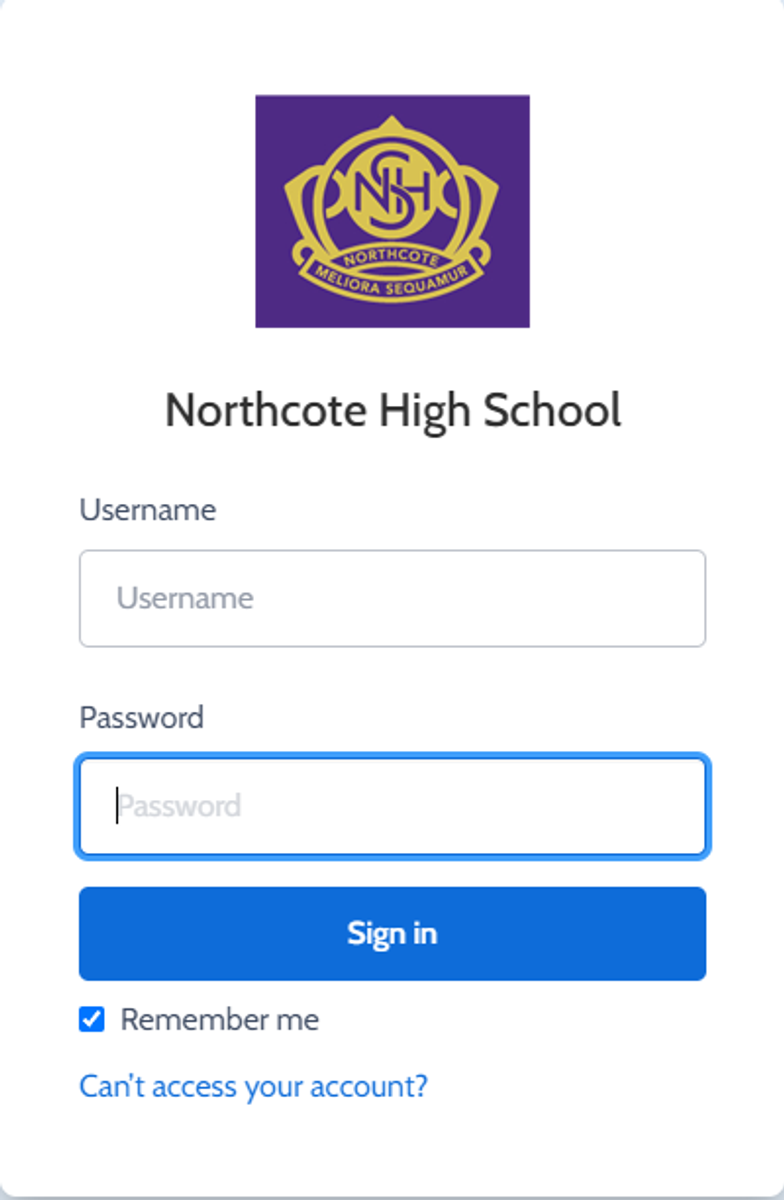
You can reset your password on the front page of the Compass login:  under “can’t access your account details” (see sample below)


Gallery Image


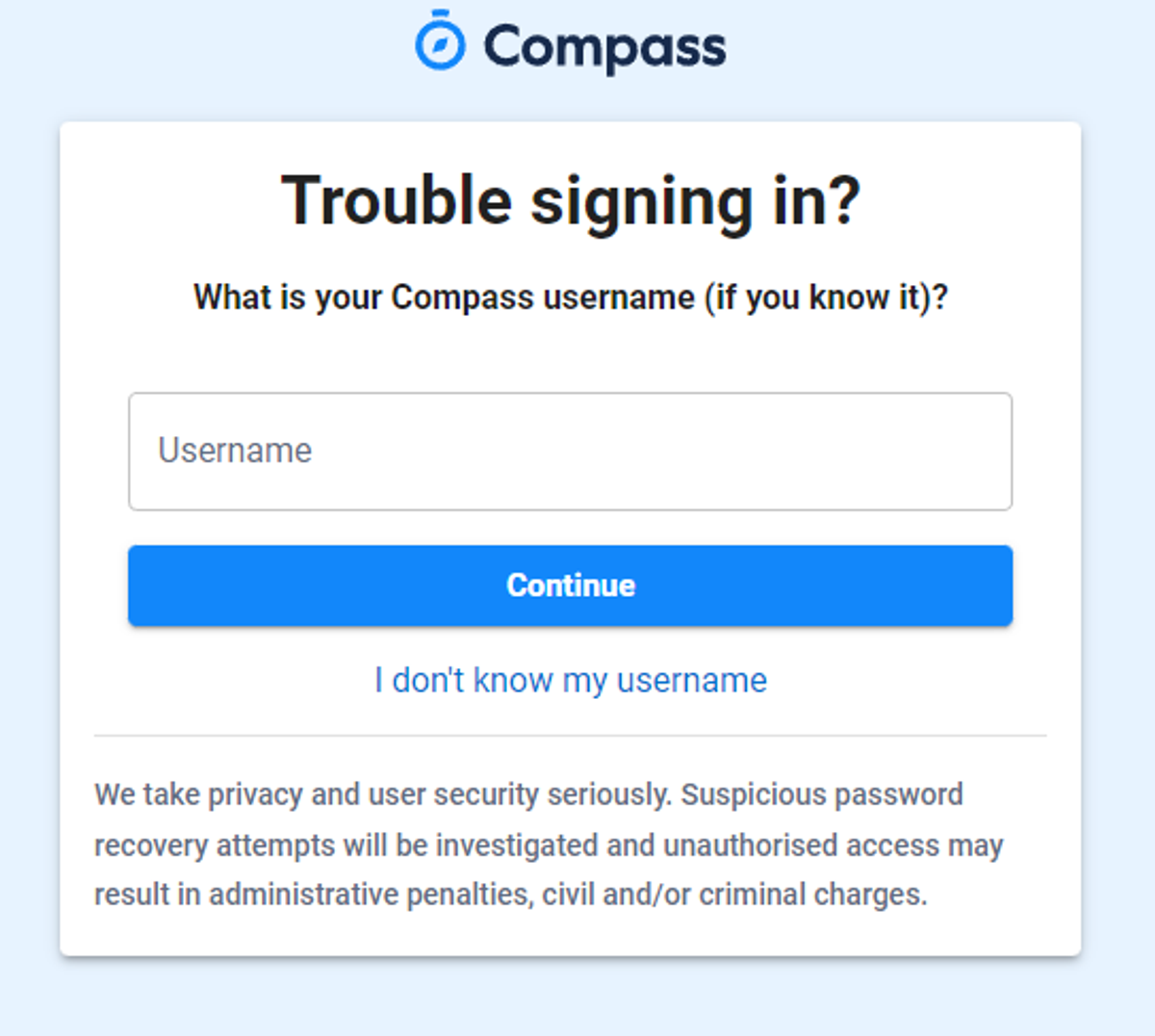
Enter your Compass username. (see example below)
 

Gallery Image


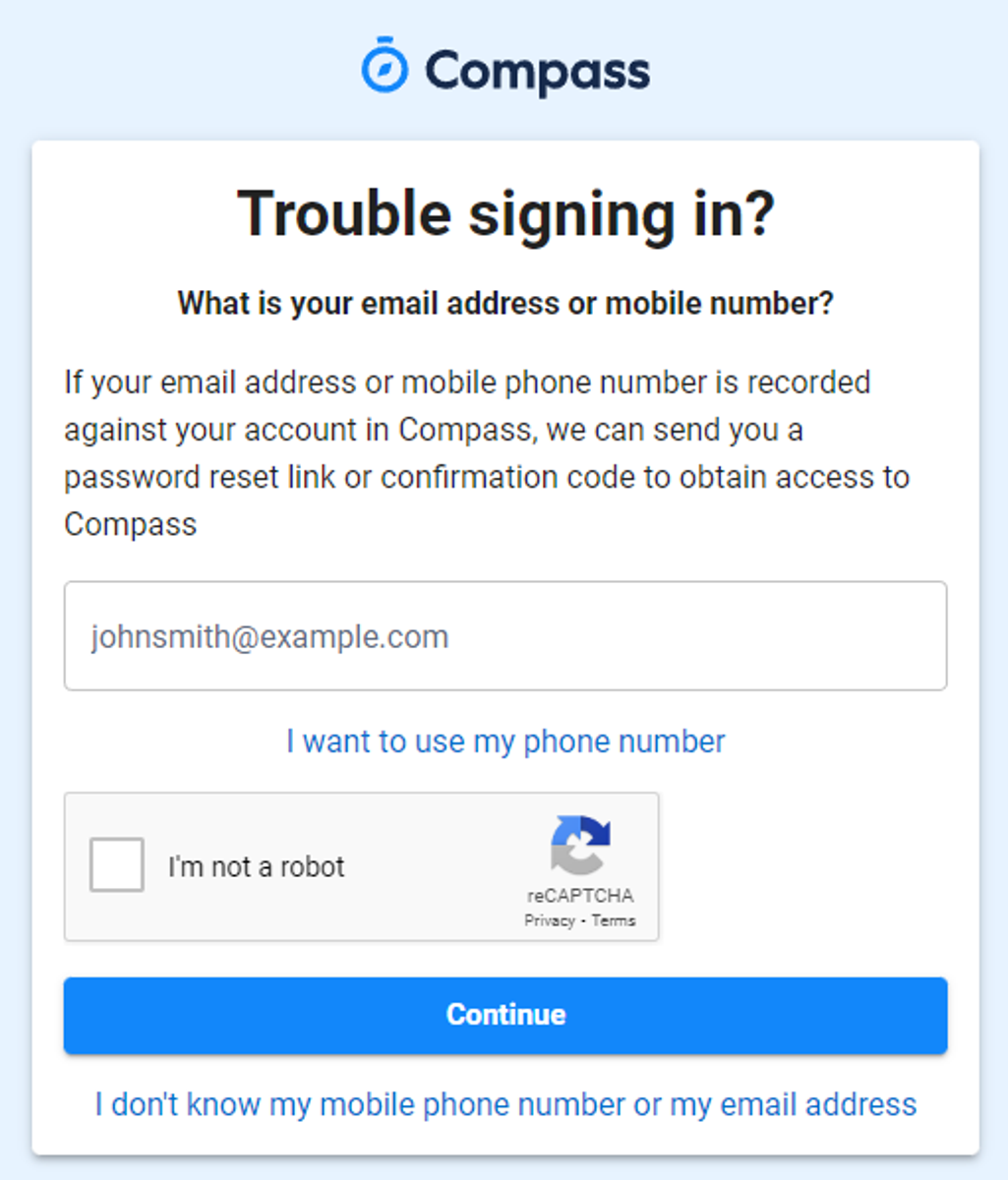
The next page will ask for your email ensure all relevant areas are completed. 


DO NOT USE MOBILE OPTION

(Families that live at the same address only: Password reset can only be sent to parent #1 recorded details and will need to match the details that are currently recorded against your Compass account) 


(see example below)


Gallery Image


An email will be sent to you with a link to change your password.


(DO NOT uses a previously entered password) See information below on how to choose a password.
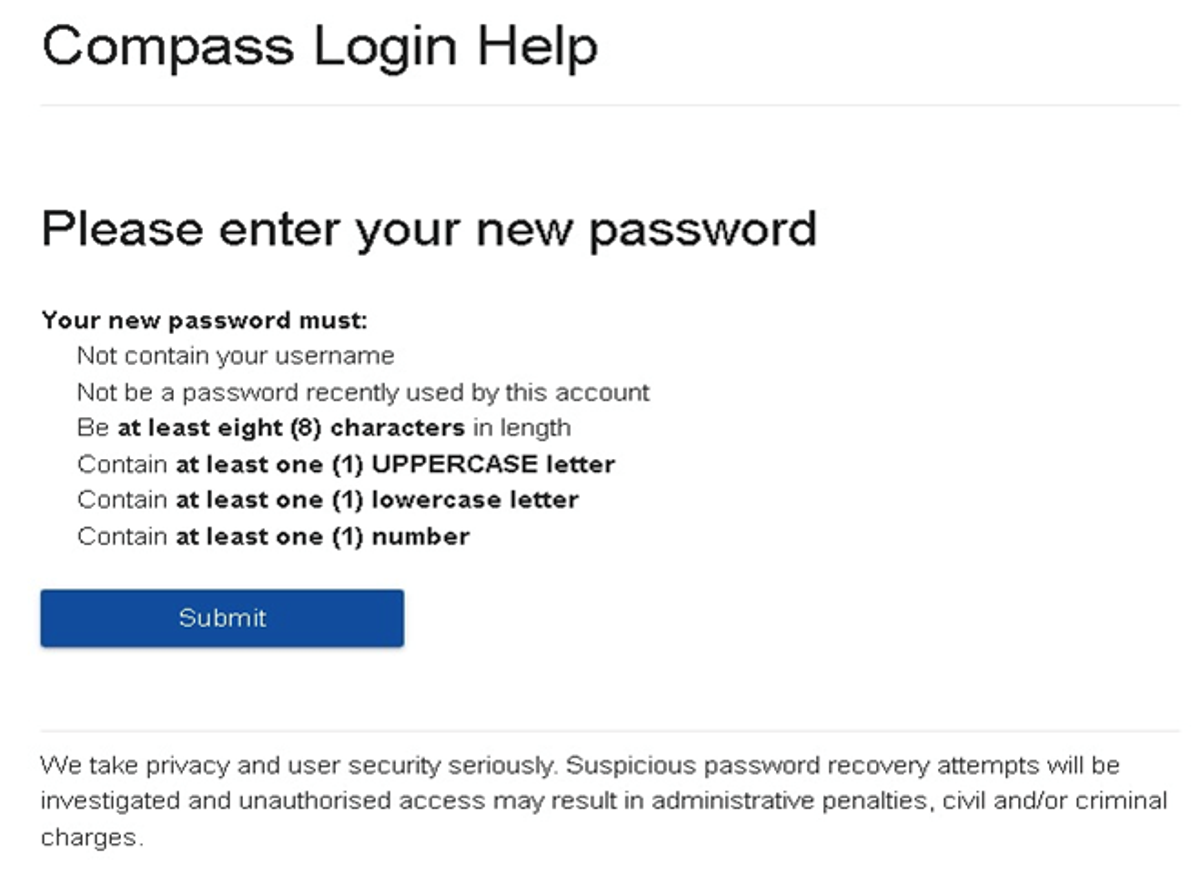
 

Gallery Image


. 


Top tips

  • Compass username will be the first three letter of your surname (in capital letters) followed by 4 issued numbers
  • Email/phone number used must match parent captured details currently held in Compass.
    • Families that live together share parent # 1 user name and password (reset to parent #1 recorded details held in Compass)
    • Families who live separately will each have their own username and password
  • You must use a new password each time you reset; Compass will reject any previously used password. (if it rejects, it will ask you to contact the school, if you refresh the page it will let you try again).
  • It is best to reset your password on a Computer rather than a phone.


This information can also be accessed on our website under Communicating with Families: How to reset Compass Password