Page 0 Banner Photo
Cover Page
For your diary  Banner Photo
For your diary Key Dates
From the Principal  Banner Photo
From the Principal
Year 12 Formal Banner Photo
Year 12 Formal Year 12 Captains reflect on the night of nights
Outdoor and Environmental Studies Banner Photo
Outdoor and Environmental Studies Mount Stirling ski camp adventure
International Students Banner Photo
International Students Celebrating the Year 12 Formal 
Become a Homestay family Banner Photo
Become a Homestay family Homestay Opportunities
Student Services : Wellbeing  Banner Photo
Student Services : Wellbeing NCASA incursion : supporting our Respectful Relationships programs, Celebrating “ Wear it Purple Day” next week., Sabatinie and Megan go to the Year 12 Formal!
Sports News Banner Photo
Sports News Year 8 Girls Soccer , Year 8 Table Tennis , Intermediate Division Basketball ,  Junior Basketball Selection Tournament ,  Coming Up : 
Victorian School Music Festival Banner Photo
Victorian School Music Festival Medal-winning ensemble performances
Student Services : Careers  Banner Photo
Student Services : Careers Year 9 Career Workshops , Year 9 Morrisby Program, Year 12 planning for work and study 
Total Wellbeing Banner Photo
Total Wellbeing Mindfulness and Art Therapy by the Merri Creek
Impact of AI : Free Webinar Banner Photo
Impact of AI : Free Webinar AI Deepfakes: What Every Parent Needs to Know
From the Library  Banner Photo
From the Library The Library is on the move!, Prize winning books announced
Comedy Fundraiser Banner Photo
Comedy Fundraiser Line-up announced : book now!
2024 School Opinion Survey Banner Photo
2024 School Opinion Survey Parents, Caregivers and Guardians, tell us what you think
Parent Teacher Student Conversations - Bookings now open Banner Photo
Parent Teacher Student Conversations - Bookings now open Parent Teacher Student Conferences (PTSC)
Financial Assistance  Banner Photo
Financial Assistance NHS Empower Fund:  Helping Students in need
Top tips : Resetting your Compass password Banner Photo
Top tips : Resetting your Compass password A guide for parents and carers, Resetting your Compass Password
Community Notices  Banner Photo
Community Notices Play cricket this summer with Edinburgh CC, Free art workshop on Sat 24 August , Free Korean language lessons for students years 7-12, Shape the future of Reservoir Leisure Centre, Meet up for Young People with Type 1 Diabetes , A personal Autism journey presentation, Victorian Institute of Sport Open Day 2 October, Join Feminist Agenda Book Club at Reservoir Library, Occupational Therapy as a career , Opportunity to perform at Merri Creek Fete , Asia street food festival by the Yarra
View archive
Published by
Northcote High School
St. Georges Rd, Northcote, Victoria, 3070, AUhttp://www.nhs.vic.edu.au9488 2300
Banner Photo

Top tips : Resetting your Compass password


A guide for parents and carers


We have consolidated a range of compass help guides on a page on the Northcote High School website. Check out the Compass help page for information on:

  • Adding an attendance note
  • SMS attendance alerts
  • How to email staff
  • Confirming your Compass details


Resetting your Compass Password


A quick refresher for all families, this information is also on the Compass Help page of our website. 


Follow these easy steps if you need to reset your Compass password at any time.

 

You can reset your password on the front page of the Compass login:  under “can’t access your account details” (see sample below)
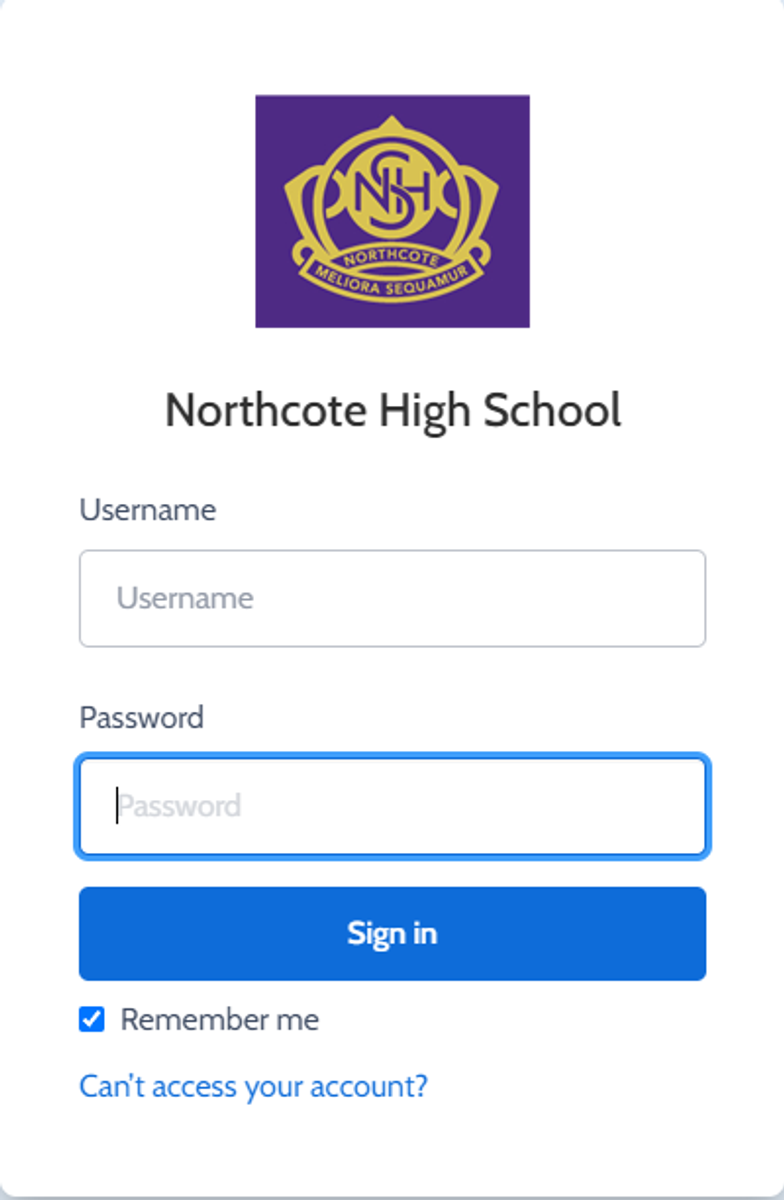


Gallery Image


Enter your Compass username. (see example below)
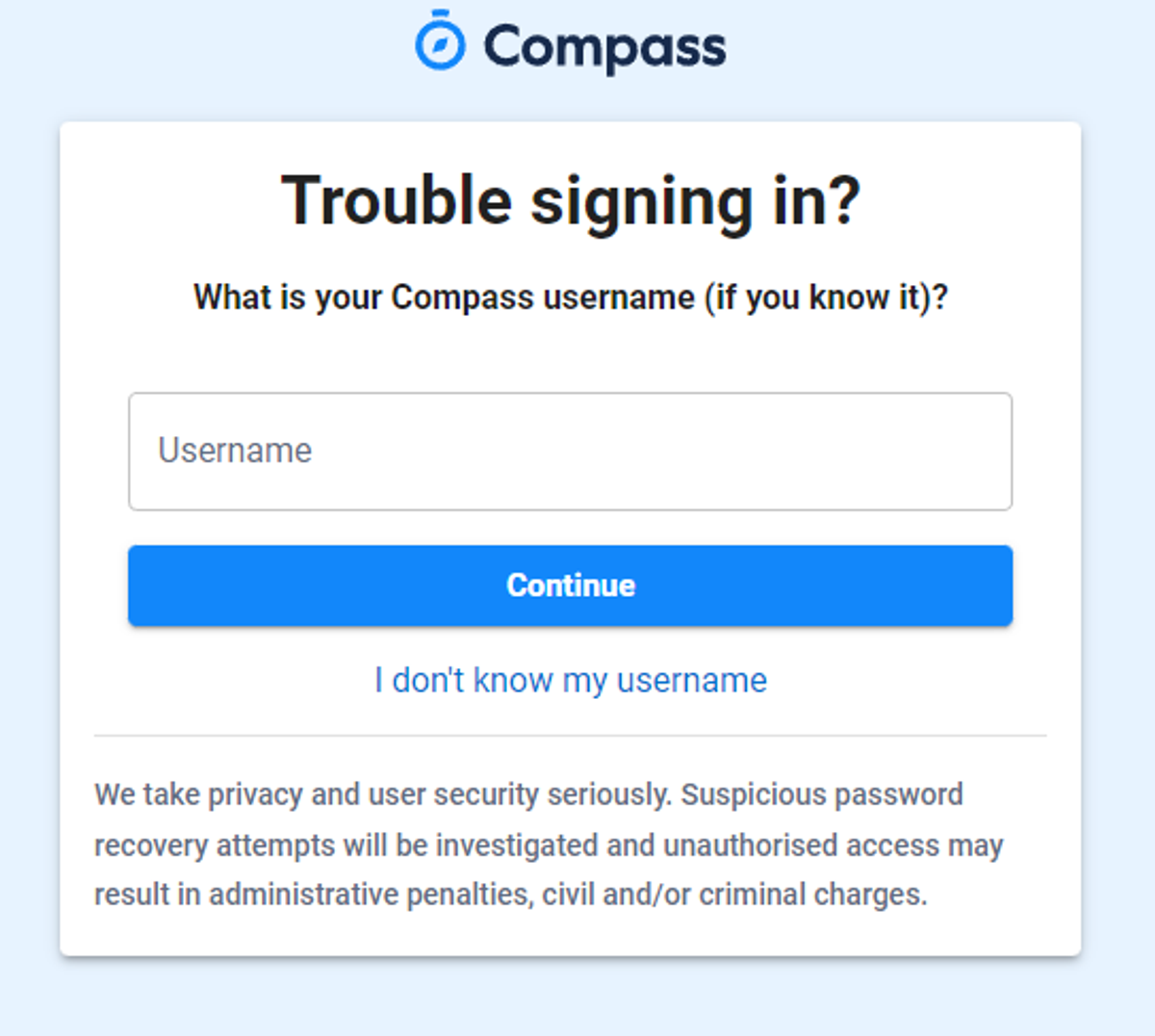
 

Gallery Image


The next page will ask for your email ensure all relevant areas are completed. 


DO NOT USE MOBILE OPTION

(Families that live at the same address only: Password reset can only be sent to parent #1 recorded details and will need to match the details that are currently recorded against your Compass account) 


(see example below)
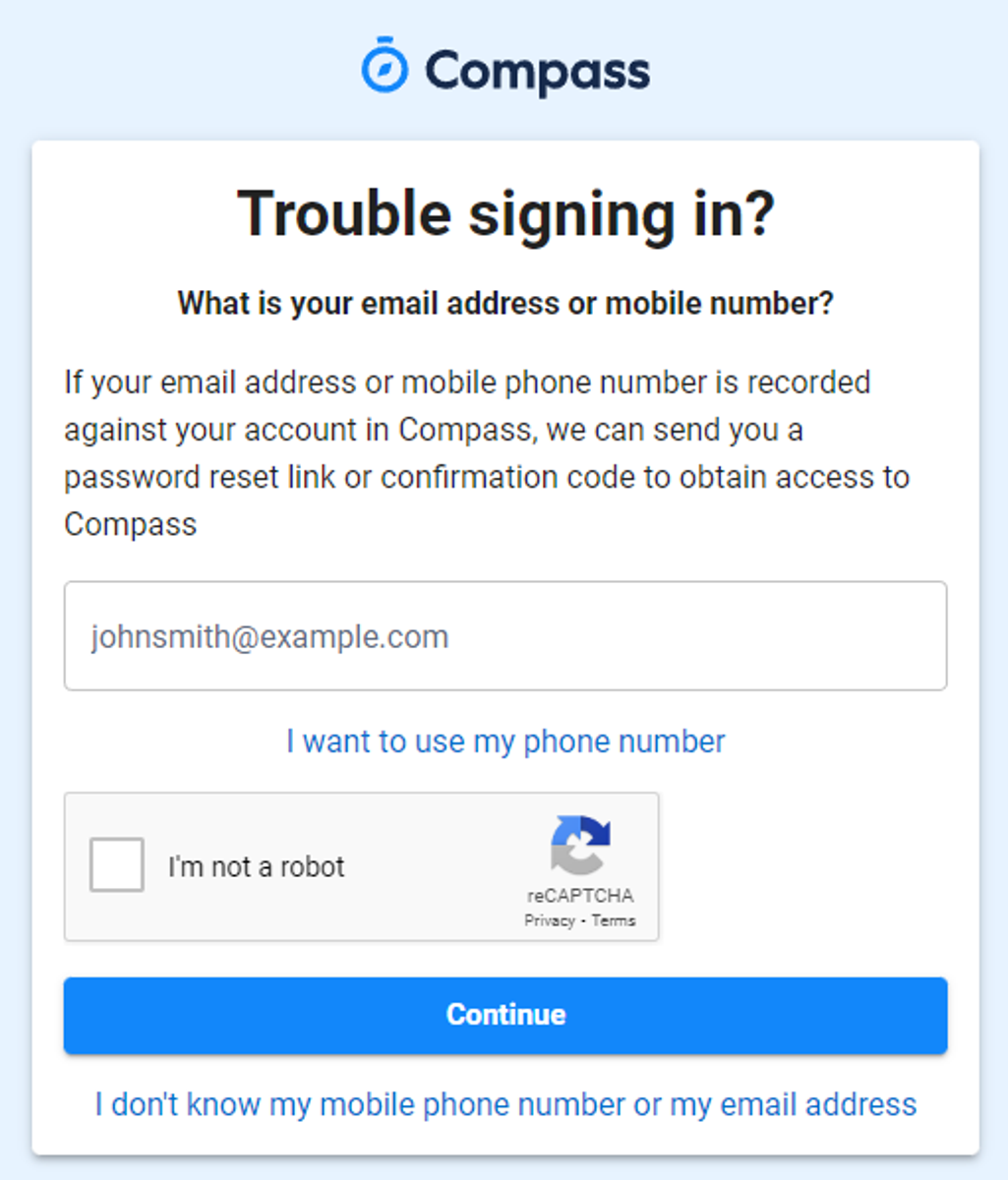


Gallery Image


An email will be sent to you with a link to change your password.


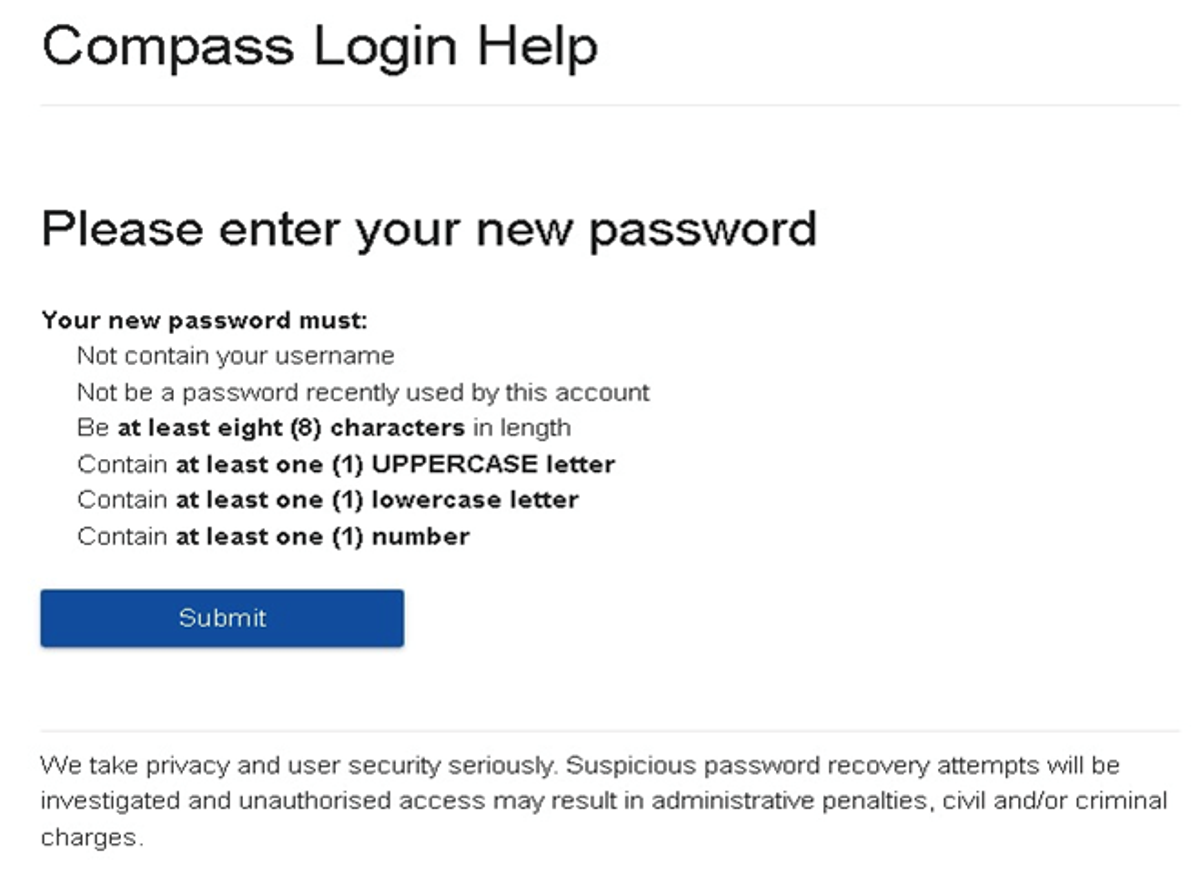
(DO NOT uses a previously entered password) See information below on how to choose a password.
 

Gallery Image


. 


Top tips

  • Compass username will be the first three letter of your surname (in capital letters) followed by 4 issued numbers
  • Email/phone number used must match parent captured details currently held in Compass.
    • Families that live together share parent # 1 user name and password (reset to parent #1 recorded details held in Compass)
    • Families who live separately will each have their own username and password
  • You must use a new password each time you reset; Compass will reject any previously used password. (if it rejects, it will ask you to contact the school, if you refresh the page it will let you try again).
  • It is best to reset your password on a Computer rather than a phone.


This information can also be accessed on our website under Communicating with Families: How to reset Compass Password