Page 0 Banner Photo
Cover Page
For your diary  Banner Photo
For your diary Key Dates
From the Principal  Banner Photo
From the Principal
Outdoor and Environmental Studies Alpine Camp Banner Photo
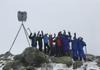
Outdoor and Environmental Studies Alpine Camp Camping in the snow at Mount Stirling
Year 12 Studio Art Banner Photo
Year 12 Studio Art Final Folio Submission
International Students Banner Photo
International Students Immersion in nature at the Melbourne Museum
Student Services : Wellbeing  Banner Photo
Student Services : Wellbeing R U OK Day - Recap, Dental Van- Smile Squad, Art Space- Group, Mental Health Week- 9-17th October, Support over the Holidays
VCE Philosophy Banner Photo
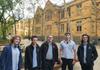
VCE Philosophy Philosophy evening at University of Melbourne
Food Studies Banner Photo
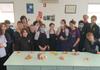
Food Studies Applying our learning to decrease food waste
Total Wellbeing  Banner Photo
Total Wellbeing Getting out of our comfort zone on the ice, Critical Thinking Scienceworks Summit
From the Library  Banner Photo
From the Library Holiday reads and viewing, Wear it purple and R U OK day activities, Book Bingo
Visual Art showcase Banner Photo
Visual Art showcase Celebration of students' artworks : 12 October, The Knowledge Tree
Year 7 Cubist Study Banner Photo
Year 7 Cubist Study Still Life colour explosion
Sports Report  Banner Photo
Sports Report Regional Athletics, Senior Girls State Soccer , Intermediate Girls State Soccer, Year 8 Basketball, Year 8 Table Tennis, Year 7 Basketball, Year 8 Divisional Hockey
ACMI Excursion Banner Photo
ACMI Excursion Experimenting with filming and editing techniques
Student Services : Careers  Banner Photo
Student Services : Careers Year 12  - Final days for VTAC application, Morrisby assessments this week, Universities are open over the September break
Student Leadership Congress Banner Photo
Student Leadership Congress
Year 10 Art of Revolution Banner Photo
Year 10 Art of Revolution Stencilled artworks addressing contemporary issues
Precious Plastics Banner Photo
Precious Plastics Monash University excursion
Comedy Night Success Banner Photo
Comedy Night Success Big laughs at the Thornbury Theatre
Instrumental Music Program Banner Photo
Instrumental Music Program Winter Concert Series : Contemporary Concert
Just Dance : applications open Banner Photo
Just Dance : applications open Calling all dancers and performers
Financial Assistance  Banner Photo
Financial Assistance NHS Empower Fund:  Helping Students in need
Top tips : Using the Compass help page  Banner Photo

Top tips : Using the Compass help page A guide for parents and carers, Resetting your Compass Password
Community Notices  Banner Photo
Community Notices Darebin Council climate emergency strategy and action plan, Apprenticeship opportunities, Who do we think we are : U3A Melbourne City, Find out more about a career in Occupational Therapy, Darebin Falcons Junior Cricket come and try, Cyber bullying information night , Play Cricket with Edinburgh CC this season, Volunteer at the Melbourne Marathon
View archive
Published by
Northcote High School
St. Georges Rd, Northcote, Victoria, 3070, AUhttp://www.nhs.vic.edu.au9488 2300
Banner Photo

Top tips : Using the Compass help page 

A guide for parents and carers


We have consolidated a range of compass help guides on a page on the Northcote High School website. Check out the Compass help page for information on:

  • How to reset your password
  • Adding an attendance note
  • SMS attendance alerts
  • How to email staff
  • Confirming your Compass details
  • A guide booklet for families

Resetting your Compass Password


A quick refresher for all families, this information is also on the Compass Help page of our website. 


Follow these easy steps if you need to reset your Compass password at any time.


You can reset your password on the front page of the Compass login:  using “can’t access your account?” (see example below)
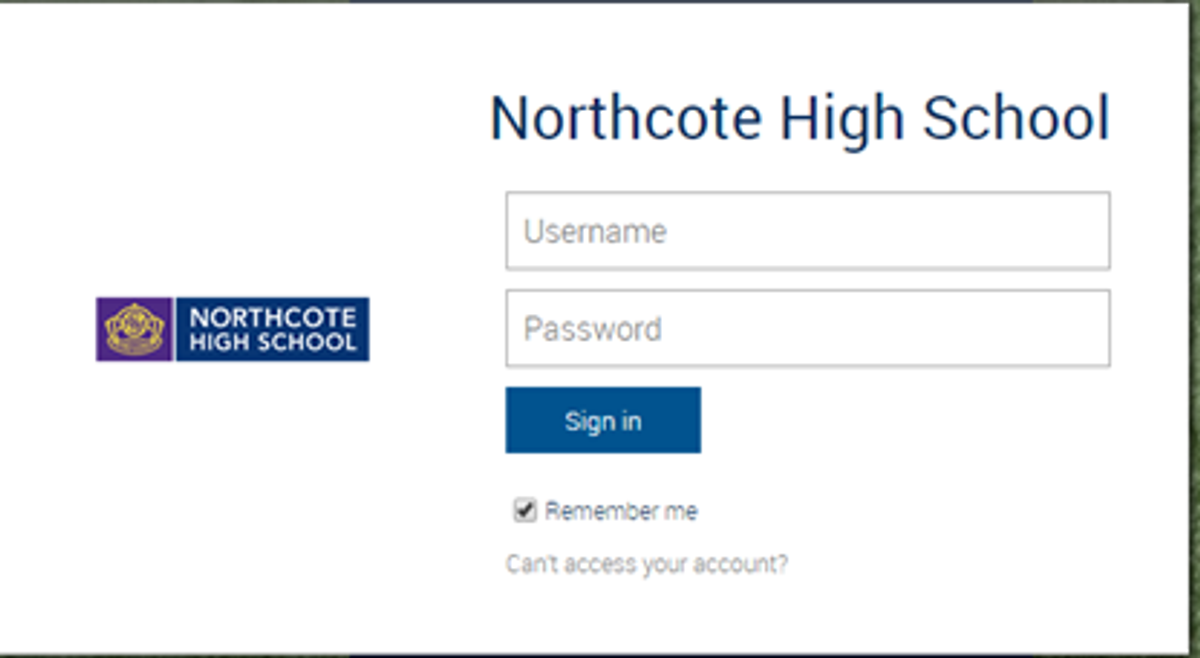
Gallery Image


Enter your Compass username. (see example below)
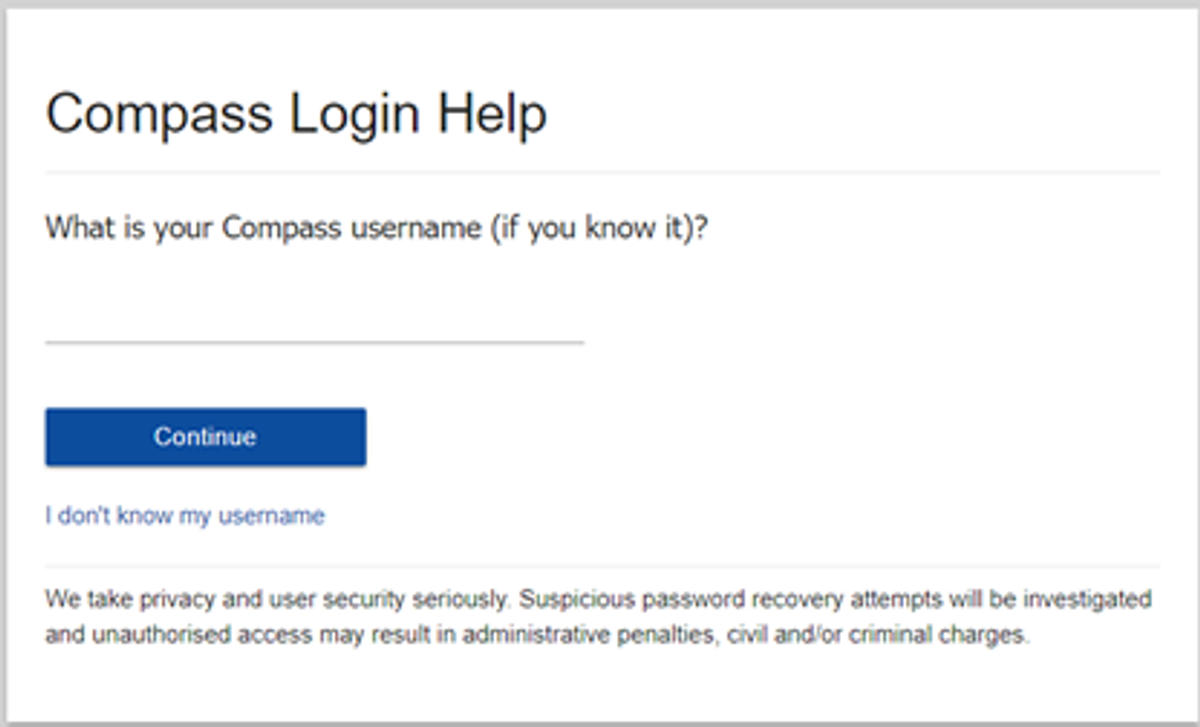
 

Gallery Image


The next page will ask for either your email/or phone number etc, ensure all relevant areas are completed.


Important Note: For families that live at the same address the password reset can only be sent to parent #1 recorded details and will need to match the details that are currently recorded against your Compass account. 
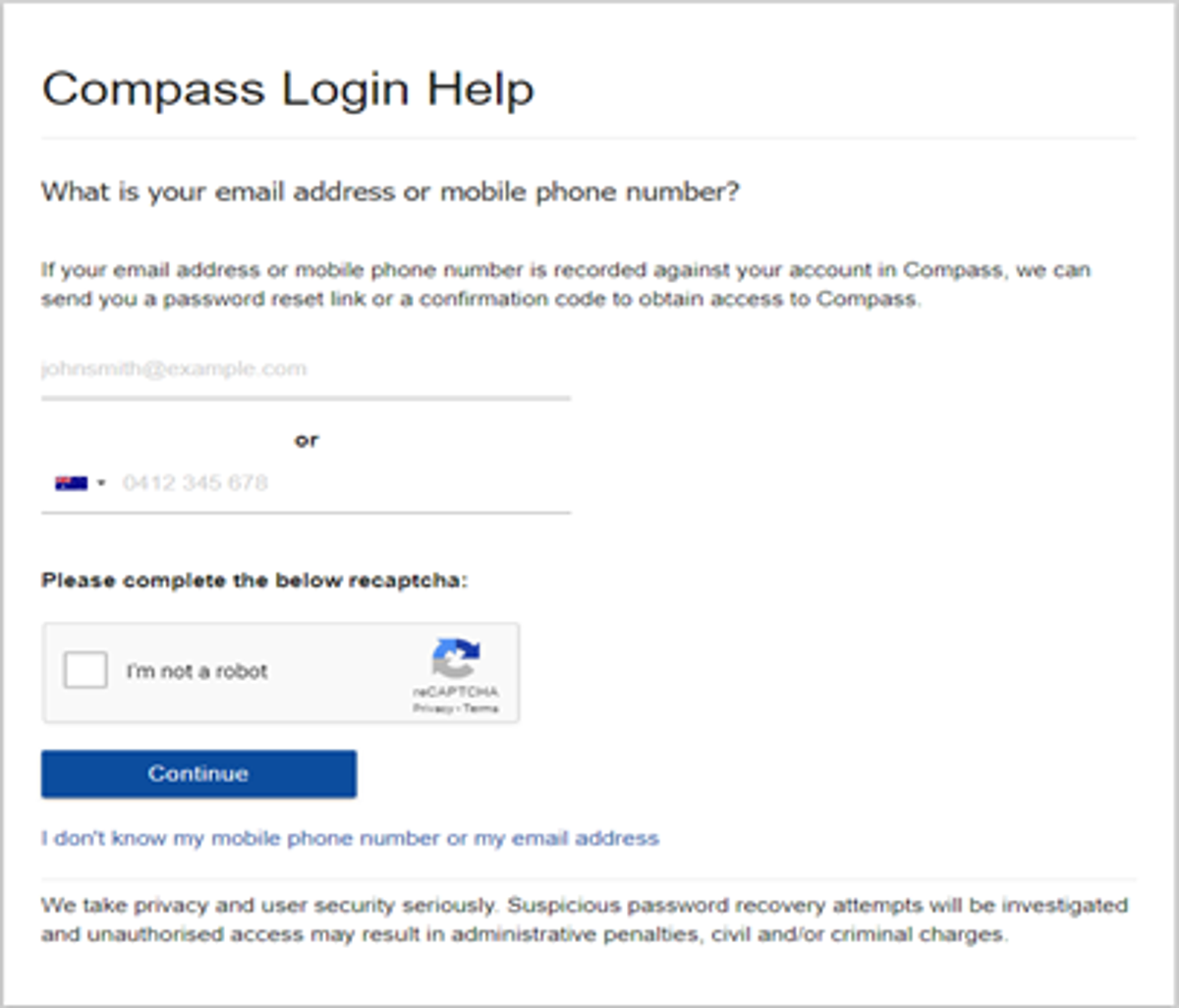
 

Gallery Image


An email will be sent to you with a link to change your password. It is important that you DO NOT use a previously entered password. 
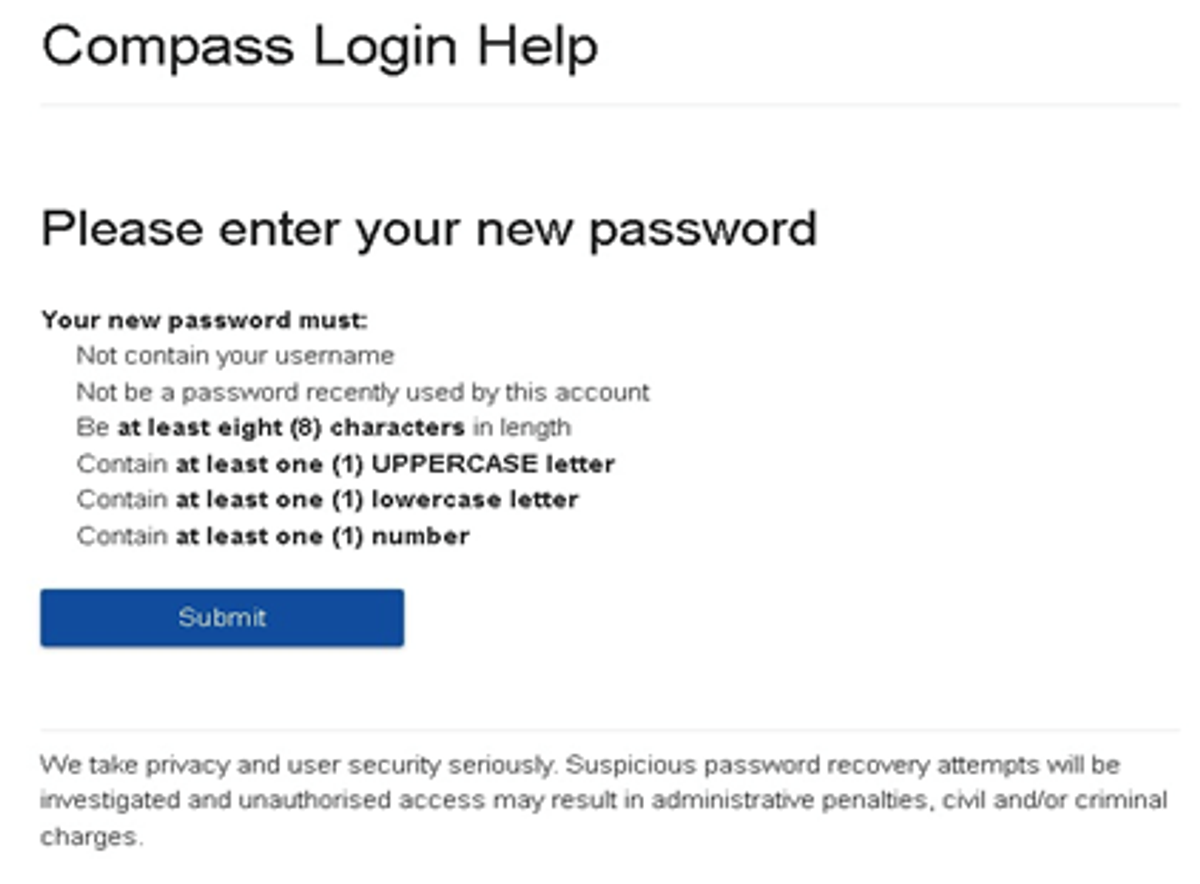
 

Gallery Image


What to do if you see the following message from Compass when trying to reset your password:

Please contact the school's general office.
Unfortunately, we are unable to recover the password for this account online. Please contact your school for further assistance.


If you see this message, it means you missed one of the steps and you are now are stuck in a loop. 


If this happens, please click on this Compass link, also accessible via our website homepage, to get to a fresh Compass page and restart the process.


Top tips

  • Compass username will be the first three letter of your surname (in capital letters) followed by 4 issued numbers
  • Email/phone number used must match parent captured details currently held in Compass.
    • Families that live together share parent # 1 user name and password (reset to parent #1 recorded details held in Compass)
    • Families who live separately will each have their own username and password
  • You must use a new password each time you reset; Compass will reject any previously used password. (if it rejects, it will ask you to contact the school, if you refresh the page it will let you try again).
  • It is best to reset your password on a Computer rather than a phone.


This information can also be accessed on our website under Communicating with Families: How to reset Compass Password