Cyber Safety

































 Girton Grammar School

We often receive questions from parents about how best to tackle parental controls on student devices. Please find below some step by step guides that may be useful for parents, especially over the holidays.
How to set up Screen Time on your child’s school iPad
Article From: Internet Safe Education

Like it or not technology is an everyday part of the learning journey for our primary school-aged children. The iPad is the interactive learning tool for the digital age and the device of choice for many schools. Now beyond working out how to childproof said iPad if dropped off the grade 4 second-story balcony or if there is an accidental drink bottle leakage, their online safety outside of your home is something that weighs heavily on a lot of parents.
In my experience, most schools will have a responsible technology use agreement that the children and parents sign at the beginning of the school year but how do know where they are and what they are up to on the journey to and from school.
To ease your mind, we have put together a little walk through the parental control setup and capabilities of Apple’s Screen Time. Screen Time will allow you to control their usage limits, what apps they can and can’t access, who they can communicate with and at what times and what content they have access to.
There are two ways you can set up Screen Time either from your Apple iPhone or directly on your child’s iPad.
Set up on your child’s iPad
- Go to Settings then select Screen Time
- Tap Continue
- This is my device, or This is My Child’s device
- Once it is turned on you will see a report and the five Screen Time controls options
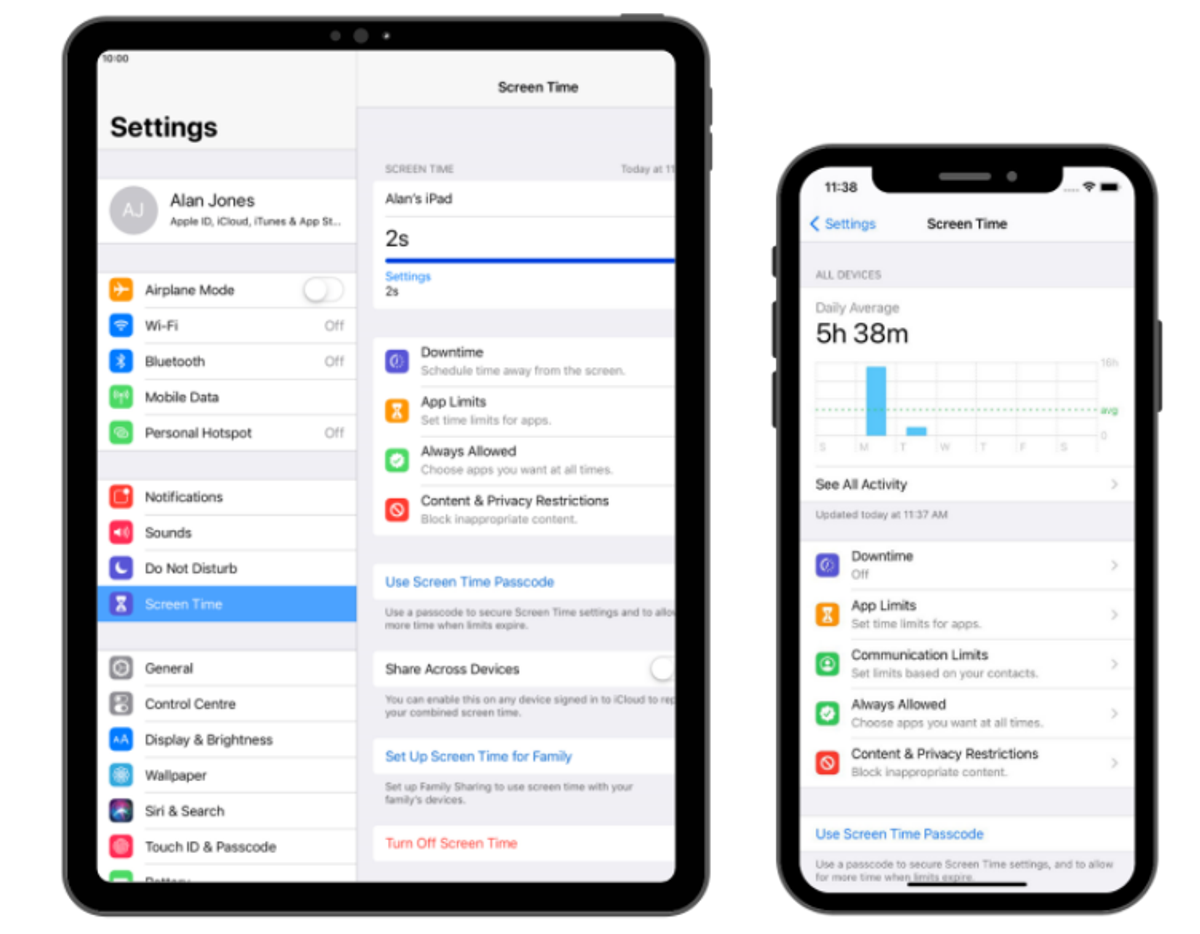
Downtime
Allows you to schedule time when the iPad cannot be used which is useful for device-free time overnight. Or on weekends to set there allocated screentime for the day.
App Limits
This is perfect for setting limits on particular apps. Setting limits on social media or gaming apps.
Communication Limits
You can set times when your child can be contacted by phone, FaceTime or message or who they can hear from. For example, during the school week they can make contact with their family members but not their friends and then on weekends you can set specific contacts they can have access to.
Always Allow
You may what your child to be able to access all the time. By default phone, messages, FaceTime, and Maps can be accessed but you can remove them from Always Allow.
Content and Privacy Restrictions
This is where you can be really specific about what content you want your children to see. You can limit types of music, tv shows, multiplayer games, the ability to add friends, age restrictions on apps. It is very comprehensive and inclusive of all apps and programs available on iPad or iPhone.
Set up from your iPhone
- Go to settings then select your profile at the top
- Tap on Family Sharing
- Tap on + Add Member
- Select Create an Account for a Child NOTE: Your child will need to enter their email address and their DOB to set up family sharing. Apple uses this information to link it to their device
- It will ask you to attach a credit card to the child’s family sharing account which can be the same as the one attached to your Apple account
- Once successfully set up your child’s name will show under – Family Sharing. From here you can monitor and control Screen Time from your iPhone and won’t need to physically update on your child’s iPad. You can also access your child’s Screen Time profile through the Screen Time tab on the Settings menu
Important tips for iPad Learning
- Remember to set a Screen Time password so that only you can make changes to the settings
- Make sure you turn on the Ask to Buy function so that purchases have to be approved by you. Go to Family Sharing, select your child, and then activate the Ask to Buy button. You will receive alerts to your phone for approval
- Get to know the apps they will be using and how it supports their learning
- When restricting by age make sure all the Apps requested by your school for learning aren’t out of the range. For example, if your child is in grade 4 making them 8 or 9 years old and you put an age restriction of apps with a rating of up to 9 years old they may be accessing apps that have a higher age rating which will mean they can’t use the app in class when they go to access it. This is a simple fix
- Also ask their teacher about what website’s they may be using regularly. Under the Content Restrictions tab you can add them to the Web Content Allowed websites. If the list is too long there is a Limit Adult Websites option