
Mental Health in Primary Schools (MHiPS)
Amy Carter
Mental Health in Primary Schools (MHiPS)
Amy Carter

As mentioned in last weeks newsletter, please find below a 'how to' guide on how to access and enter your childs attendance data on Compass.
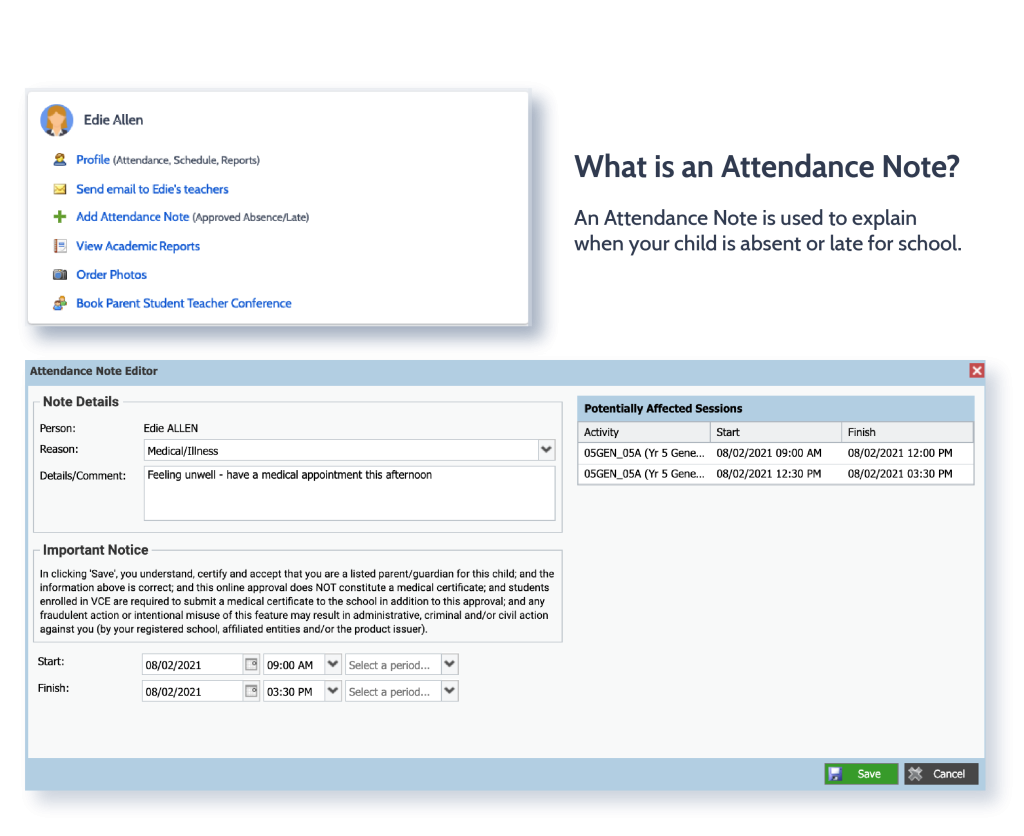
From the Compass browser home screen (or from your child’s profile), click the 'Add Attendance Note' item.
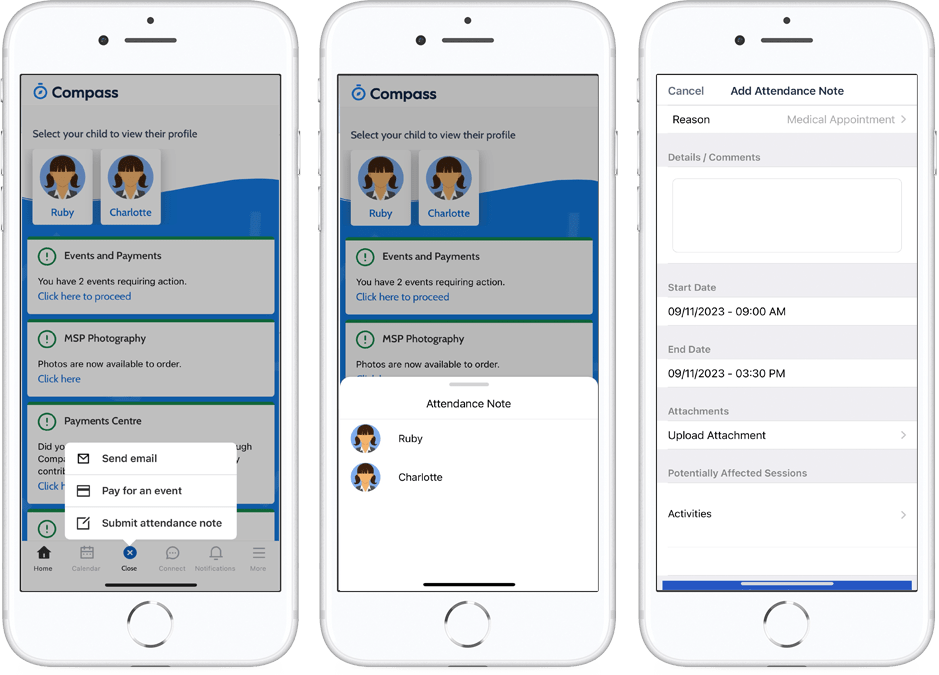
From the homepage, click on the blue shortcuts button from the bottom taskbar
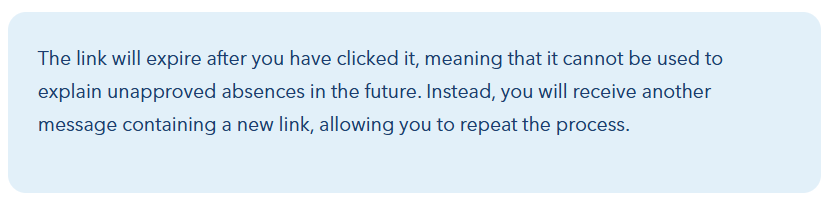
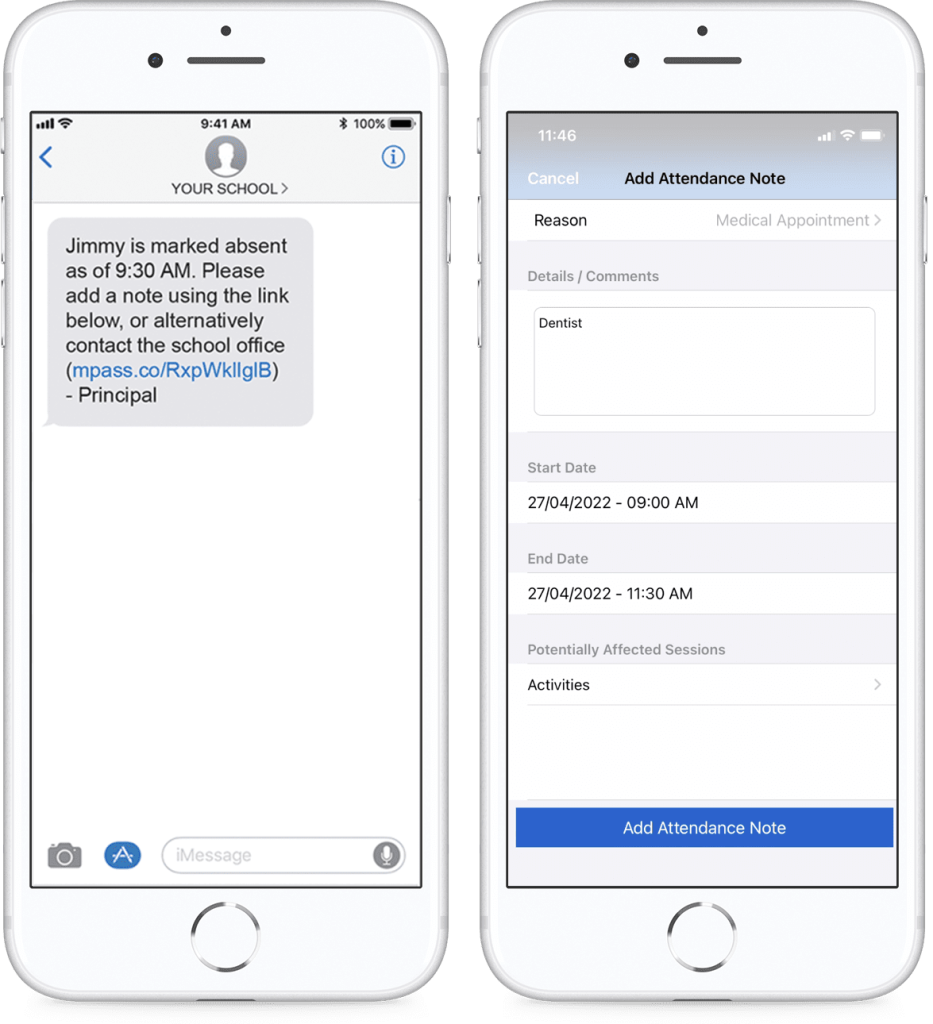
If your child is marked as absent without prior approval you will receive a message containing a link. When you follow the link, you will have the opportunity to explain the absence.
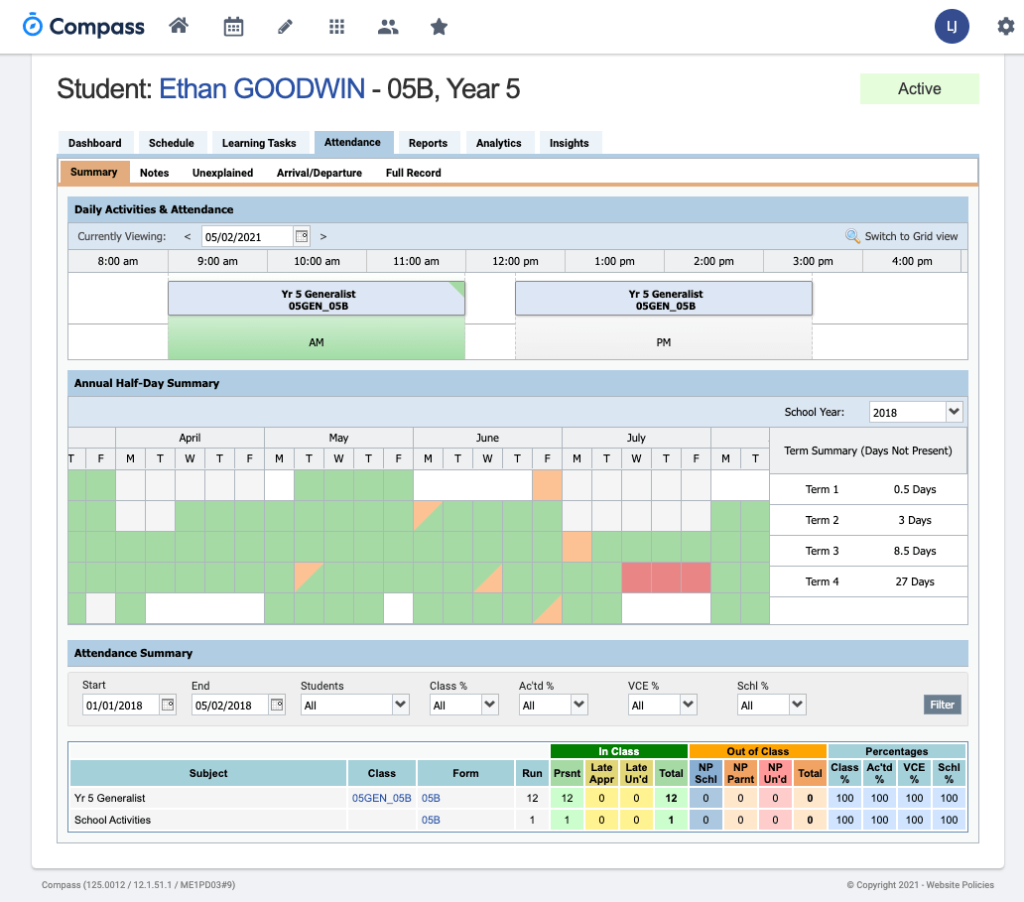
Using Compass you can view up-to-the-minute attendance information for your child (see visual below).
Notes
This sub-tab provides a list of attendance explanations for your child. From this tab you can also add absence notes (both past and future).
Explain Specific Absences
This sub-tab provides a list of all unexplained lates and absences from class. From this tab you can click to approve specific absences.
Daily Snapshot
Get a live snapshot of your child's whereabouts for the day inc. absences, custom classes and events, sickbay entries and early departures.
Attendance 'half day' Summary
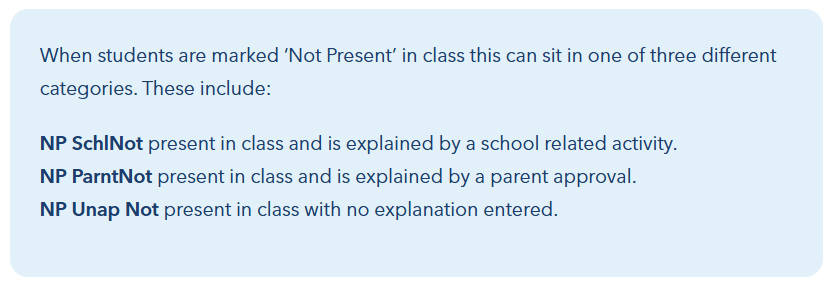
Includes a summary of attendance. For full details about a specific absence, click on the grid. Please note:
Please remember, regular school attendance is an important part of supporting your child’s learning, wellbeing and sense of connection to school. We understand that children may be absent for a range of reasons, including illness, appointments and family circumstances. Keeping your child’s attendance information up to date helps us understand their circumstances and ensure we can provide the appropriate support.
If you have any questions about using Compass, entering an absence, or about circumstances affecting your child’s attendance, please reach out to the school's Wellbeing Team. We are here to support you and your child and are always happy to have a conversation about how we can help.
Take care and have a lovely weekend.