
Community Relations

Toddle
Please find below instructions for accessing your parent account in our new Learning Management System, Toddle.
The most immediate tasks are to:
ensure you can log in on a browser - access Toddle on your computer or tablet
download the Toddle ‘Family’ app - this will also allow you to easily access information on your phone, as well as receive notifications from the school
know how to submit an absence note 'excusal' - this is the best way to let us know if your child is away sick, for an appointment, family matter, etc.
Once you are logged in, we recommend that you explore the:
School calendar - this will always have the most up-to-date information
Timetable - this has your child/ren's fortnightly timetable
Announcements - this is information sent to you by the school.
Messaging: this replaces WhatsApp groups. You will already be in a Year Level group for messaging, and we will build on groups as the year goes on. Such as College sports teams, music ensembles, the musical, class-specific, etc.
Further details will be added to each of your child’s classes as we move into the year.
Pixevety
Throughout the year, we will upload more photos to our secure photo-sharing system, called Pixevety. This valuable software is an excellent tool for our boarding families to monitor what’s happening at school. College has taken on this system because it has industry-leading privacy and protection controls, and we can safely share the thousands of photos we take each year of our College students and community.
Signing up:
You should have received an Image Gallery invite from pixevety, sent to the email address you registered with the school. (Please check your junk mail if you can’t see it.) This email details registering for a personal Pixevety account connected to our Image Gallery.
Important: For access, you need to register to pixevety using the same email address you provided to the school.
If you have signed up, the following tips may help you understand how you can save and use your images.
Through the Image Gallery, you can:
- Easily view and save photos and videos through the pixevety mobile application (available in the Apple and Google App Stores).
- Submit your school photography consent for immediate application to all photos featuring your child(ren) in the school Gallery, at any time.
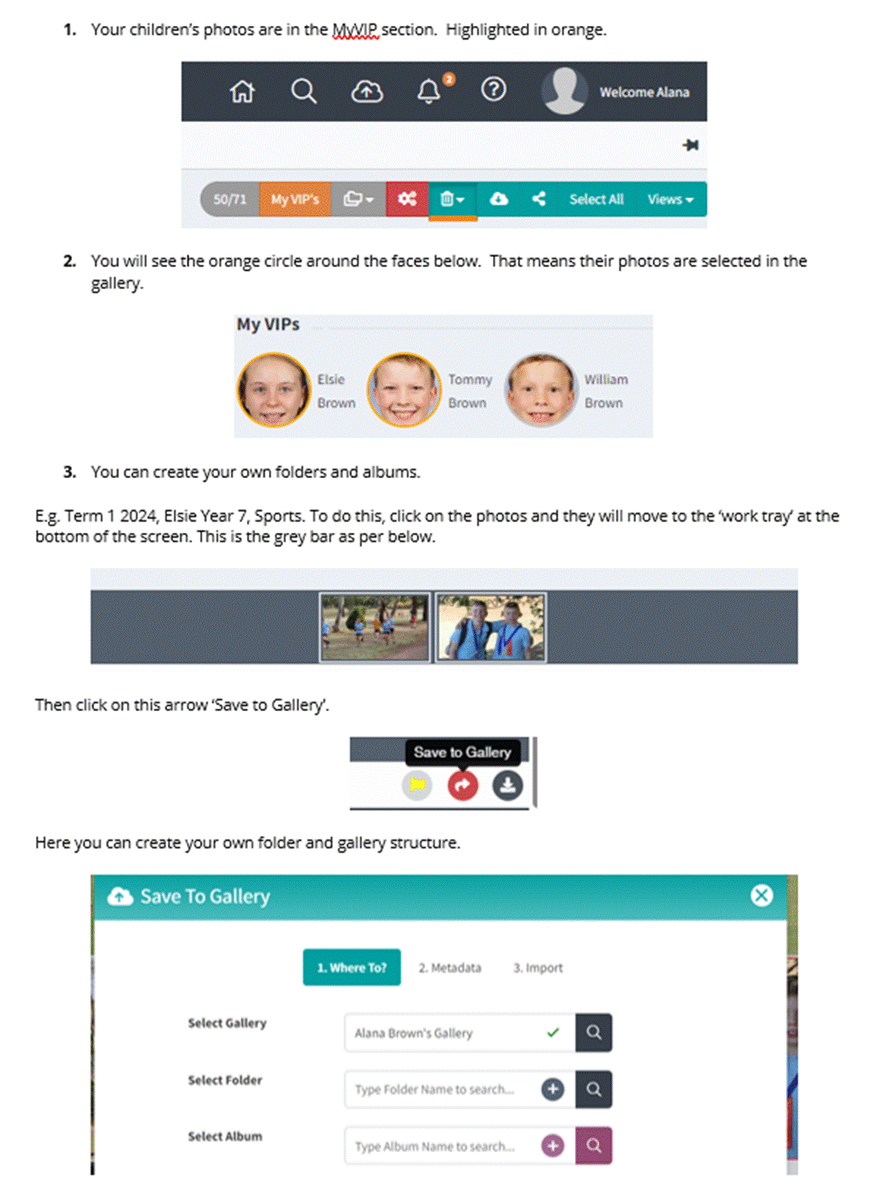
- Access daily life moments at school via an easy-to-view gallery layout and special VIPs area. The VIP area is in yellow in the top right hand corner. This is where all photos of your child(ren) are displayed over time.
- Flag photos of your child/ren that you would like removed or reviewed by the School.
- Download images of your child/ren for prosperity.
Once registered to pixevety, you can access your My Account area to manage your child(rens) photo consent.
Here are a few tips I have learnt along the way with my children:
Questions/Assistance:
If you have any questions about the software, please contact us via Live Chat. You can ask where to find images, how to change consent settings, how to download, etc.
If it is a school-based question, please email its@hamiltoncollege.vic.edu.au.
We hope you enjoy the new Image Gallery, and thank you for supporting our effort to make our school a safer place to enjoy photos.