
School Attendance
Every day counts

School Attendance
Every day counts
Schools are required to ensure all student absences are explained.
Parents should ensure they are using the correct absence code - if you are unsure, please ask office staff for guidance as choosing the wrong code has implications for your child's absence data. Generally the codes parents should use are:
- Parent choice, school unapproved
- Healthcare appointment, offsite
- Medical or Illness
Adding a Note or Approval
Parents can approve their children's unapproved absences or late arrivals. You will receive an alert on your Compass home page letting them know that your child/children was marked late or absent and there is no note/approval on the system for it.
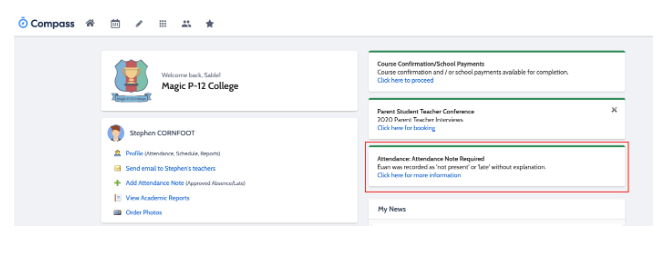
Clicking on this notification will allow you to add a Note or Approval for one or more absences.
To add a note or approval, you can select one or more of the absences listed, add in further details and then select the "Explain with Note/Approval" button. Parents have a modified list of the options that the school has when adding a Note/Approval.
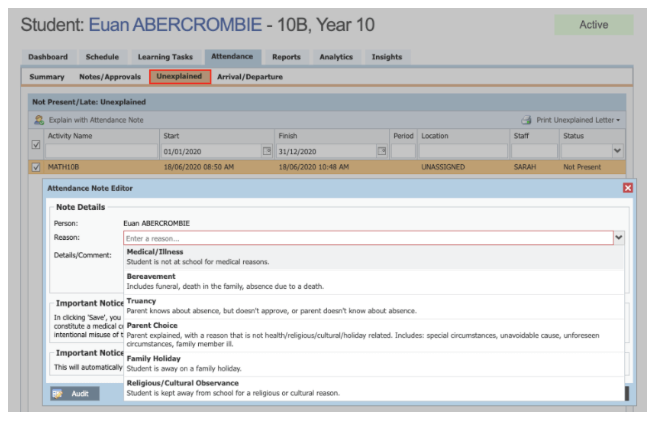
Please ensure the correct coding is used, as your child's attendance record may be compromised if the wrong codes are used. If unsure, please contact office staff for guidance or refer to Issue 3 for explanation of the codes available to parents. Please note that parents also cannot edit their notes or approvals once they've been saved, and will need to contact the school if changes need to be made.
Adding a Note using Compass App on your mobile device
If you are using the Compass app on your mobile device and are having issues explaining an absence, try 'Open in Browser' option or 'Attendance' tile to access the attendance functions (see below)
Step 1: Open the Compass App
Log into the Compass mobile app on your phone.
Step 2: Navigate to Attendance
-> Tap on your child's name/profile
-> Look for the "Attendance" section or tab
Step 3: Find the Unexplained Tab
-> Within the Attendance section, look for a tab called "Explain Specific Absences" or "Unexplained"
-> This tab shows all unexplained lates and absences from class
If you have any issues or concerns regarding the attendance of your child, please speak with Hugh McLaughlin on 9759 6222.