
Digital Learning
Resources to support families and students to be safe and responsible digital citizens

Digital Learning
Resources to support families and students to be safe and responsible digital citizens
Hi everyone,
Welcome back! Semester 2 promises to be another busy fun filled semester here at WPS. Before the school holidays, a group of our students raised a question about “fake news,” and it generated a great discussion among students. As the students debated how best to identify fake news or misinformation, it prompted us to ask our students clarifying questions about how to tell when something is real and when it isn’t online. Pleasingly, our students identified that they are the ones who need to think about what they are seeing and/or reading and to think critically about it.
One of the most important messages we can teach children is not to believe everything they see online. Photos, videos and even news stories can be edited, taken out of context or created using artificial intelligence (AI). Encouraging children to pause and question what they are seeing helps them make safer and more informed decisions before believing or sharing information. Please see below tips from the eSafety Commissioner website to help students and families.
Tips for Families
At Williamstown Primary School, these skills are an important part of developing our Willy Kids values of Respect, Responsibility, Resilience and Learning. We want our students to be thoughtful digital citizens who question information, seek evidence and make responsible choices online. By working together, families and schools can help children develop the confidence to navigate the online world safely and responsibly.
For more practical advice and resources, visit the eSafety Commissioner's Fake News and Misinformation page for parents.
Warm regrads,
Steven Puhar
Attached is the school’s digital statement outlining the online platforms and their privacy policies that the school uses on a day-to-day basis.
As part of the school’s ongoing student education, the school will further enhance key understandings around user privacy, as well as the tools available on selected devices.
This will be embedded within the current school’s eSafety program that currently sees students undertake numerous digital workshops run by both school leadership, classroom teachers and external providers such as the Alannah and Madeline Foundation’s eSmart organisation.
Parents are advised of a key iPad feature to turn tracking off. This feature will be explicitly demonstrated to students within the school-based workshops.
Go to Settings > Privacy > Tracking.
The list shows the apps that requested permission to track you. You can turn permission on or off for any app on the list.
To stop all apps from asking permission to track you, turn off Allow Apps to Request to Track (at the top of the screen).
Below is a link to the schools Digital Learning page. This page contains key information about the school's implementation of the digital technology curriculum as a tool within a blended learning environment.
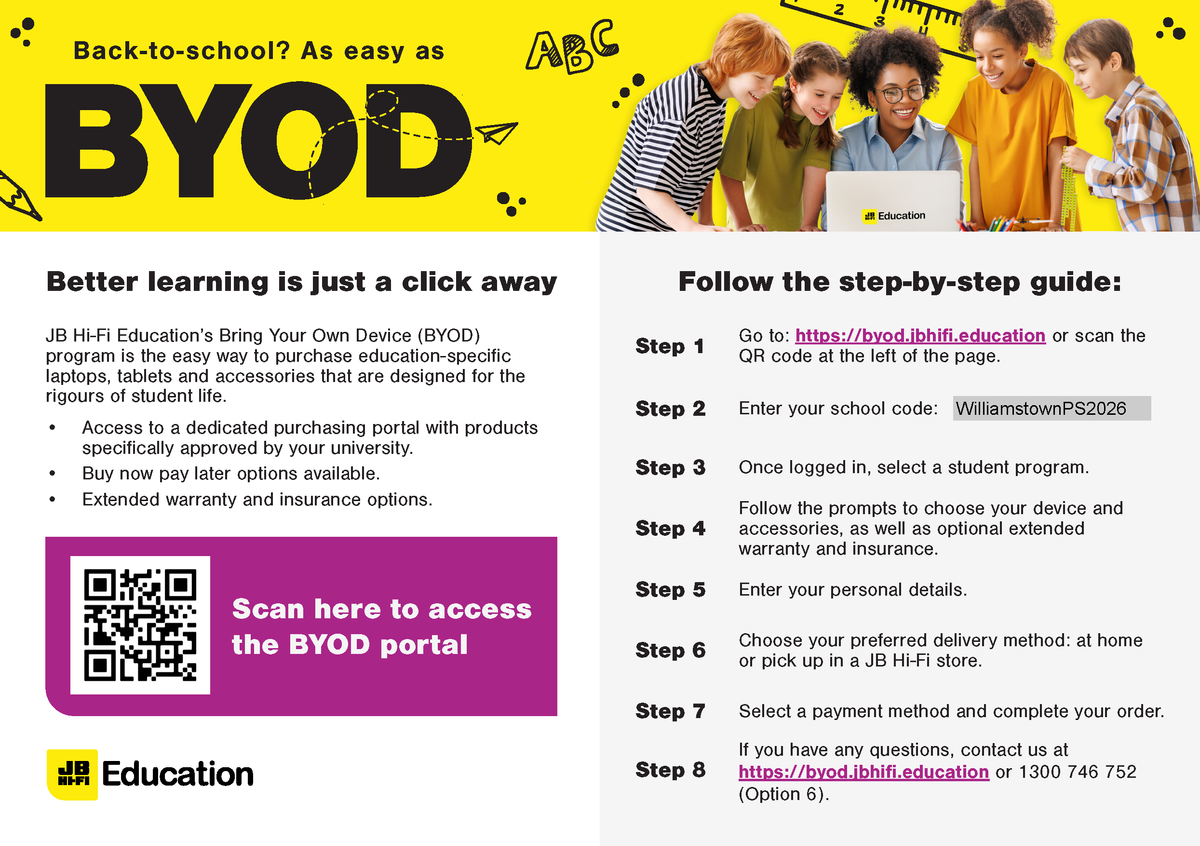
The JB HiFi purchase portal is again available for Willy PS families. The schools recommended minimum specification device is the iPad Gen 9, but the portal does also offer a range of iPad models and accessories. Although students have access to bluetooth keyboards we also recommend the Smart Keyboard or a 3rd party keyboard incorporated within the cover. This accessory will add value to the users experience.
Please also note the change in School Code.
Although the portal is set up through JB HI-FI on behalf of the school, we encourage families to explore all purchase options.
Please find attached documents released by DET.
The first document gives a deeper understanding of the DET licences G Suite for Education, how it is set up and how it differs from the public Google platform.
The second document provides families with supporting resources on how to protect individuals privacy online.
The Department of Education information pack for parents is available from the following link: