
Student Attendance

The school is required to record attendance for every student and every class, including the reason for each absence.
Parents and guardians must update Compass Attendance or advise the college in advance if a student will be leaving the school early for appointments, or for any other reason.
Students cannot leave the school without parent or guardian approval and must not leave the school grounds without signing out at the SEW office/Administration Office, before they leave.
Students arriving late to school or returning from appointments, must also sign in at the SEW Office/Administration Office or the COMPASS Kiosk, before going to class.
An explanatory note on Compass is required. If parents and guardians are unable to update Compass due to technical difficulties, they should telephone the school attendance line,
Ph 9464 0122 and Press ”2” to leave a message or hold for the General Office for assistance.
Entering an Attendance Note
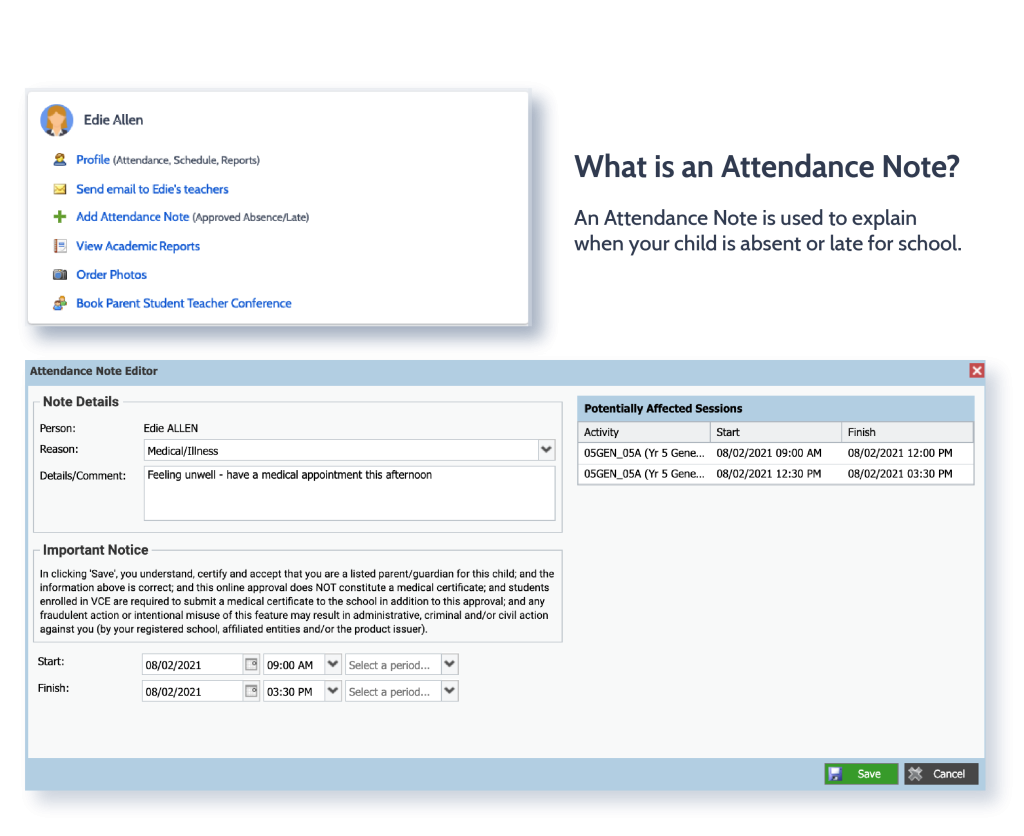
From the Compass home screen (or from your student’s profile), click the Add Attendance Note item.
- 1From the Compass home screen (or from your student’s profile), click the Add Attendance Note item.
- 2From the pop-up window
- Select the reason
- Enter a brief description of the absence
- Select the start and finish time
- Click the ‘Save’ button
Using the Compass App
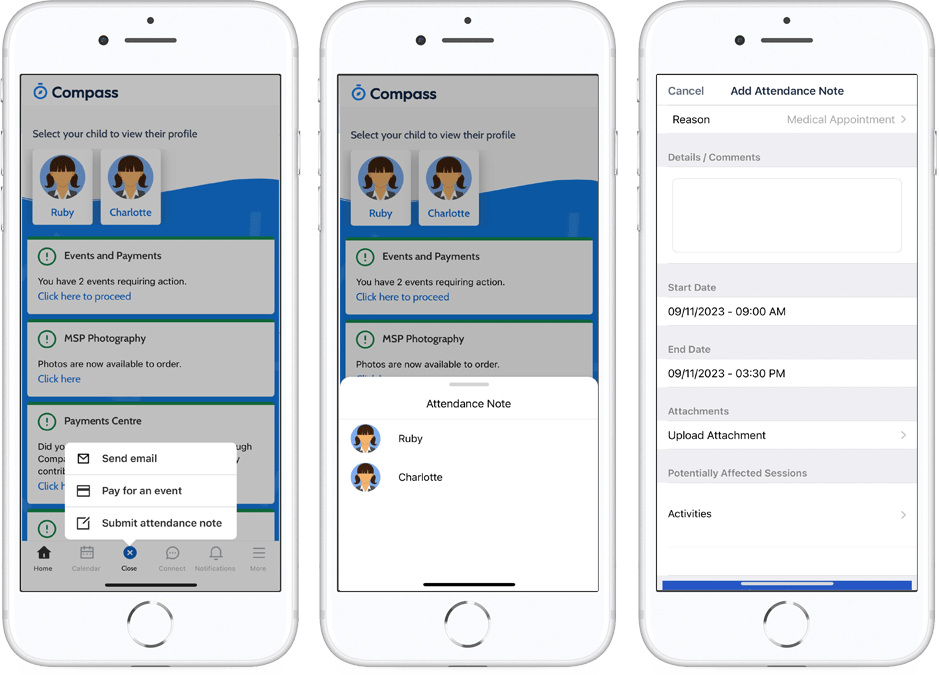
- 1From the homepage, click on the blue shortcuts button from the bottom taskbar
- 2Click on ‘Submit Attendance Note’
- Select the reason
- Enter a brief description of the absence
- Select the start and finish time
- Click the ‘Save’ button
Where possible, attendance notes should be entered prior to the absence/lateness occurring.
SMS Link
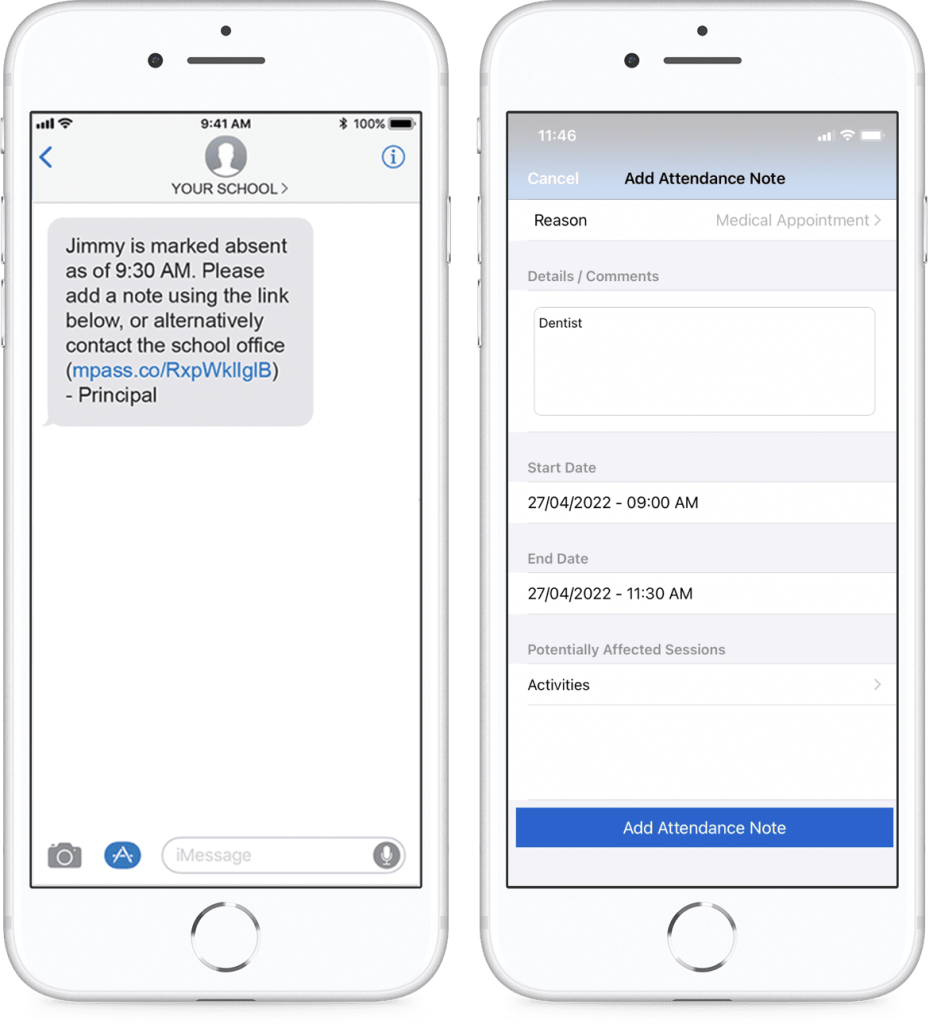
If your child is marked as absent without prior approval you will receive a message containing a link. When you follow the link, you will have the opportunity to explain the absence.
The link will expire after you have clicked it, meaning that it cannot be used to explain unapproved absences in the future. Instead, you will receive another message containing a new link, allowing you to repeat the process.
For instructions on how to use Compass to enter Attendance Notes, go to: https://www.compass.education/guide/#Attendance