News from the Office & School Events
Special Events Information & Administration Updates
Contact Details: office@shnewport.catholic.edu.au

News from the Office & School Events
Special Events Information & Administration Updates
Contact Details: office@shnewport.catholic.edu.au

A friendly reminder to families that dogs are not permitted on school grounds before, during or after schoool hours. While we know that many families walk their dog for school drop off or pick up, this requirement helps ensure the health, safety and wellbeing of all students, staff and visitors.
We appreciate your support in helping us maintain a safe and welcoming environment for everyone.
We ask for your support in ensuring that students are attending school in the correct Sacred Heart school uniform each day.
PE uniform and runners should only be worn on days that students have PE.
The correct uniform can be viewed on the PSW website.


The preferred option for payment of school fees is via the CDFpay App by setting up payments either via credit card (fees apply) or direct debit (no fees). Please see below for information and instructions on how to set up the CDFpay App.
Alternatively, payments can be made using the following options:
Electronic Bank Transfer/Direct Debit (families will need to keep track of their own payments): School Bank details are shown on the bottom of your school fee statement. Please quote your FAMILY NAME as reference
Thank you to the families who have already set up their school fee payments. If you have any questions regarding school fees or require further assistance, please contact Mary at the school office.
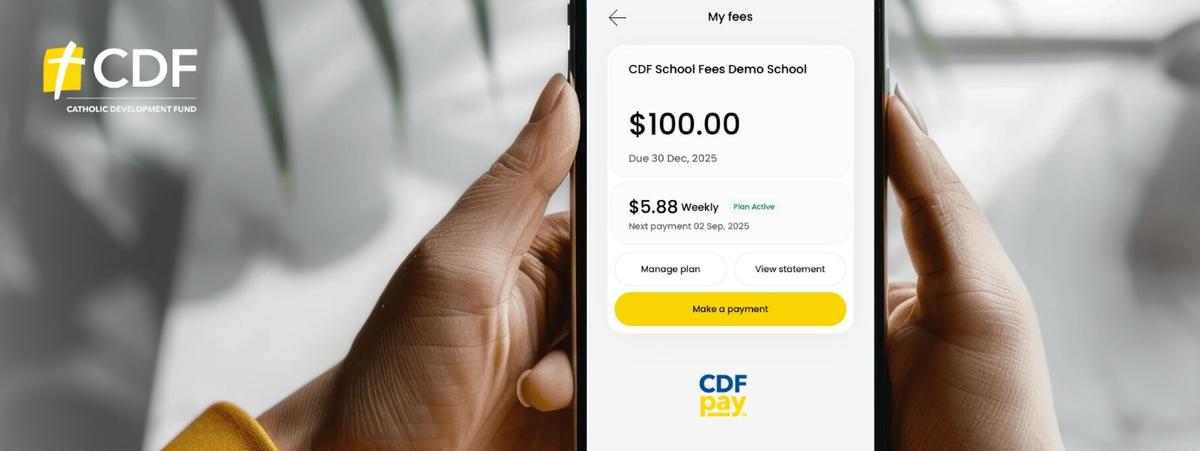
What you need to do
Please follow these instructions to register for a CDFpay account for payment of school fees:
Note: Only one parent or guardian per account code will be able to link and manage school fees in CDFpay.
CDFpay support
Further information and FAQs are available at https://support.flexischools.com.au/cdfpay-school-fees#main-content
As Operoo has now ceased operations, nForma is the school’s platform for managing the following functions:

Please ensure that you download the nForma for Parents App, so that you can use the above functions.
Below is a link to the guide to assist you in setting up the nForma for Parents App. Please add your child/ren’s Medical Information, as per the guide.
We will continue to use Seesaw in 2026 for the purposes it is now used for.
If you require assistance, please contact the school office on 93916262.