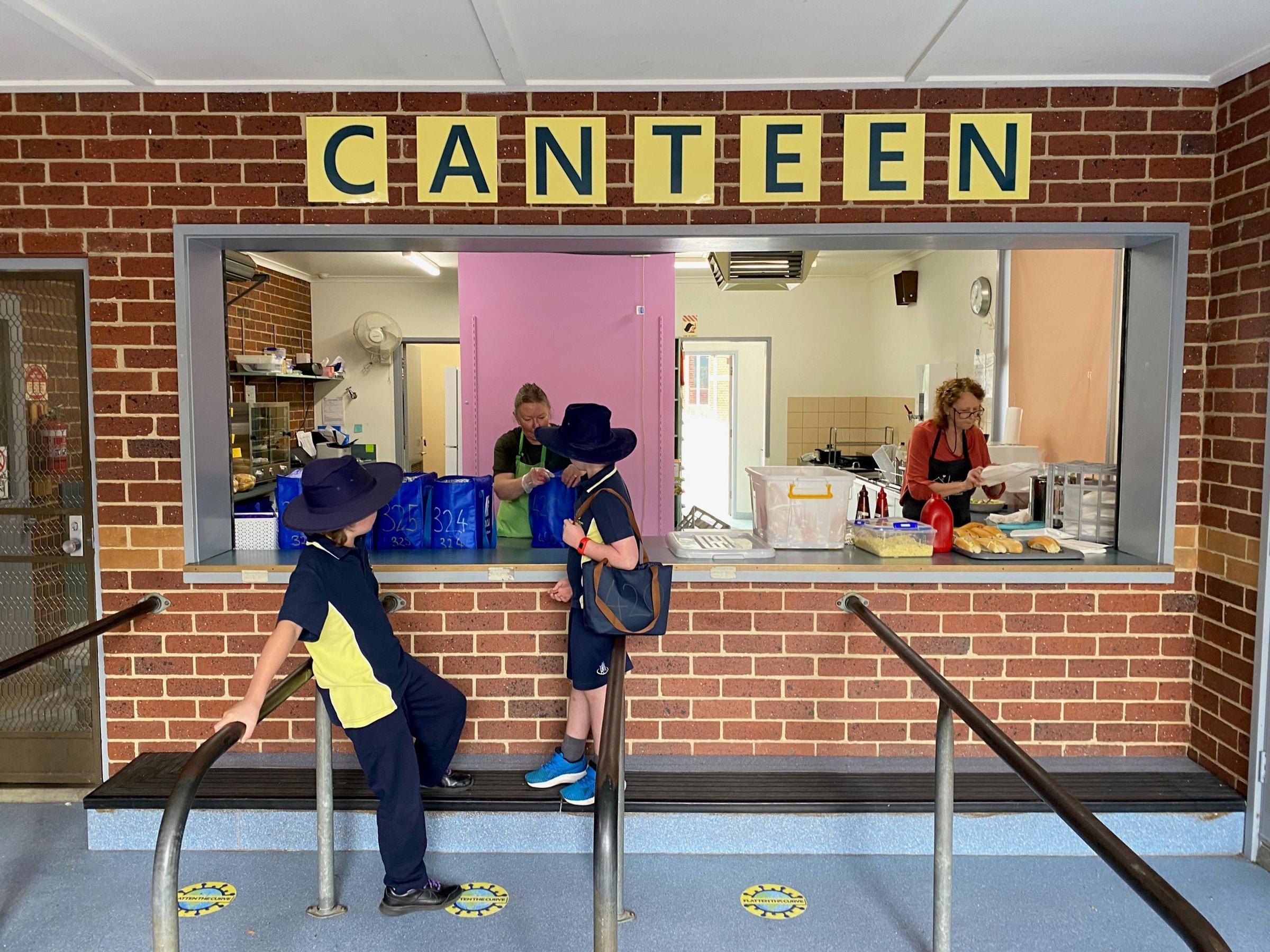
Canteen




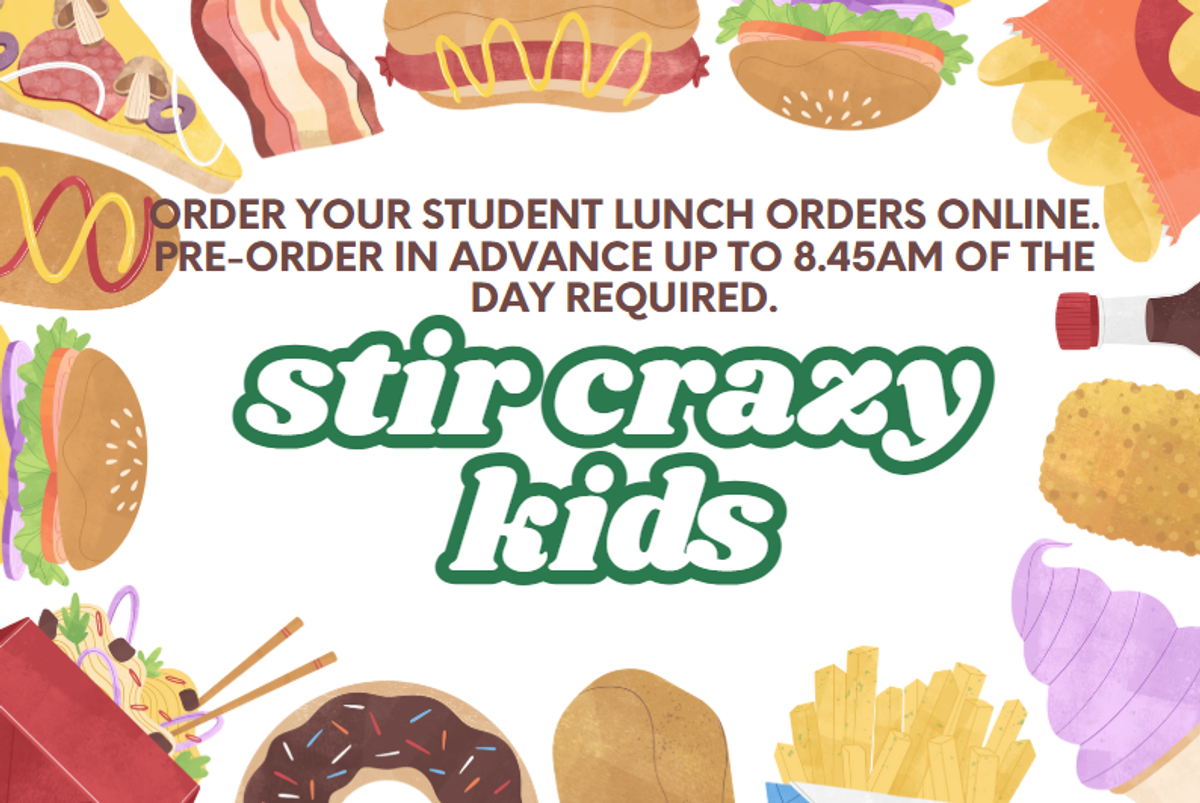


How To Order Lunches and Snacks on our App "Stir Crazy Kids"
Download our App from the iPhone App store or Google Play store.
- Register as a parent, add your Name, email and enter a password. It needs to be 8 characters long and include at least one Capital & lower case letter, numbers and a special character. Make it one that is easy to remember and is specific to the App. Something like your Studentname@year of birth ie Sammy@2015.
- Add your students name and enter a unique email for them not the same as yours. It does not have to be a really email so something like sammyb@sck.com will be fine. We have secondary students using the app so all students require an email.
- Select the school – Langwarrin Park Primary School – from the scroll. Add their grade, including their year level and all room numbers eg. F01, 116 etc. This needs to be correct so their orders go to the correct classroom.
- Add any/all allergies & intolerances and dietary preferences. Repeat this for all students.
- Now you can start placing an order.
- Select your student, the date you would like to order for and save. Their name will appear at the top in the orange bar. tap on the orange bar and the Edit order setting will pop up from the bottom. Choose the date and menu, some school have recess and lunch menus.
- When you tap on the day & date the categories will scroll across the top of the window. Tap on a category to choose items to add to your cart. Continue until you have all the items you would like for lunch in the cart. Tap on “View Cart” to review items. You can delete items and add more items by tapping the X in the top right corner.
- When you have all items for first student you can add an order for your 2nd student by tapping add another order. Tap the orange bar at the top of the screen to reveal “Edit order setting”. Choose your next student from the left of the screen, choose the date and continue with adding your items to the cart. Tap on view cart. You will see all orders for students here. Scroll up to reveal the checkout button.
- Add your credit card details here (Fees apply 1.75% + 30c) or select to pay with your Stir Crazy Kids account. You can add funds to your wallet. You will find detail in the profile section in the App.
- There is a .30c App order fee for all orders to cover the incidentals that we need to process all orders.
- Once you have checked out you will see a page that confirms this with the order numbers . No emails are sent. Each order will say Received. When we have fulfilled the order it will say Completed.
- You will be able to see all your student orders in the orders page. Tap see my orders at the bottom of the page. Please get in touch if you need any help at all.
- Contact Donna on +61 405 110 407 if you have any questions.