Compass Information

In 2026 we are using Compass for all permissions and consent for events such as incursions, excursions, camps and sports. Each event has a due date for which consent must be provided by to ensure your child can attend. Please ensure you are providing consent or declining the event prior to the due date.
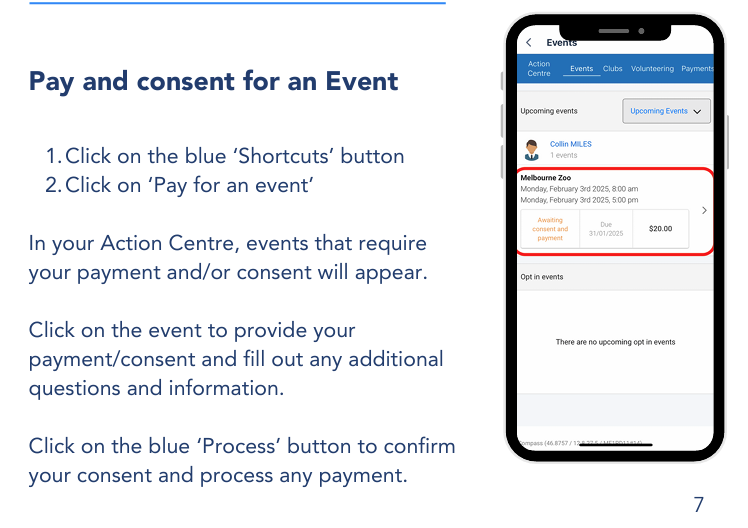
Below are instructions on how to provide consent and pay for an event via the app or web browser.
How To: Consent and Pay for an Event - App
How To: Consent and Pay for an Event - Web Browser
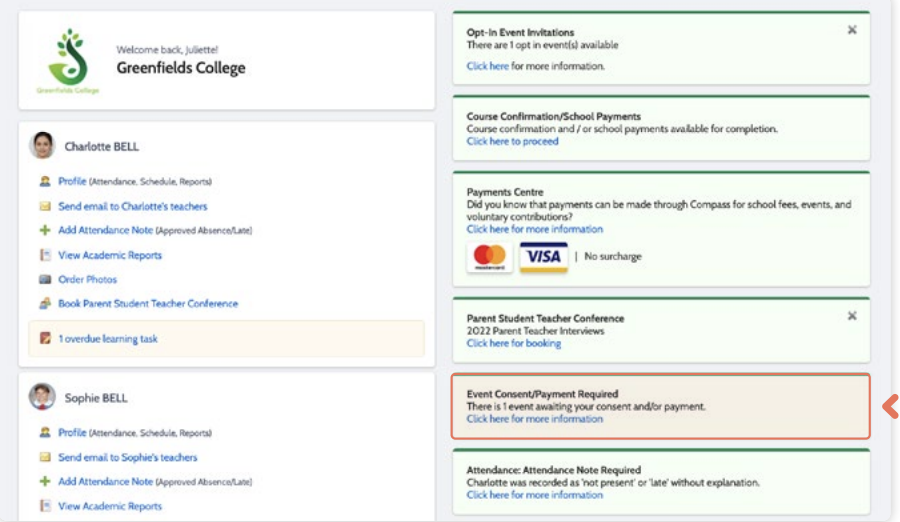
If your child has an upcoming event that requires your consent and/or payment, you will see an alert on your home screen. Click the alert and it will take you to the Events page (alternatively you can click the grid menu icon at the top of the screen and select ‘Events’).
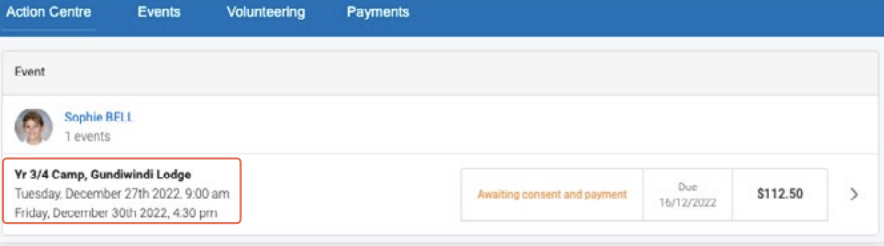
On the ‘Action Centre’ tab you will see any events requiring your action. If you have more than one student at the school, events will be listed here under each child. Click the event you wish to action.
You will see the details of the event.
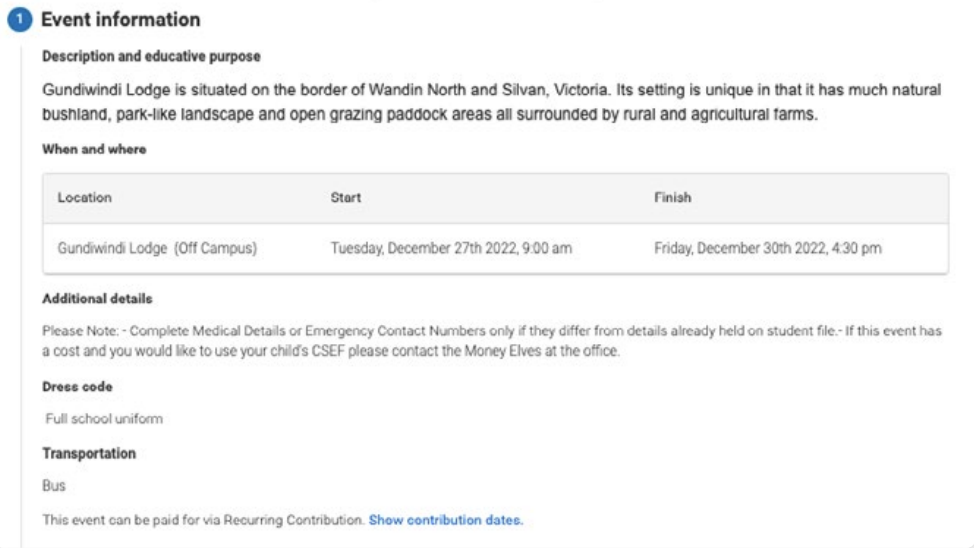
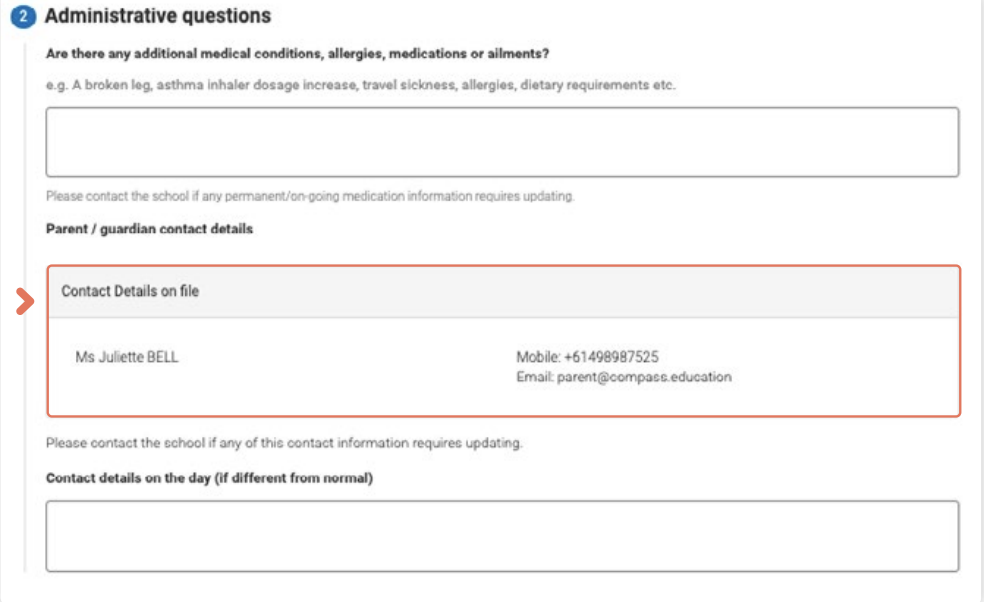
Next will be any administrative information that you are required to review or respond to.
If you are required to review a medical Action Plan to confirm that it is current, you will need to tick the acknowledgement box to proceed (if the Action Plan on file is no longer current, please contact the school office to advise). If your child has any further medical conditions not listed, please add the details in the available section. If they do not have any additional medical conditions, you can leave this field blank.
You will then see the current contact details on file for you. If these need updating or different contact information is required for this event, please add that information in the space provided.
You will then be required to provide consent and payment (please note, not all events will require both, it will vary depending on the type of the event set up by the school).
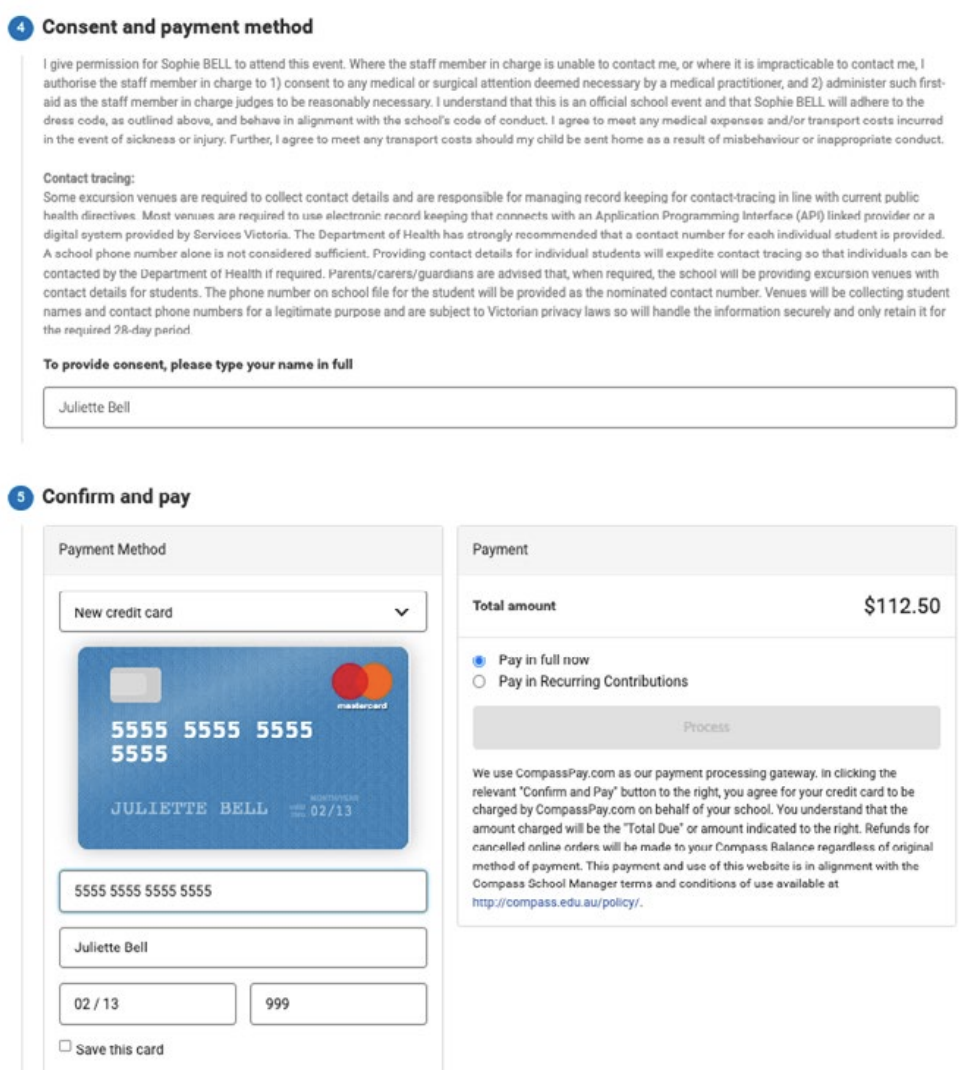
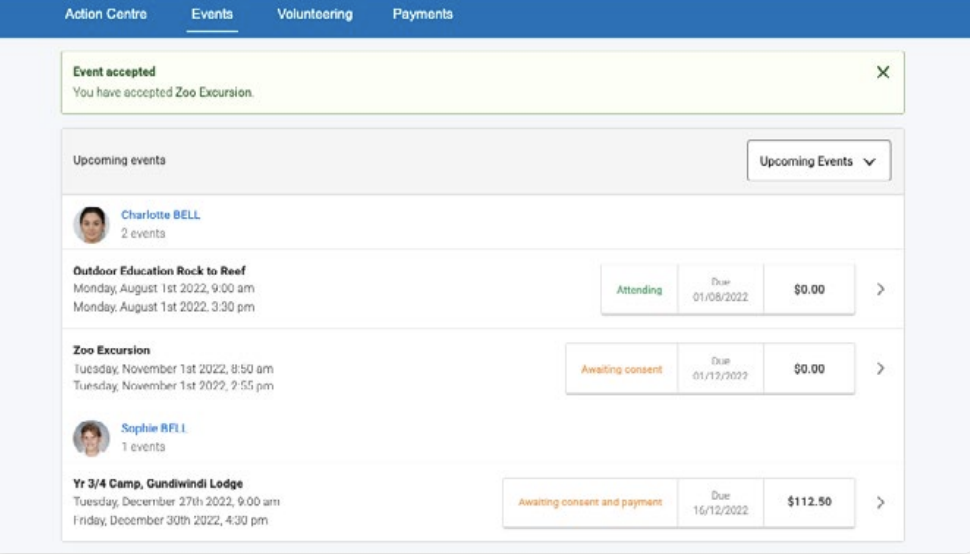
Once you have completed the consent/payment, the event will update to show your child as ‘Attending’. The ‘Events’ tab will show all events, both processed and those still requiring your action. To access information on upcoming events that you have already processed, click the event.