This Week in IT















 Trinity College
Helping Students Build Healthy Digital Habits
Technology plays an important role in learning at Trinity College, but the habits students develop around technology are just as important as the device itself.
Small, consistent routines at home can help students stay organised, protect their wellbeing and use technology more responsibly. Parents and guardians do not need to be technology experts. Simple conversations and clear expectations can make a meaningful difference.
Families may find it helpful to encourage students to:
- Charge their device each evening and bring it to school ready for learning
- Keep food and drinks away from laptops and other technology
- Store chargers, pens and accessories safely
- Use devices in shared areas of the home where practical
- Take regular breaks from screens
- Avoid recreational device use close to bedtime
- Keep passwords and sign-in details private
- Think carefully before posting, sharing or responding online
- Report concerning messages, content or online behaviour to a trusted adult
Let the College know promptly if a device is damaged, missing or not working correctly
It is also helpful for families to regularly discuss what students are doing online. Rather than focusing only on screen time, parents might ask:
- What did you use your device for today?
- Did you see anything online that concerned or confused you?
- How do you decide whether information online is trustworthy?
- What would you do if someone contacted you unexpectedly?
Can you show me how you organise your schoolwork?
These conversations help students develop confidence, judgement and accountability as they become more independent online.
Technology works best when students, families and the College share responsibility for creating safe, respectful and productive digital environments. By establishing healthy routines and maintaining open conversations, families can help students use technology as a positive tool for learning.
Introducing the Trinity College Student Safety Portal
Trinity College is pleased to introduce the Student Safety Portal, a new service designed to give parents and guardians greater visibility and control over their child’s internet use on college-managed devices outside of school hours.
The Student Safety Portal is powered by Saasyan Assure and is available for supported Junior School College-managed devices and College Provided Laptop Program (CPLP) devices.
The portal is part of the College’s ongoing commitment to student wellbeing, online safety and digital citizenship, while strengthening the partnership between families and the College in supporting safe and responsible technology use.
What does the Student Safety Portal provide?
The portal is designed to complement the conversations and boundaries families already have around technology use at home. It provides parents with additional information and practical tools to help establish healthy and age-appropriate digital habits.
Through the portal, parents and guardians can:
View internet activity and online safety alerts (outside of school hours)
See reporting on web searches, video activity and blocked websites
View insights into different categories of web usage
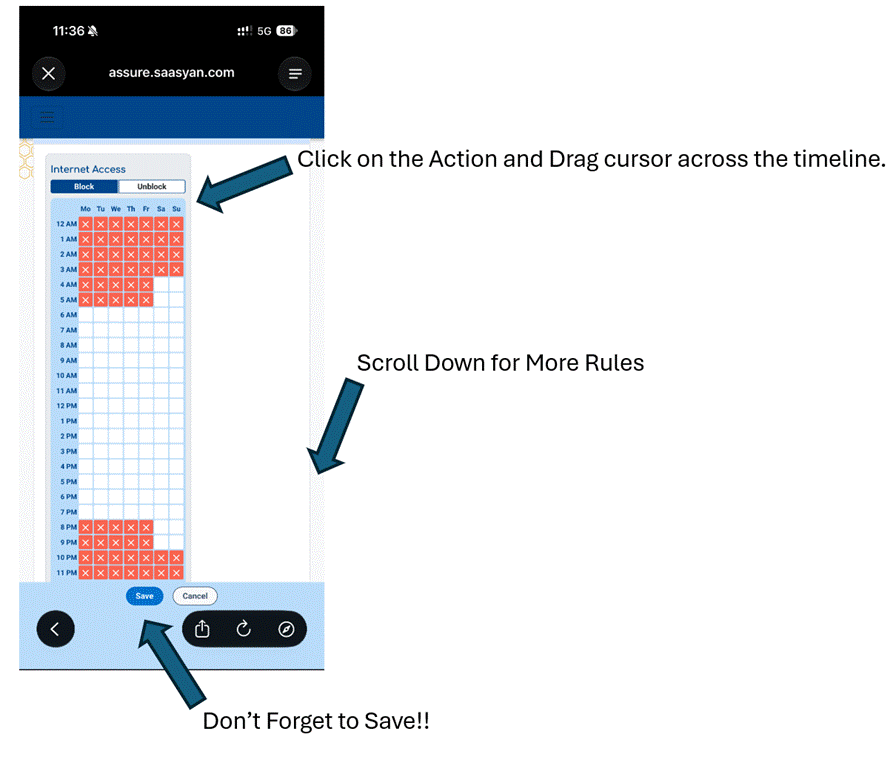
Manage selected internet access rules and schedules outside of school hours
Gain greater awareness of online behaviours when College-managed devices are being used away from the College
How do you access Student Safety Portal:
Student Safety portal can be access via the Seqta Engage Portal (Welcome — SEQTA Engage) or via the Trinity College Perth App in your Favorite mobile store whether that will be Apple App Store or Android Google Play store.
TC Mobile App | Trinity College
Seqta Safety portal Login :
Step 1: Seqta Engage portal has a new tile called Student Safety Portal.
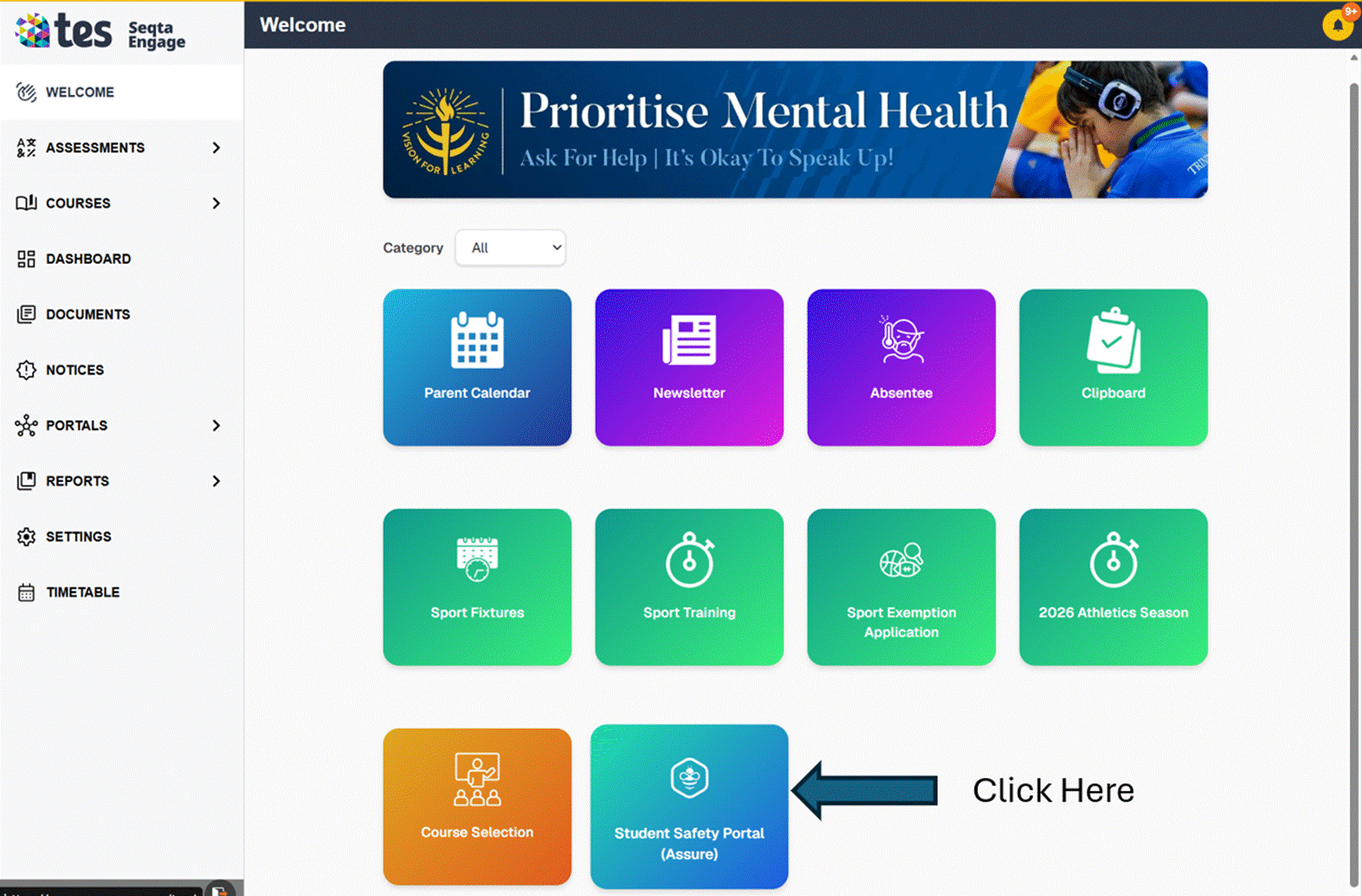
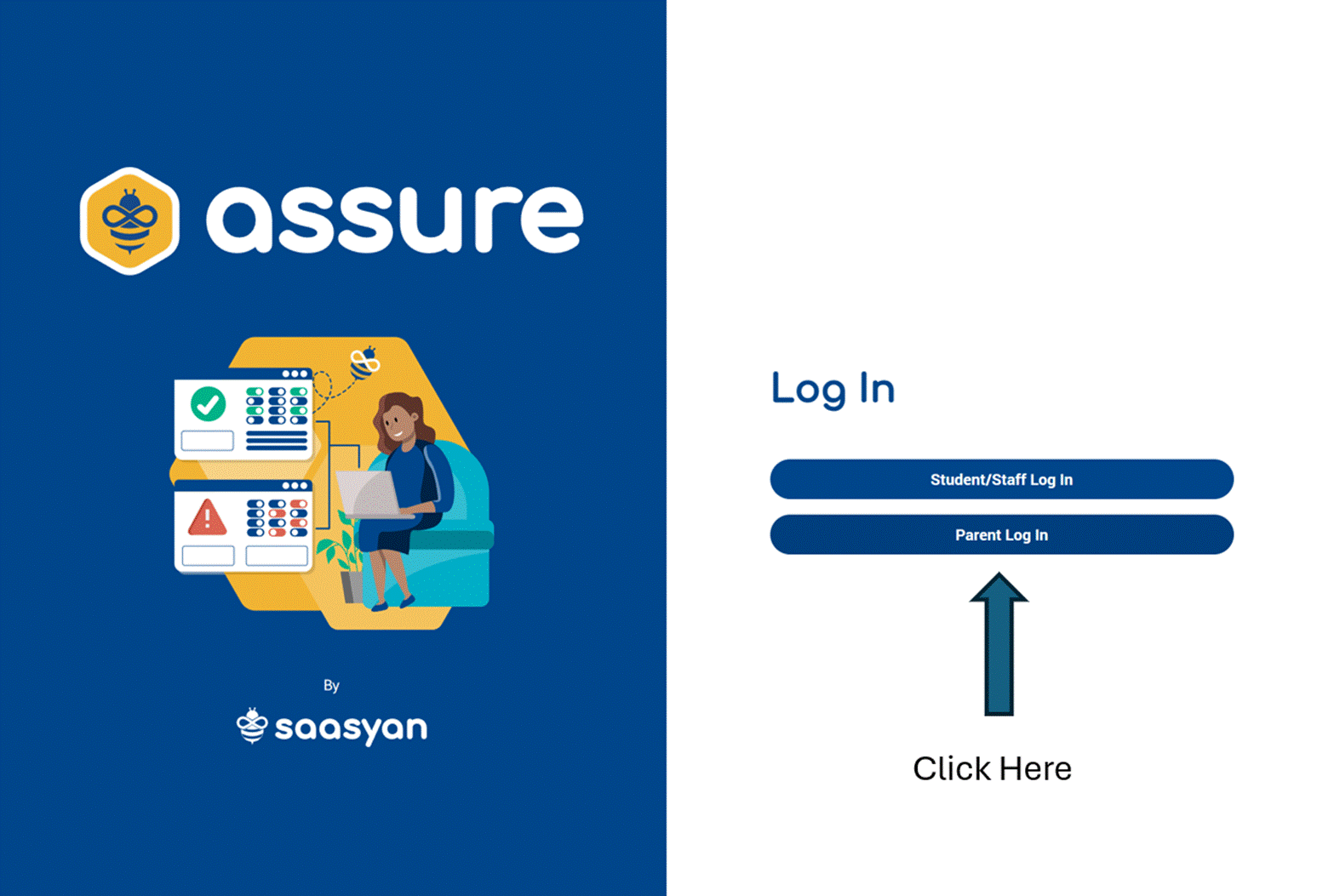
Step 2: Please ensure you pick the write login tile.
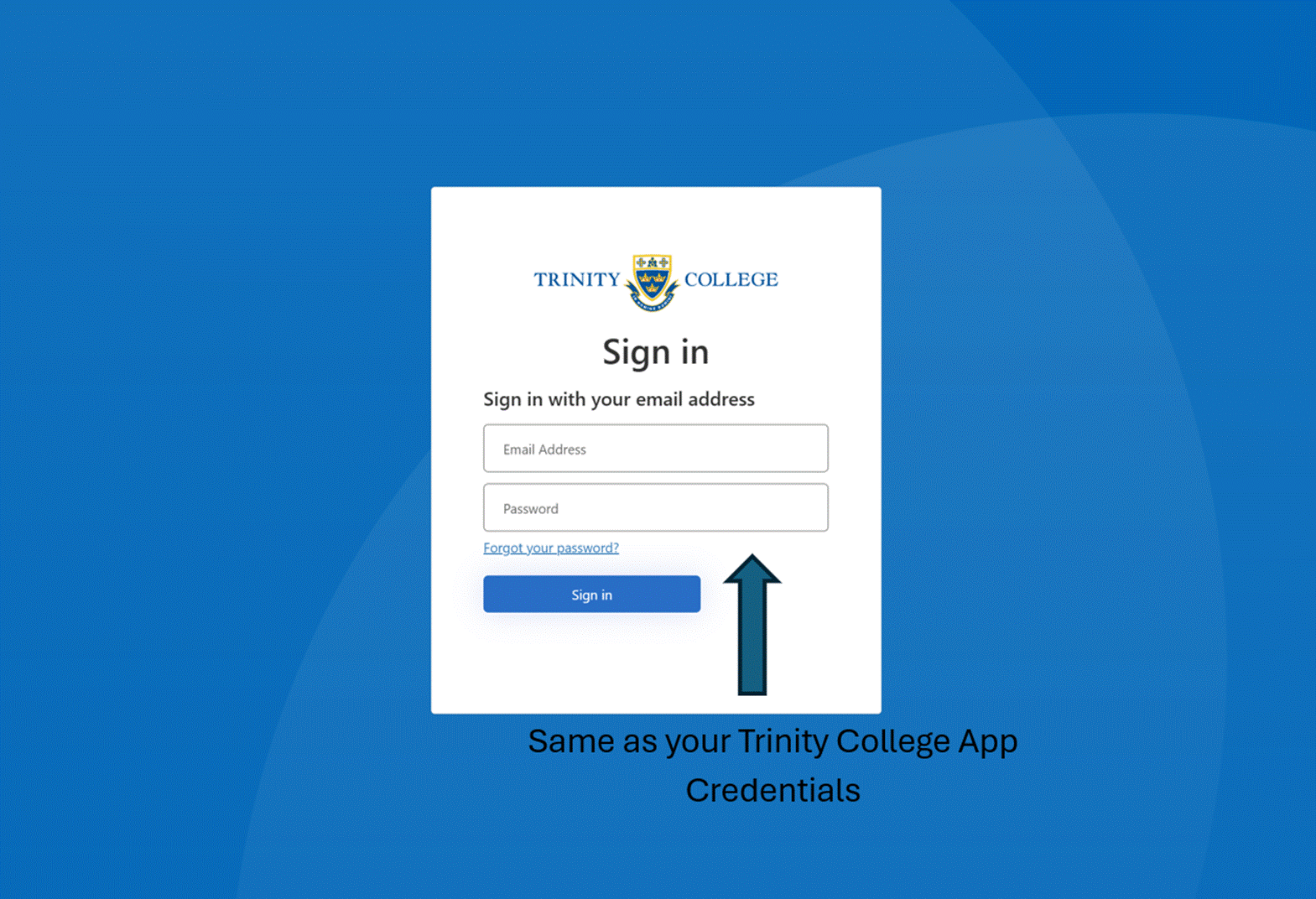
Step 3: If you get this prompt please use your sign in information to Trinity College App
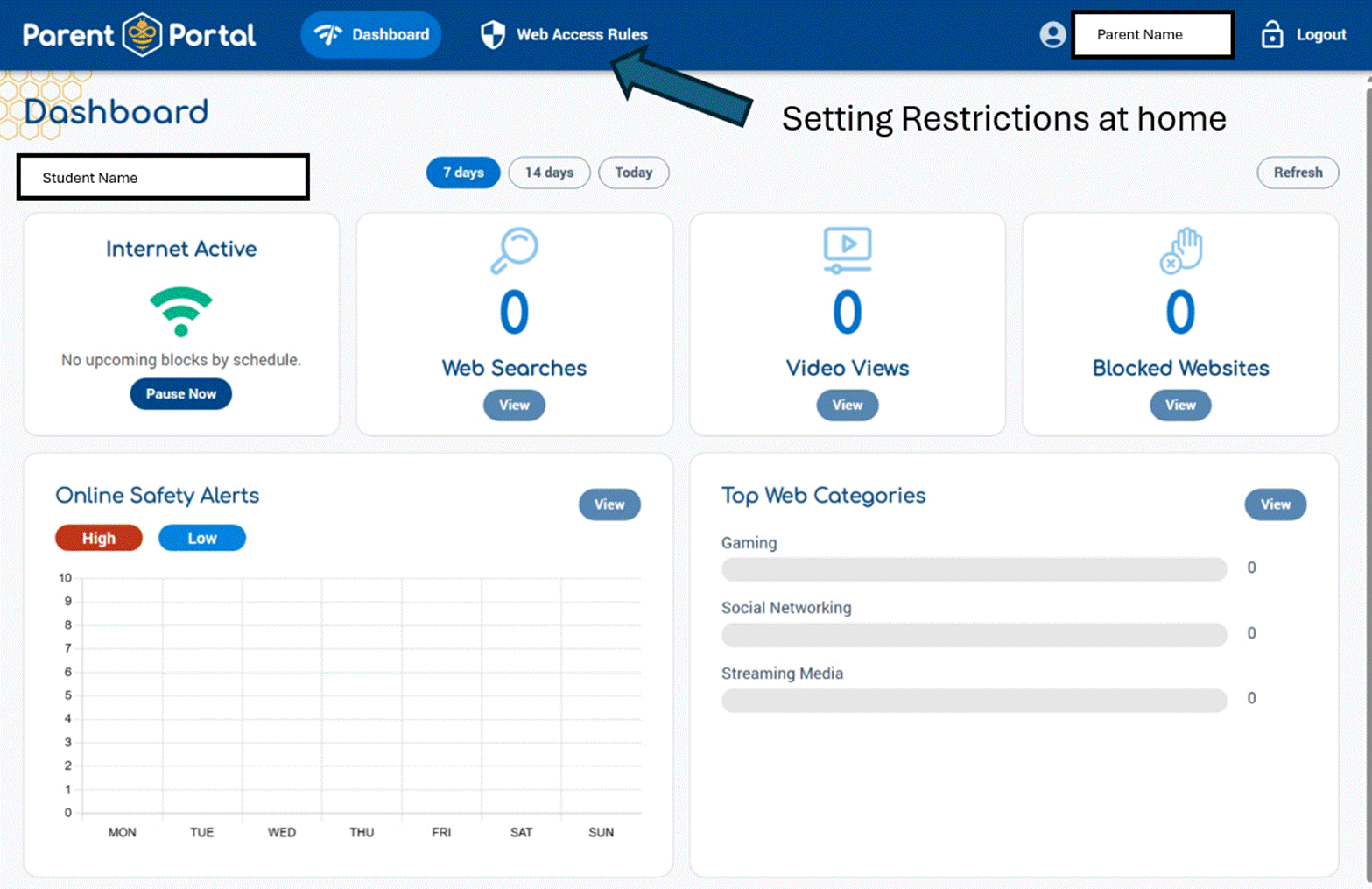
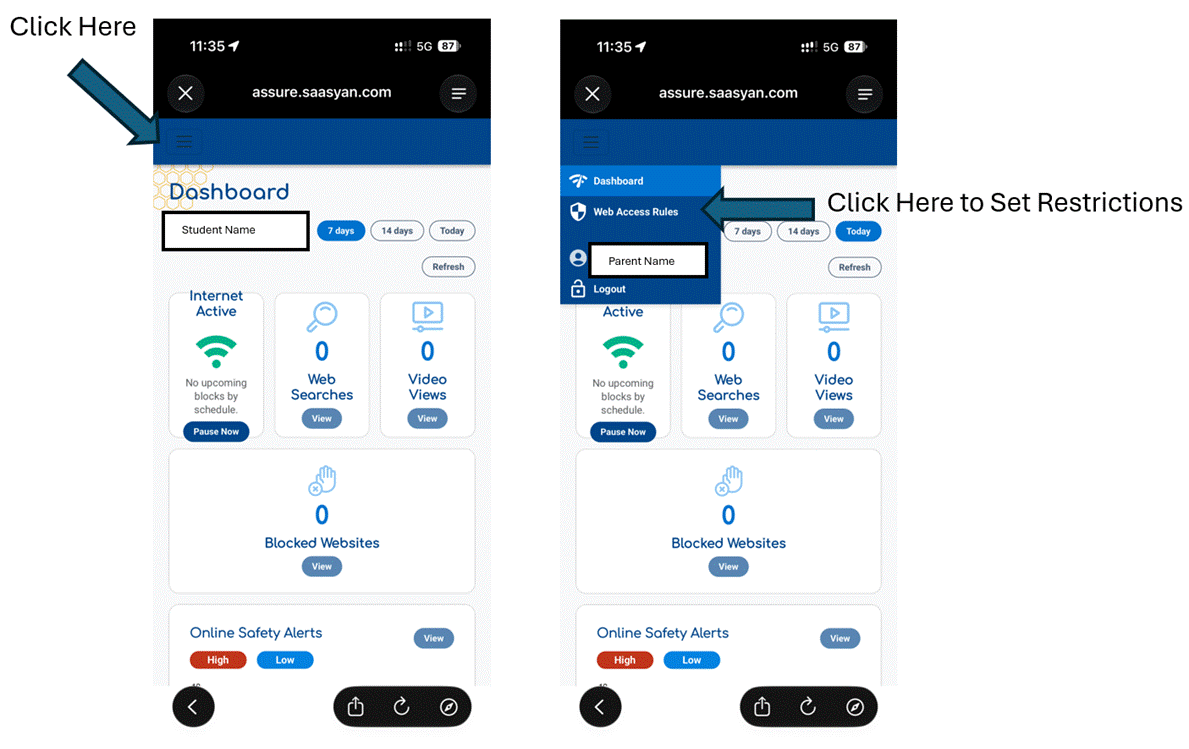
Step 4: Main Dashboard with drill down information on internet history on the device.
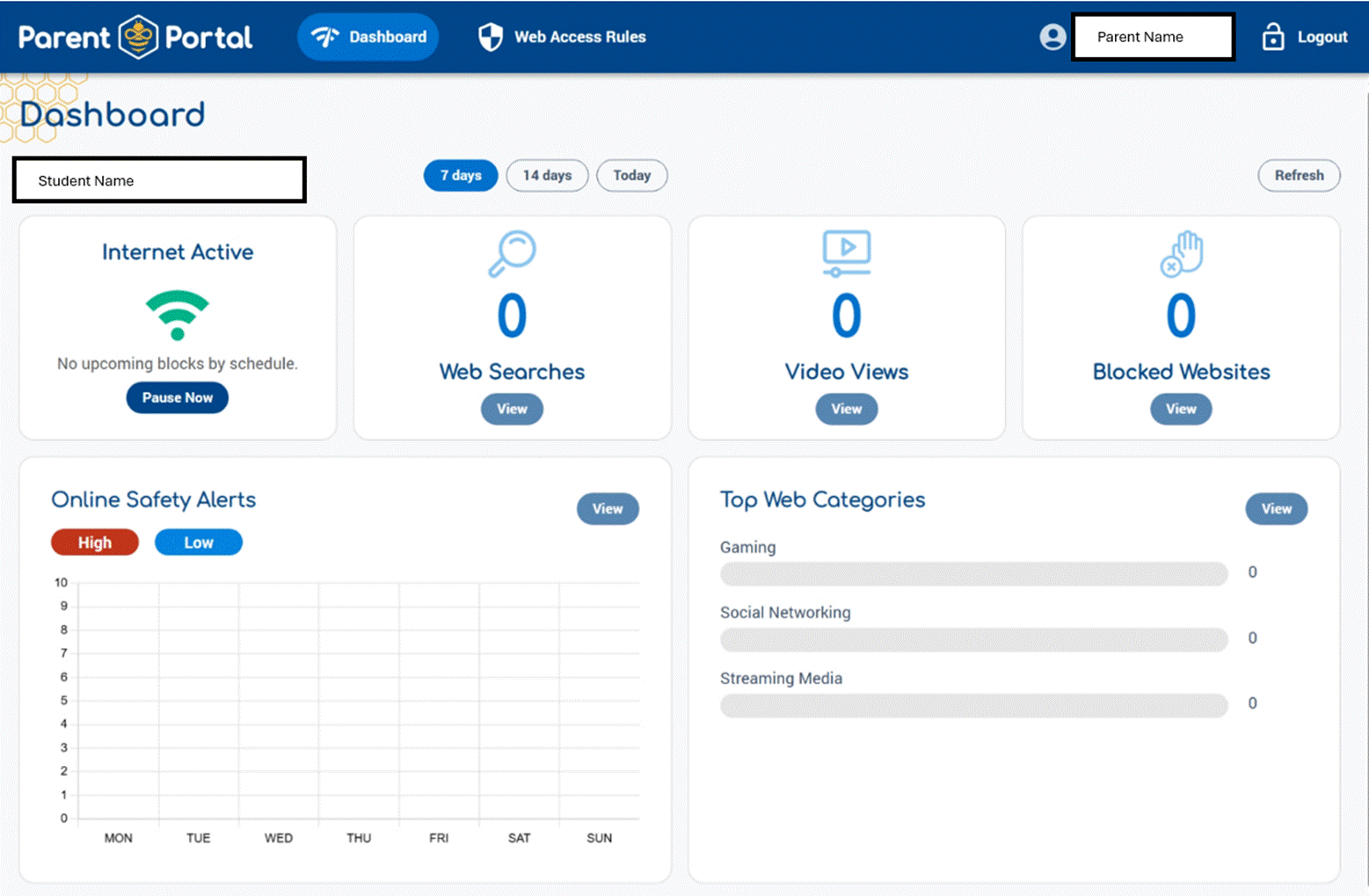
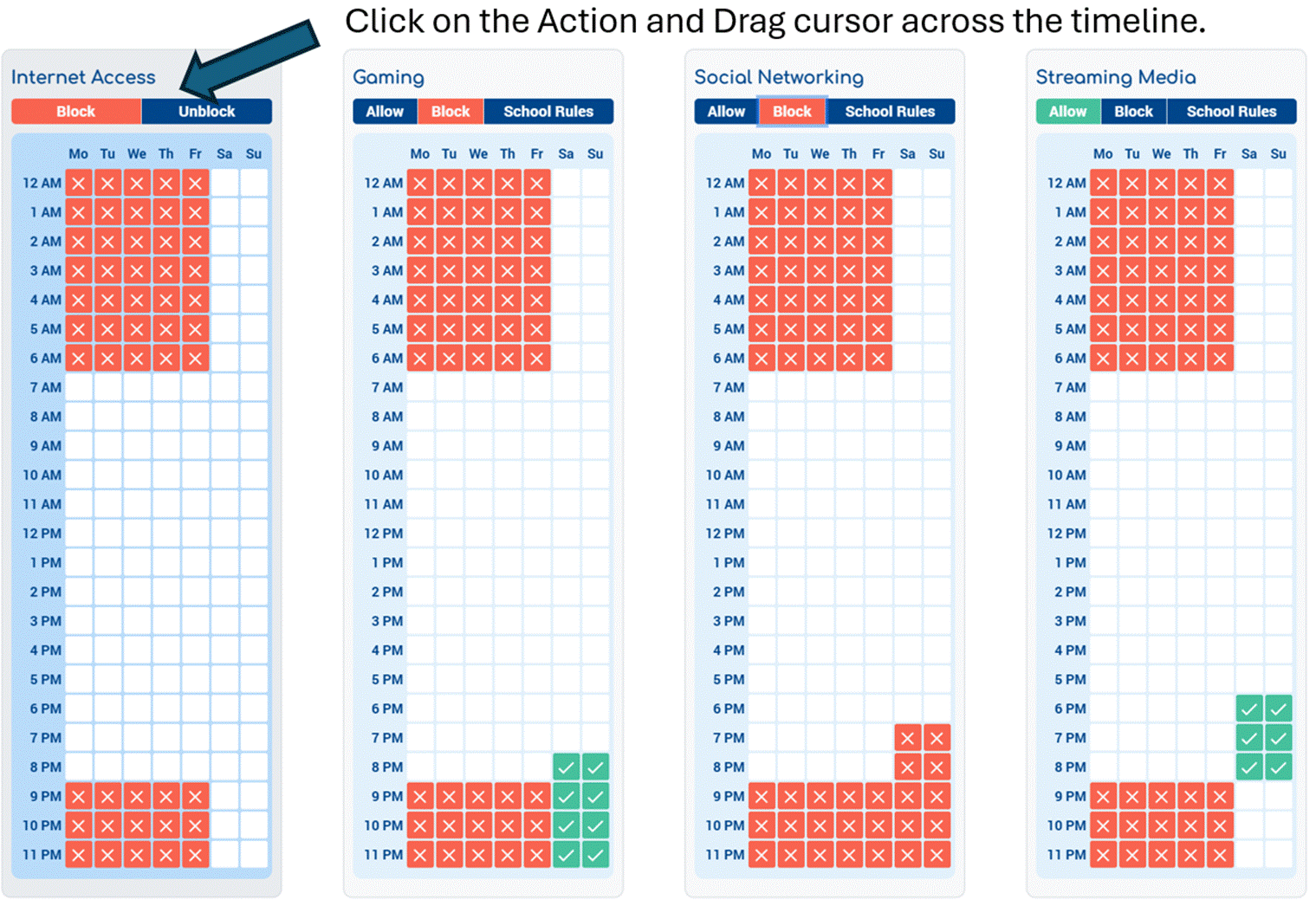
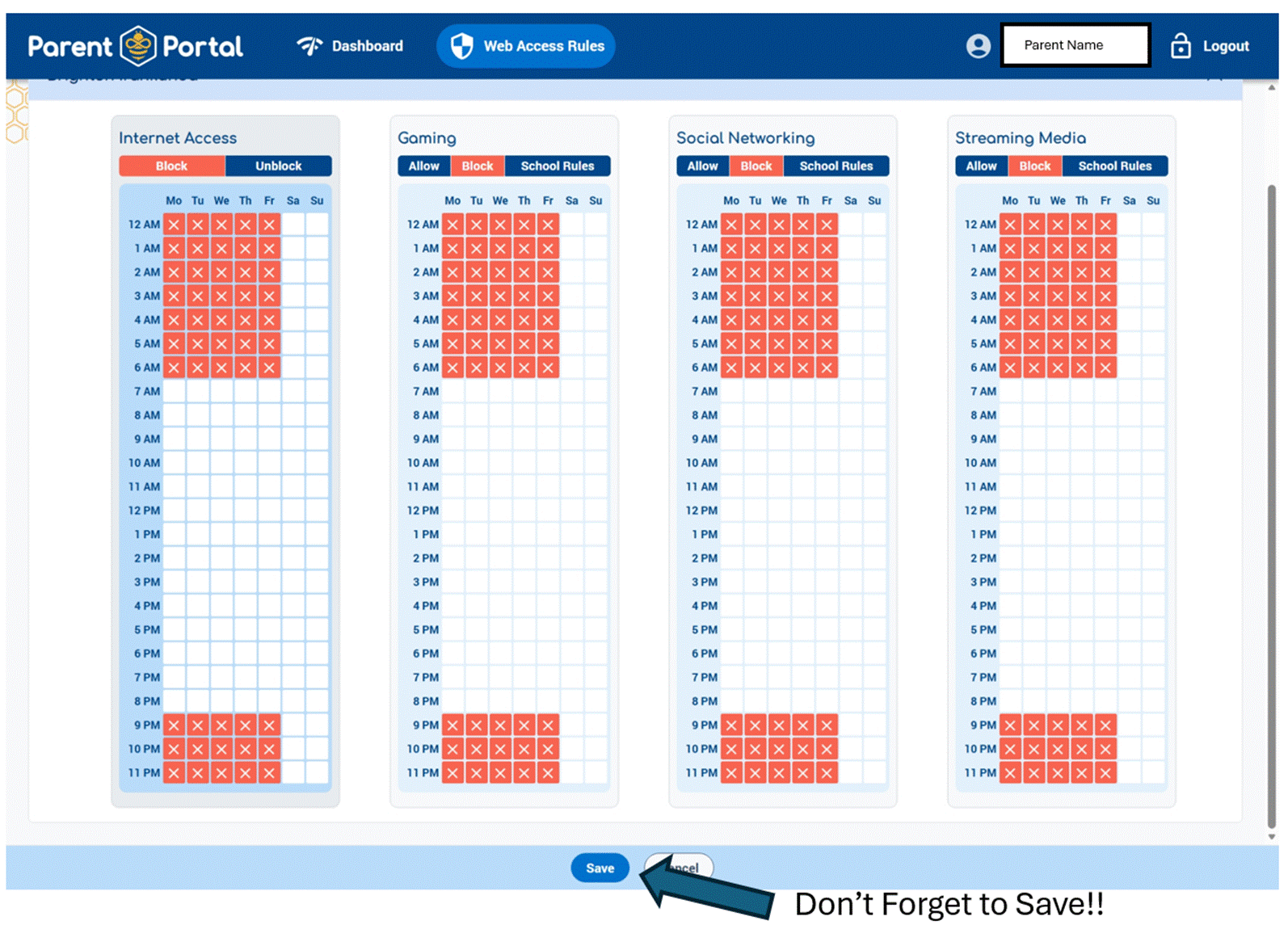
Step 5: Setting Restrictions in Web Access Rules:
Trintiy College Perth App access to Safety portal Login :
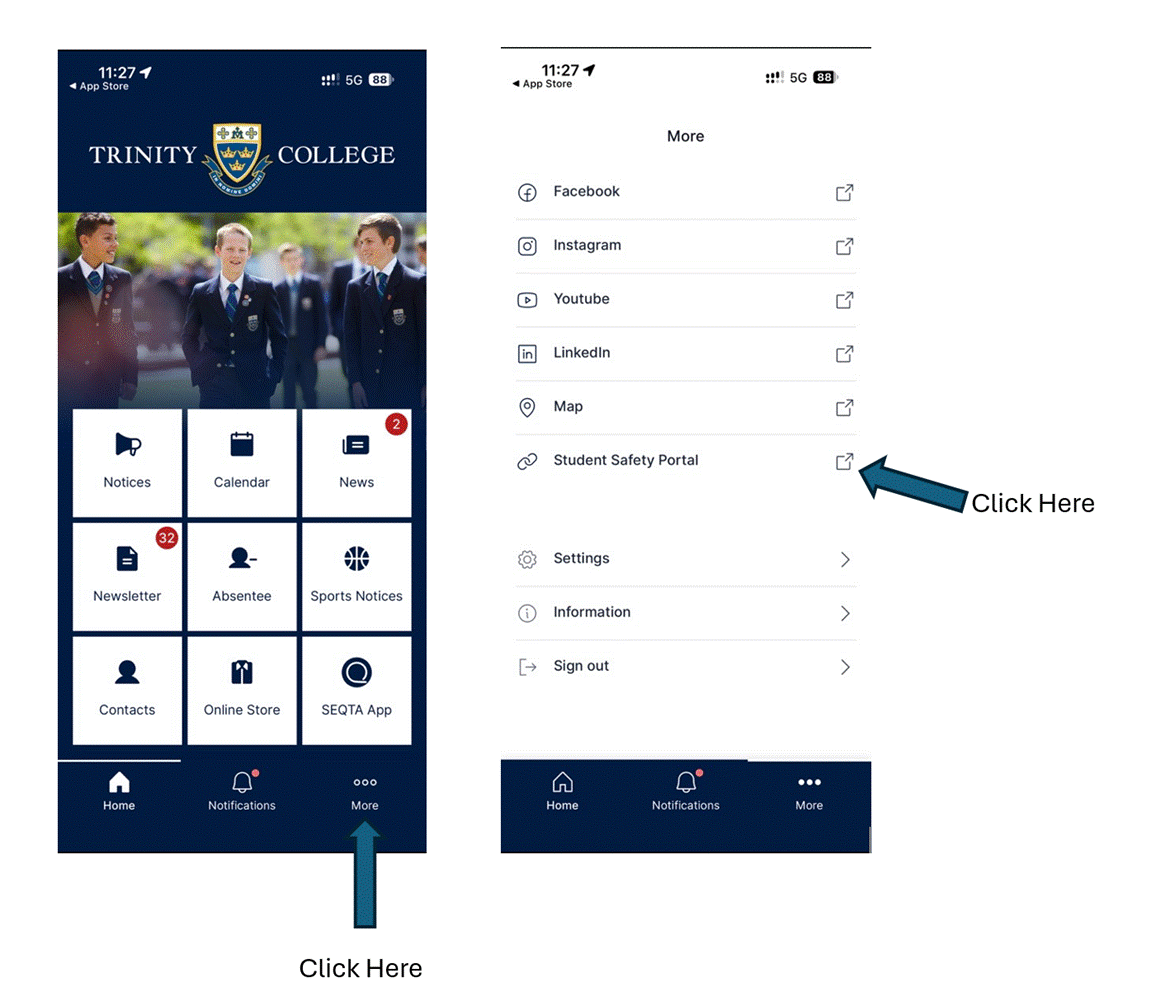
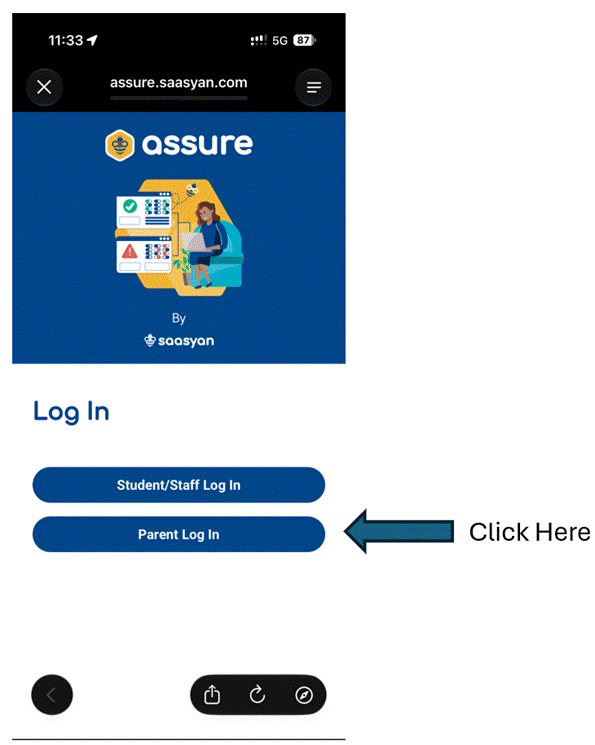
Step 1: Login via the steps below by Clicking More and Student Safety Portal (Use the same credential as the app)
Step 2: Ensure you click on Parent Login
Step 3: Main Dashboard with drill down information on internet history on the device. If you click on the Left hand corner

you will get access to setting restrictions.
Mr Shaq Herath
Director of ICT