Learning and Teaching













 St Francis de Sales Catholic Primary School Lynbrook
Visual Art News

SFS ART SHOW 2026 Thursday, 5th November
As our Art Show preparations are on the way, we are excited to remind students and parent/carers alike of the current competitions/collections for this special school event. “Believe in You and Me” is the theme for our 2026 Art Show.
SFS Student Art Show Logo Competition
The student Art Show competition involving students creating a logo to advertise our 2026 Art Show which is now extended to Thursday, 30th July. Students interested are encouraged to creatively design a simple image capturing visual art and this year's art theme.

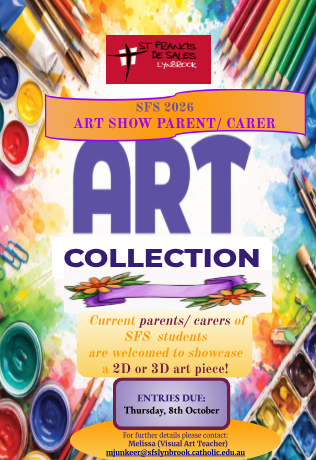
Parent/ Carer’s Art Show Pieces
SFS parents/ carers are also invited to show their talent and skills in visual art by producing either a 2D or 3D art piece which will be displayed on the night. Artists keen to participate are encouraged to look at the daily reminders and flyers advertised through SFS in the coming weeks for further details. Alternatively, for more information please contact Melissa (Visual Art Teacher) - mjunkeer@sfslynbrook.catholic.edu.au
Final submissions for Parent/ Carer’s art work will be week 2 in Term 4. Any completed pieces can be delivered earlier and left at the office.
Enjoy the remainder of this term and until next time, keep on making the spark in your art grow!
LS1 JUNIOR RECOUNTS
We’ve hit the ground running and the children have been planning, composing and publishing a recount about their amazing school holidays.
The process began with planning which looked like an oral discussion using the 5Ws to unpack the places, people and events of their holiday.
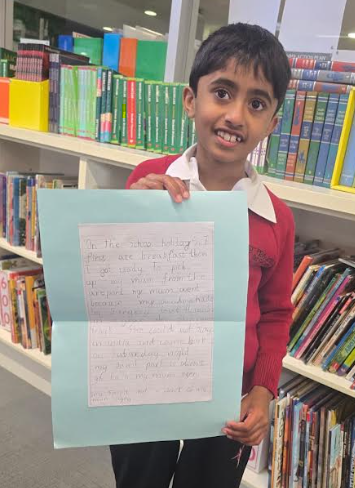
The composing phase consisted of using a variety of skills:
Clinic 1- orally composed and independently recorded their sentence in past tense.
Clinic 2- sequenced their ideas using simple familiar time connectives like First, Next and Finally.
Clinic 3- sequenced their ideas using time connectives and adjectives to describe places, events and their feelings.
We all participated in the editing phase to correct our writing by including missing punctuation and adding and removing words to ensure our writing makes sense. Finally, we got to the fun part…PUBLISHING. During the publishing phase we had the opportunity to bring our writing to life and include our creative ideas. Come into our learning space to see this work in person, you won’t regret it 😉
This activity allowed the children to work on their oral language skills as well as help consolidate their learning about the properties of 2 dimensional shapes.
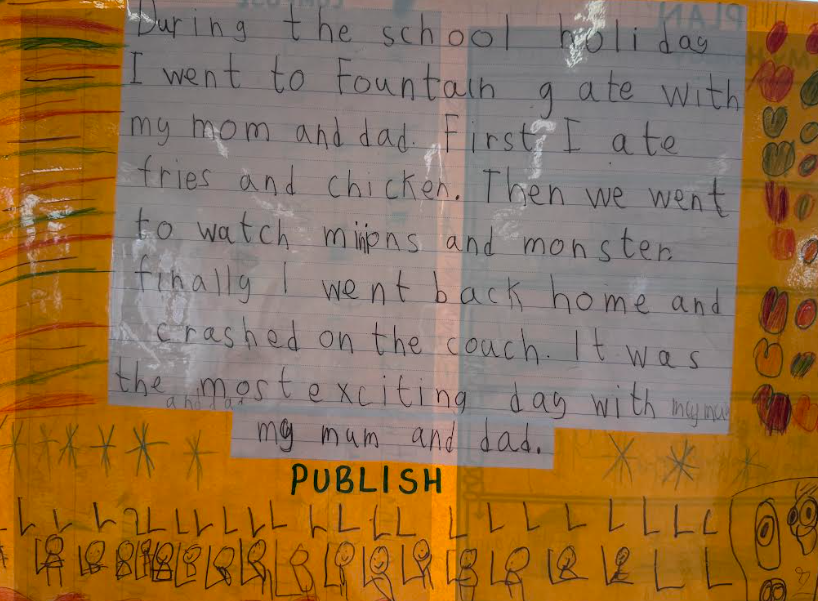
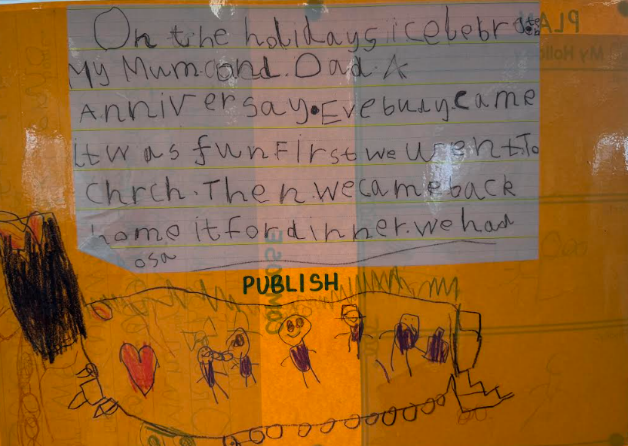
Imasha Brodie
LS1 Junior Team Teacher
LEARNING SPACE 1 SENIORS
In LS1 Seniors, we have been composing poems. This week, the students rewrote a poem by adding figurative language, including personification.
Personification is a figurative language technique where human qualities, feelings, or actions are given to something that is not human, such as an animal, object, or part of nature.
The students enjoyed being creative with their writing and sharing their finished poems. We love composing and sharing our poems!
At the Beach
I went down to the sea,
It was waiting there for me.
The waves sprinted like a cheetah, Then sprinted back once more.
The shells lay down on the sand, I picked one with my hand.
The clouds slept in the sky, The seagulls flew up high.
The day came to an end, It was time to go, my friend. Allegra
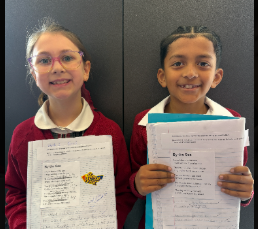
At the Beach
I went down to the sea,It was waiting there for me.
The waves chased my feet,Then I chased them.
The shells covered the beach, Then the shells covered the sand.
The clouds danced through the sky, While the moon loved them.
The tide sang with a song, So the waves began to my destination. Jeremih
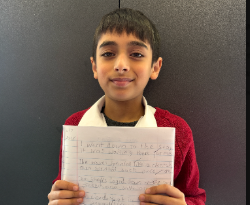
At the Beach
I went down to sea, It was waiting there for me.
The waves stretched to the shore, Then rolled back once more.
The shells sadly sat in the sand, I picked one with my hand.
The clouds smiled through the sky, The seagull flew up high.
The day said goodbye, It was time to say goodbye. Iraj
Tanya Petersen
tpetersen@sfslynbrook.catholic.edu.au
LS1 Senior Team Teacher

Parental controls and conversations to keep you child safe
No parental control tool is 100% effective. They are a helpful starting point but they’re not a complete solution on their own.
What really makes a difference is helping build your child’s online safety habits by combining technology with open conversations, guidance and trust.
Alongside parental control tools, you can help keep your child safer by:
- talking with them about what they like to do online, as well as the risks involved, and how to be safer online
- making sure their online activities are supervised, especially for younger children
- joining in their online activities when you can – play a game together, watch what they watch, explore apps side by side
- being aware of who they are connecting with online
- teaching them to follow the steps for reporting online abuse
- encouraging your child to reach out to a trusted adult for support if something doesn’t feel right.
Using parental controls as a conversation starter, rather than secret setting, helps children understand why boundaries exist. Involving them in decisions about what’s set and reviewing them together as they grow can reduce stress, increase trust and mutual understanding and make online rules clearer and easier to follow.
When your child feels they are trusted, they're more likely to come to you for help when it really matters.
Check out the eSafety Commissioners advice on parental controls for your devices, apps and services.
Online Safety Hacks
(for Apple devices)
With school holidays coming up, now is the perfect time to ensure that your child’s account has things in place to ensure that they are as safe as possible when online.
Before getting started
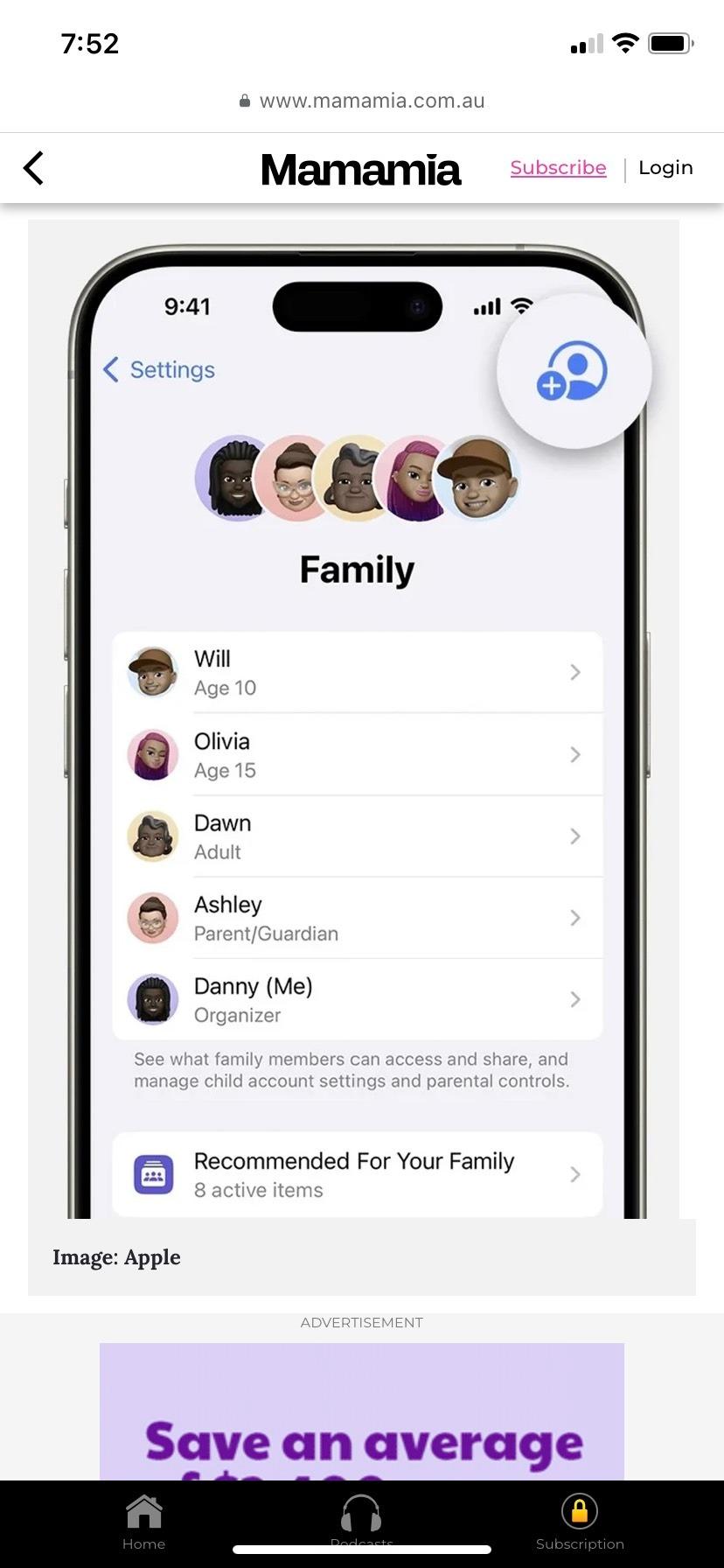
Before diving into these hacks, you’ll need to set up a separate Apple Account for your child. This prevents them from accessing your personal data while giving them their own safe space to explore.
Then you can easily set age-based parental controls, and they can use Family Sharing.
- On your iPhone or iPad
- Go to Settings > Family
- Tap the Add Member button
- Tap Create Child Account, then tap Continue.
EXPERT TIP: never share the ‘Screen Time’ password with your child, this will null and void the safety features as they will be able to override them. This is a parent or carer, ‘family circle only’ level of trust.
- Communication Safety: The nudity blocker
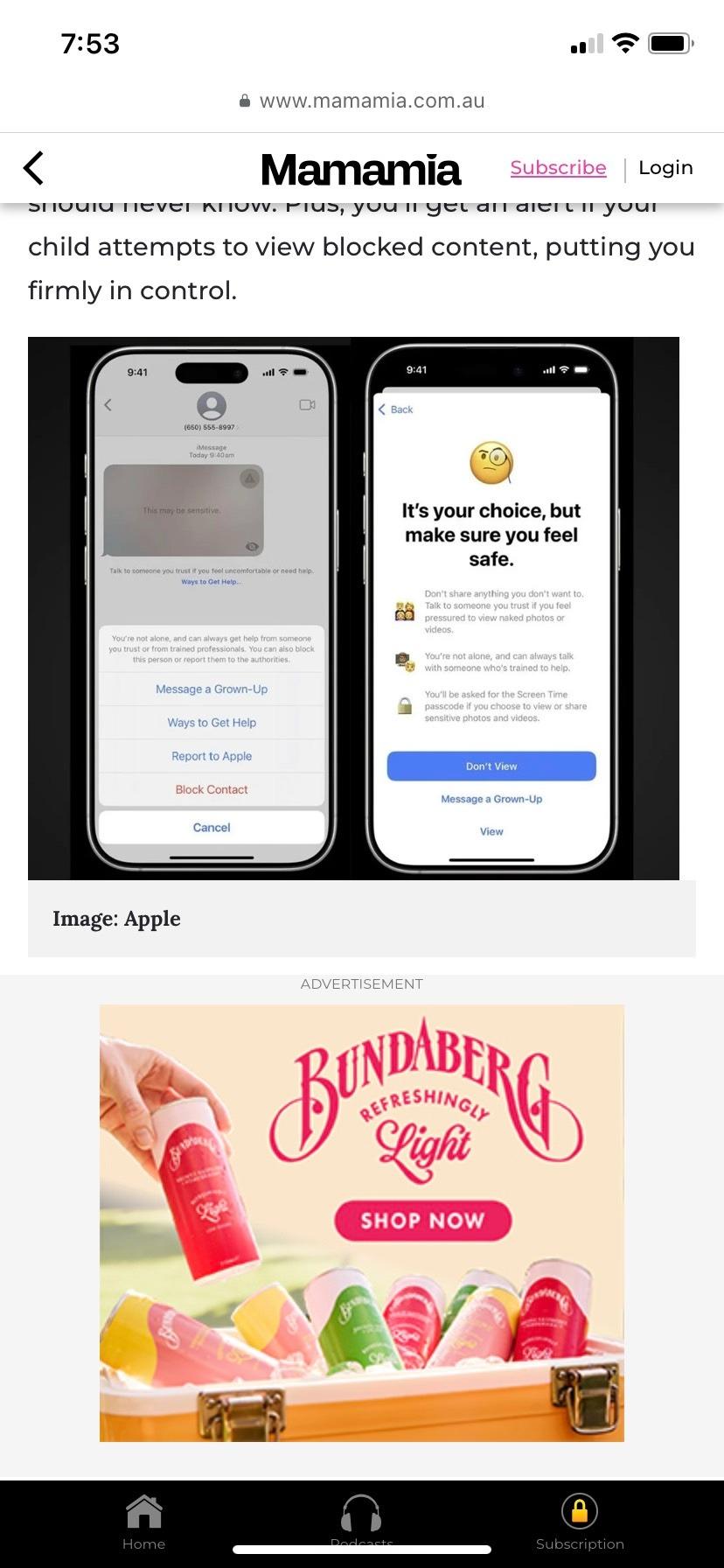
This clever feature protects your children from inappropriate images. If someone tries to send your child content containing nudity, the system automatically blurs the photo or video before your child can view it on their device.
They’re safe-guarded with a three-step verification process which also offers them ways to get help.
If they choose to continue to view the image or the video, they will need to enter the ‘Screen Time Password’. Which, as mentioned above, they should never know, plus you will get an alert if your child attempts to view blocked content, putting you firmly in control.
How to activate Communication Safety settings:
- Open Screen Time settings:
- iPhone, iPad or Apple Vision Pro: Go to Settings > Screen Time
- Mac: Choose the Apple menu > Systems Settings, then click Screen Time
- Select the name of a child in your family group
- Select Communication Safety
- Turn Communication Safety on.
- Ask to Buy: Your digital wallet guardian
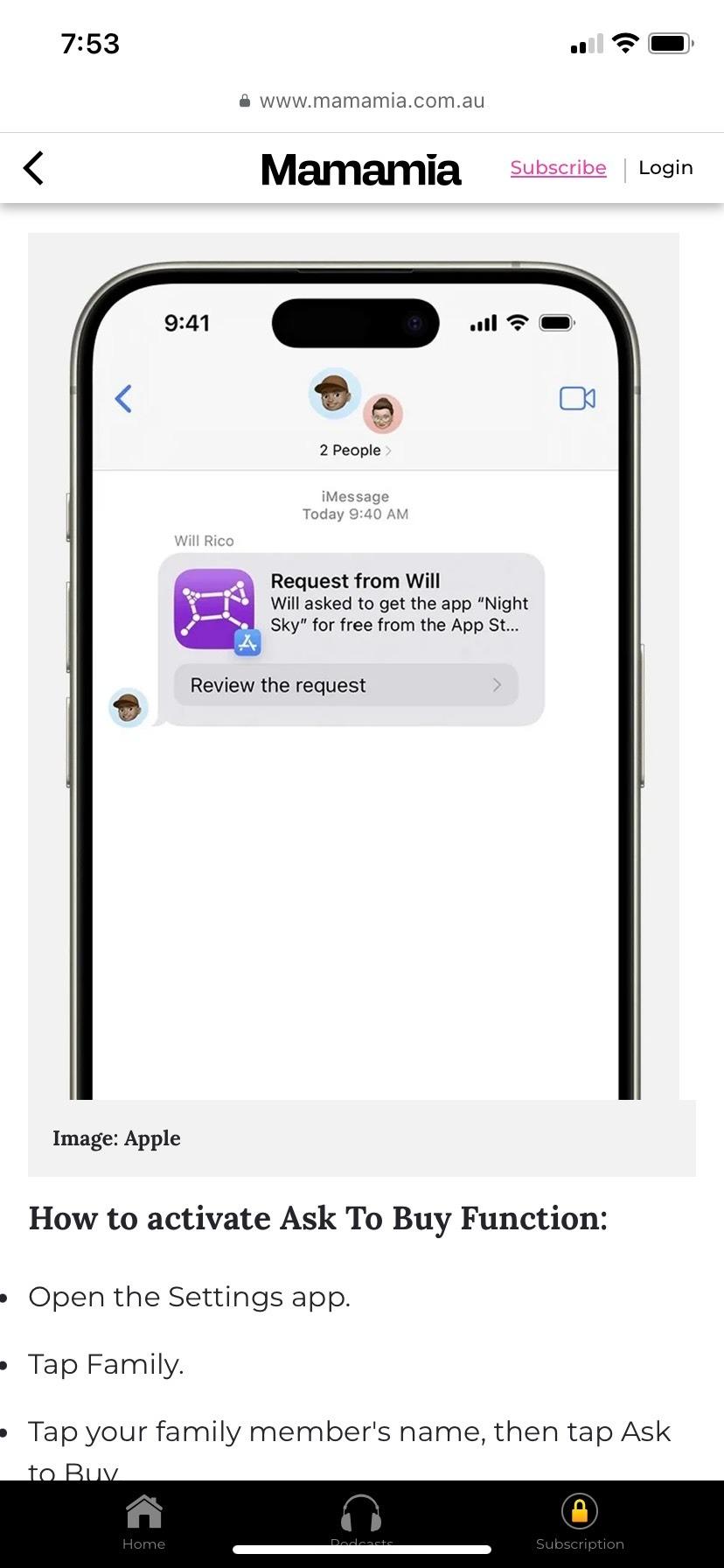
This setting is to ensure that you are never caught off guard by app or in app purchases. Plus, it helps to ensure all app purchases (even free ones) or anything else that can be purchased through the Apple Store are appropriate for your child.
The ‘Ask to Buy’ feature will send you a request that requires your approval every time your child tries to make a purchase. This means no more unexpected bills and you can ensure the purchases are age-appropriate.
How to activate Ask To Buy function:
- Open the Settings app
- Tap Family
- In iOS 16 or above, tap your family member’s name, then tap Ask to Buy
- In iOS 15 or earlier, tap Ask to Buy, then tap your family member’s name.
- Parental controls: content and privacy restrictions
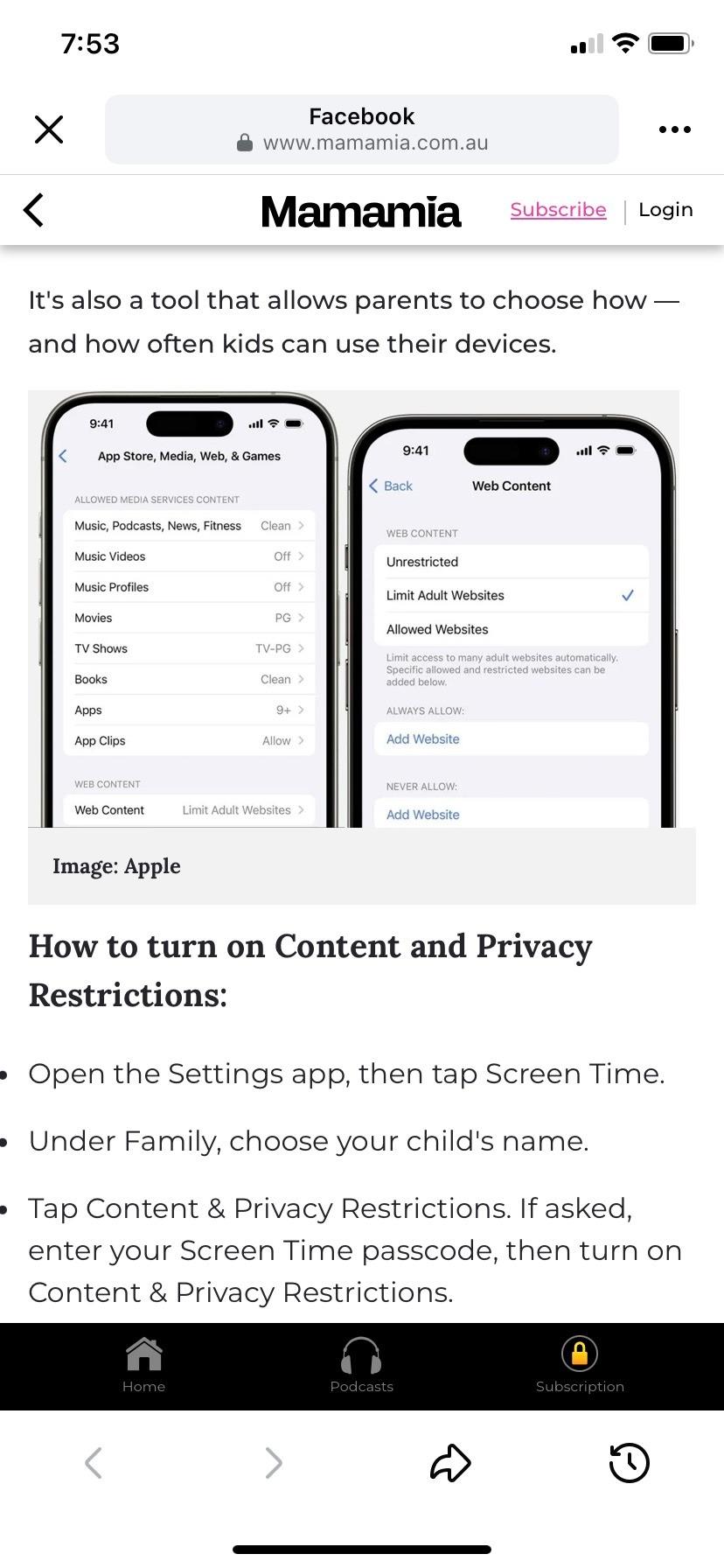
Through ‘Screen Time’, you can set up comprehensive content and privacy restrictions that put you in the driver’s seat. This feature lets you block explicit content, and you can set age-related restrictions for content they can view on websites, for purchases and downloads.
It’s also a tool that allows parents to choose how - and how often kids can use their device.
How to turn on Content and Privacy Restrictions:
- Open the Settings app, then tap Screen Time
- Under Family, choose your child’s name
- Tap Content & Privacy Restrictions. If asked, enter your Screen Time passcode, then turn on Content & Privacy Restrictions
After you have turned on Content & Privacy Restrictions, you can set up lots of parental controls. You can find the fill and comprehensive list of parental controls you can activate here.
Remember, the goal isn’t to restrict your child completely, but to create a safe digital environment where they can explore and learn while staying safe and protected from online risks.
Article sourced from Mama Mia and originally published on 14/4/25
SENIOR SPORTS
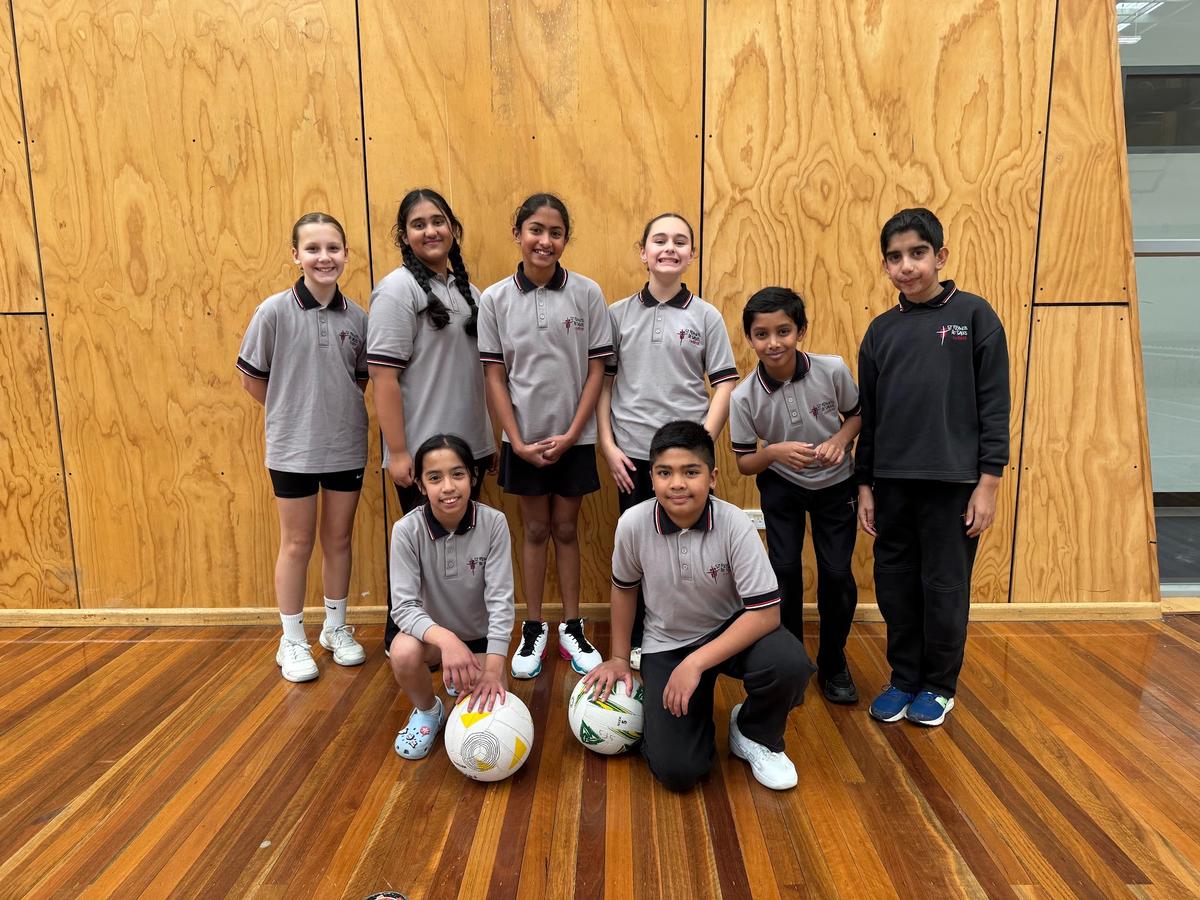
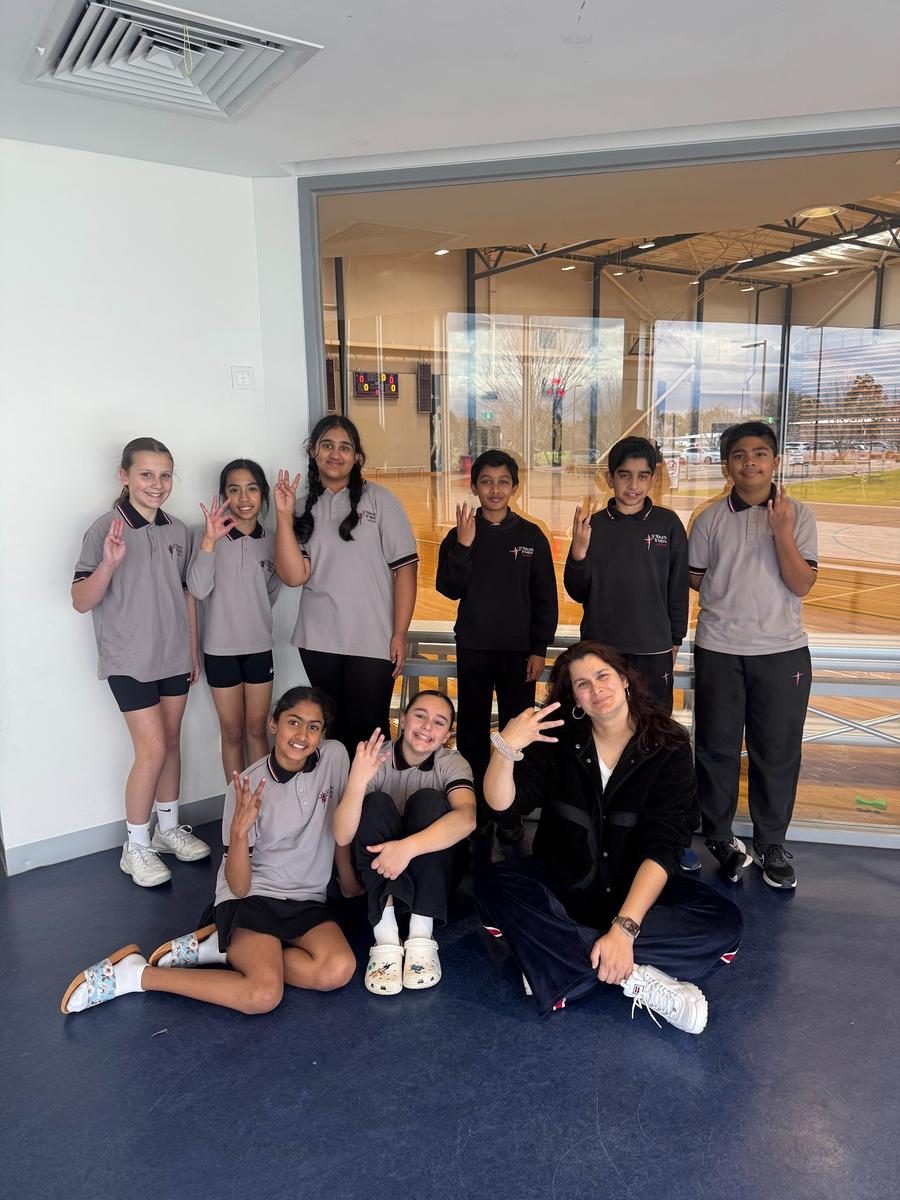
Our Netball Mixed Team competed in the round robin Divisional Finals at Casey Stadium on Wednesday, July 22. Our netball team has never achieved this level before, which is an amazing feat.
The students put in a lot of effort to get here. With only one child on the bench, the squad played four netball matches and performed admirably, placing third. Despite being exhausted after each game, they showed a lot of enthusiasm and wonderful sportsmanship on the court with both each other and their opponents.
Melody was amazing in helping the team with their skills both during the day and over her lunch breaks. We are grateful to our wonderful parents for their assistance with student monitoring and scoring. We sincerely appreciate Louise Franco's assistance, and support of our interschool sports program are greatly appreciated.
Three Interschool Sport, Grades 5 and 6 students will be participating in one of the following sports: Cricket, Tennis, Basketball, Handball and Softball.
Five games and a lightning premiership against local schools have been scheduled. The schools we are playing, dates and locations for these events are as follows:
- Friday 31st of July Coral Park Primary School– Home Game
- Friday August 7th Lynbrook Primary School – Away Game
- Friday August 14th St Kevins Primary School– Home Game
- Friday August 21st Hampton Park Primary School – Away Game
- Friday August 28th Kilberry Valley Primary School- Away Game
Tuesday September 1st Lightning Premiership
BASKETBALL-CASEY INDOOR STADIUM
TENNIS – CRANBOURNE TENNIS CENTRE
CRICKET, SOFTBALL – LIVINGSTONE RESERVE
EUROPEAN HANDBALL – MELBOURNE CITY SOCCER PITCHES
DISTRICT ATHLETICS
Our District Athletics Team have been selected and are training hard to represent St Francis De Sales Primary School for District Athletics which will occur on
Tuesday 18th of August at Casey Fields Athletics Track.
NOTE PLEASE APPROVE ON nFORMA
Lulli Barbakos
Physical Education Teacher
Senior Sports Coordinator
lbarbakos@sfslynbrook.catholic.edu.au
EXTRA-CURRICULAR ACTIVITIES

WHOLE SCHOOL SPORTING EVENTS
WHOLE SCHOOL SPORTING EVENTS
SFS TERM 3 AUSKICK CENTRE COMING!!
Parents a reminder that our SFS Auskick Program begins in Week 6 on Wednesday August 19th from 3.20pm – 4.20pm. Tyler is happy to run a separate group for the girls if we have enough registrations. There will be 4 sessions and the cost will be $55. Like last year students who register will also receive a pack sent to their home.
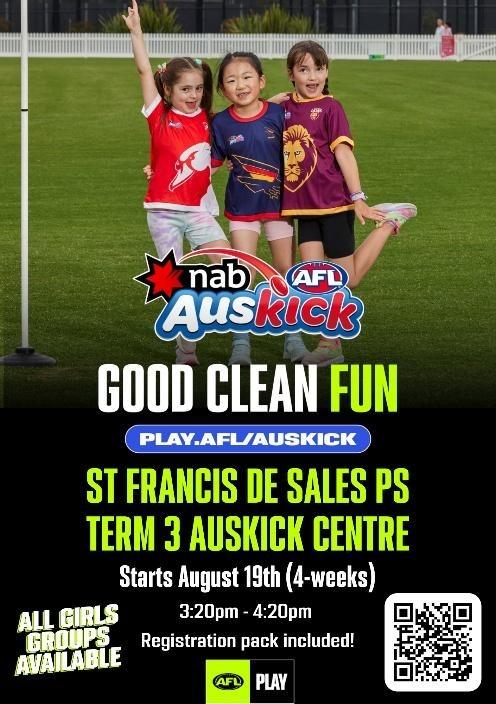
If you would like your child to attend, please use the QR Code on the flyer or the link below to register your child. HURRY SPACES ARE LIMITED AND FILLING UP FAST!!
https://www.playhq.com/afl/register/099c1b
Information has also been sent via nForma but remember you must register your child with AFL for them to be involved.
Any queries please don’t hesitate to contact me.
Giuliana
Extra-Curricular Coordinator