
ICT

Accessing the Parent Access Module (PAM)
A reminder to parents that access to PAM can be completed from any mobile device. The school aims to ensure most of the communication between parents and the school is managed from within the PAM site.
The school has received several requests to access the 3rd party application SIMON Everywhere on its re-entry to the market. St Mary’s is not currently connected with this 3rd Party application but will continue to investigate value propositions for this application which has a subscription cost per student.
To access PAM use https://pam.smseymour.catholic.edu.au You can do this on a laptop or your mobile phone. We recommend you save the link as a favourite. If you haven’t accessed PAM in some time, we also recommend resetting your password. It must be 12 characters in length and include uppercase, lowercase characters, numbers and a special character.
The MFA (Multi Factor Authentication) code is sent as an email to your email address registered to the PAM account. Whilst this should be under 30 seconds, it can take longer depending on multiple factors, such as server bandwidth, Recipients' email host and SPAM filtering. MFA codes are only valid for 10 mins so any longer and the code becomes invalid. For security of your account data, you are required to complete MFA each time you login to PAM.
If you are having trouble with accessing the site from your phone, please make contact with our friendly ICT team who can walk you through resetting your account and using the MFA verification.
Working with Links in Gmail
Often gmail is set to open any link in an email within the gmail internal viewer which makes it hard if you need to get a code or another detail from a new email.
Below are 2 ways to manage this situation. One is a permanent change in Gmail settings and the other is an ad hoc method.
Ad hoc Method
1 – From Gmail, click on the link inside your email and it opens in the Gmail internal viewer
2 – At any time, you can use the chevron to minimise the internal viewer window, moving it to the bottom corner of your screen
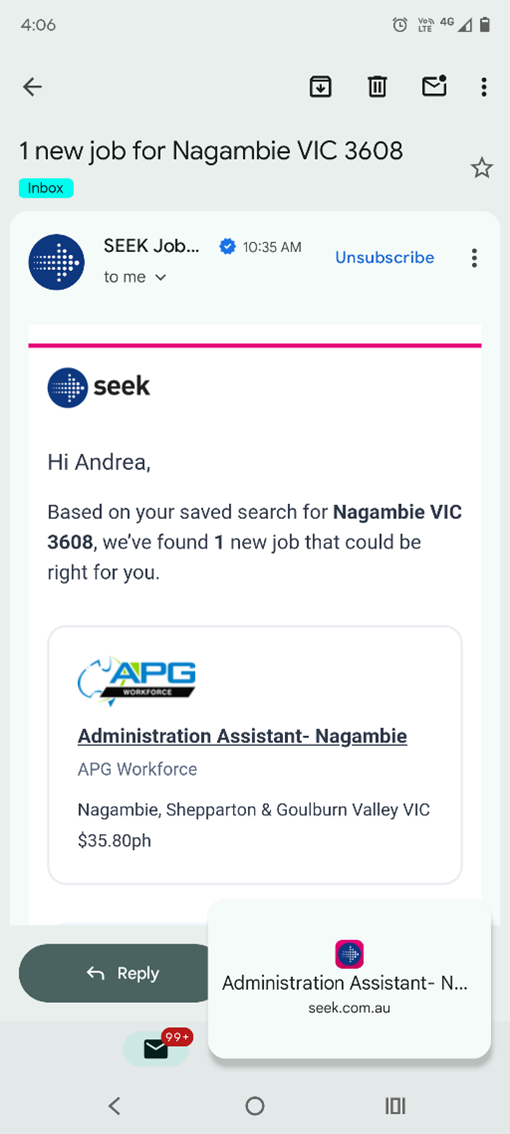
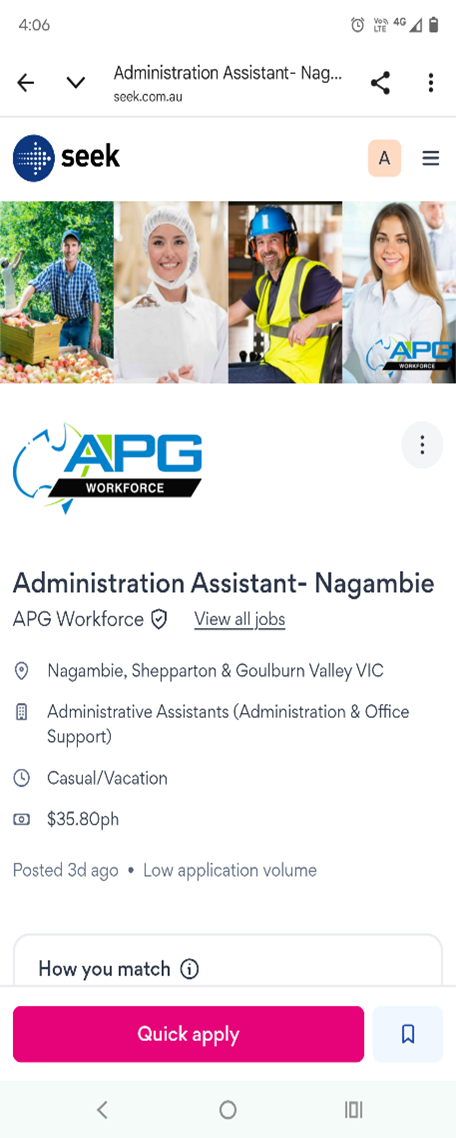
4 – You can then review other emails and return the minimised screen when you need by clicking on it.
Permanent method to stop links opening inside Gmail
Mobile Phone: Disable "Open Web Links in Gmail"
If you are using the Gmail app on Android/iOS, you can prevent links from opening in an internal viewer, allowing them to open in your default browser (Chrome/Safari) instead.
· Open the Gmail app and tap the hamburger menu (three lines) > Settings.
· Select General settings.
· Scroll down and uncheck "Open web links in Gmail".
Result: Links open in your default browser, allowing you to switch back to the Gmail app immediately.

Andrea Richards
andrea.richards@smseymour.catholic.edu.au