
Digital Technologies

STUDENT HEADPHONES
- Headphones are a requirement for every student at St.James
- Students in Prep will have headphones as a part of their school supplies. These will be ordered by the eLearning Leader. These headphones should last for a couple of years.
- Any headphones lost or damaged by the students will need to be replaced by the students' parents. The student and parent can decide which headphones suit the students needs i.e. in ear pods or over the head headphones. We recommend wired headphones so we do not need to charge wireless headphones.
- Students in Year 2- 6 will have their headphones sent home at the end of the year and will bring them back, or purchase new ones if required, to start the new year.
- Prep & Year 1 students will have their headphones kept at school and we will arrange for them to move up to the new classroom in the new year.
With the the end of the year approaching it is important for those families leaving St.James to think about what they would like to keep from their child's Google account.
Here are instructions to help you. It is important that this is done before the end of the school year, as MACS roll over the schools account without a lot of notice, and usually before the end of the calendar year.
END OF YEAR STUDENTS GOOGLE DRIVES
All Google Drives of students leaving the school need to have work saved into private accounts before the end of the week.
At the end of the year all students' Google Drive’s are rolled over, and students leaving the school, their drives become inactive. This means that you will no longer be able to login to view any work or emails. It is important therefore, that any work that you might like to keep is either transferred to another Google account, (ie a parents drive as students are not allowed to create a personal account unless 13 years of age), or the work is downloaded and saved onto a computer or USB drive.
To transfer files across to another Google Drive:
- Click on the file you would like to transfer
- Click on share and enter your personal Gmail address
- This file will now be accessible in your personal Google Drive.
- If you need to edit or change this file you will need to make a copy and then do so as you may not have editing rights
To download files from Google Drive (best done on a laptop or desktop computer)
- Click on the file you would like to download
- Click on download
- The file will now be available in your downloads folder
- Save this file onto a USB or into a folder on your computer
- If you need to edit or change this file you will need to make a copy and then do so as you may not have editing rights
For transferring content between Google accounts you can use Google Takeout for a comprehensive transfer:
- Go to takeout.google.com and sign in with the account you want to transfer from.
- Select "Select all" or choose specific services like Gmail and Drive.
- Click Next step.
- Under "Transfer to," choose the destination account, like another Google account or a service like Dropbox, and enter the recipient's email.
- Verify the destination account by following the link in an email sent to that address and copying the confirmation code.
- Click Create export to begin the transfer. This may take a while, and you'll be notified by email when it's done.
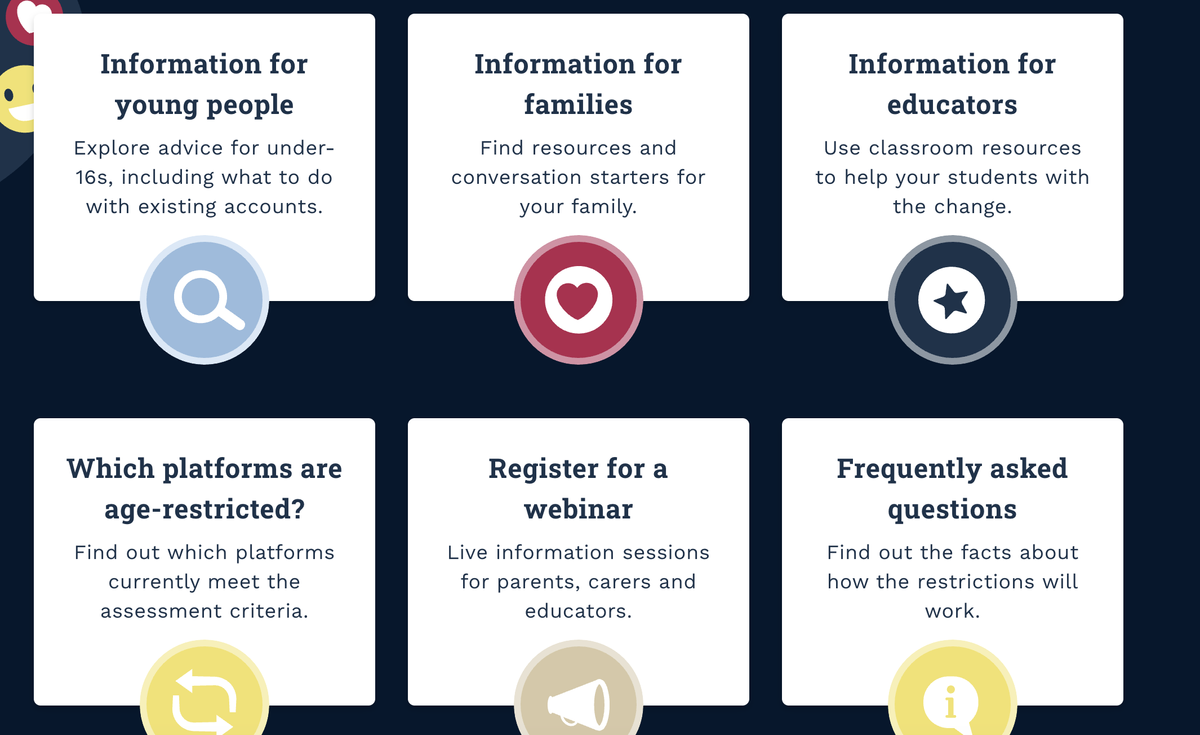
Have you started to have conversations with your child about losing access to their social media accounts? Don't forget there are resources available to help you through this process.
Any questions or help please email me at
nadine.jones@sjvermont.catholic.edu.au
Nadine Jones
E Learning Leader
STEM Teacher