
Canteen
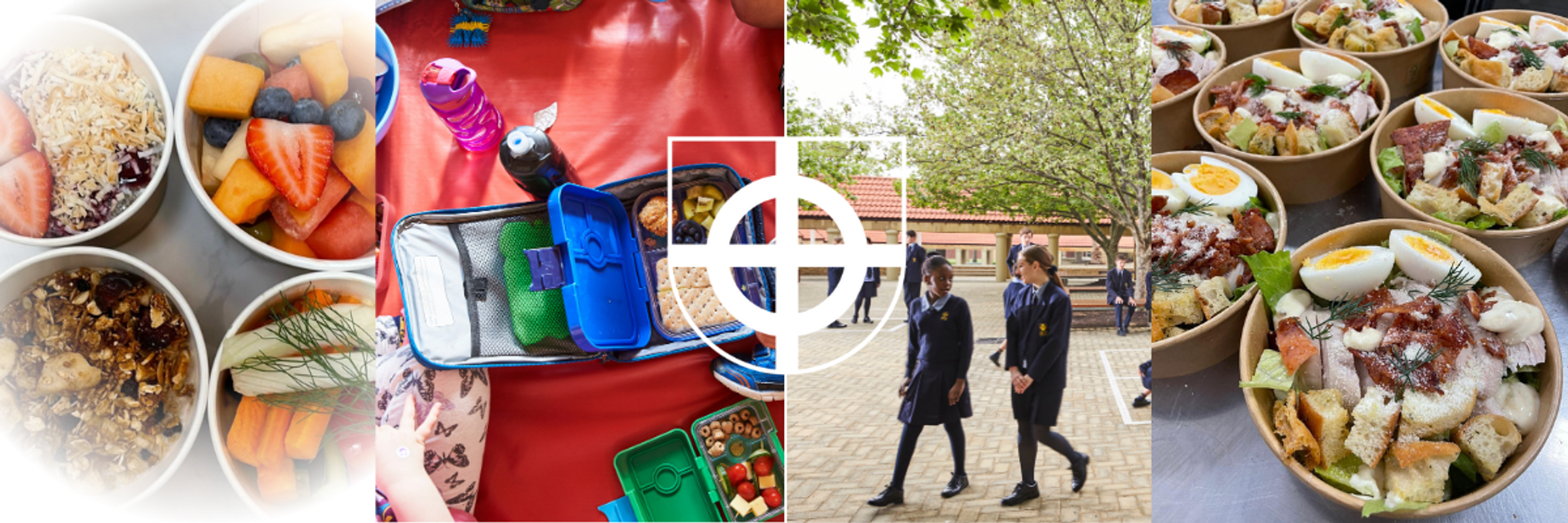
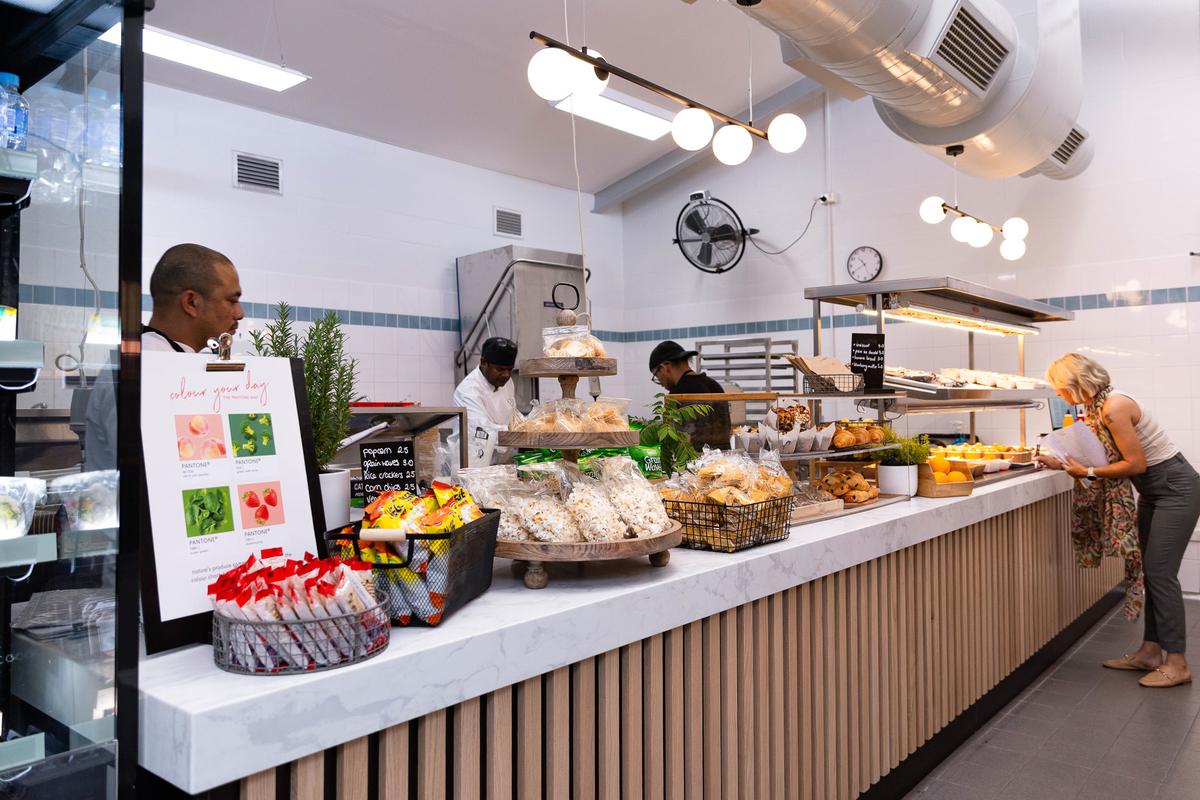
As part of an upgrade to Canteen facilities, the College is excited to announce that Chartwells will be our new food service provider, bringing fresh, nutritious meals and an enhanced dining experience to our students.
About Chartwells
Chartwells is a leader in school food services, guided by Smart Food principles developed by Food and Nutrition Australia. Their approach emphasises balanced menus, whole ingredients, and seasonal produce, all prepared fresh onsite to ensure students enjoy meals that are both nutritious and full of flavour.
Students can look forward to a diverse menu including freshly made sandwiches, wraps, salads, hot meals, house-baked items, grab-and-go snacks, and seasonal specials. Chartwells also provides clear allergen information and support for dietary needs. To keep meal options varied, menus will change each month to reflect seasonal produce.
What's on the menu


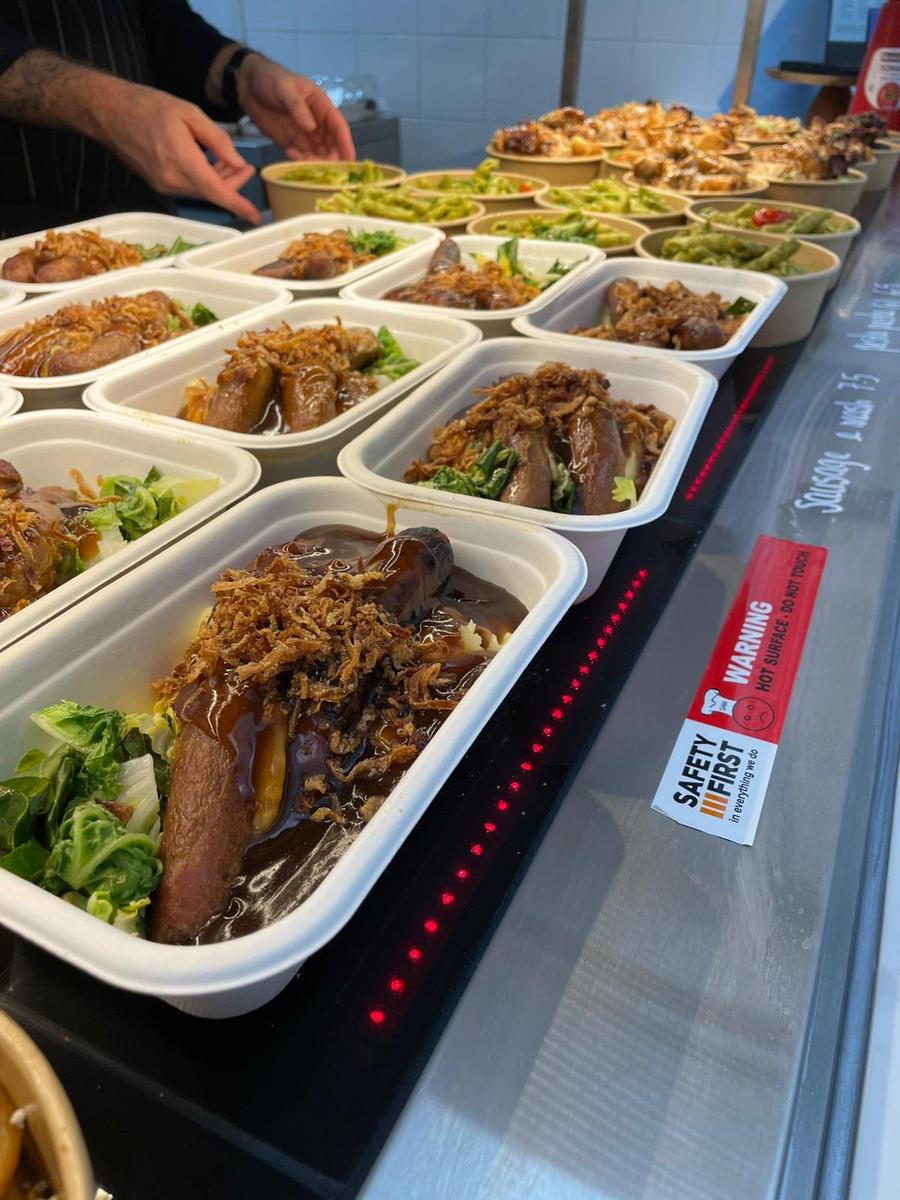



Meet Chef Hesh Daud

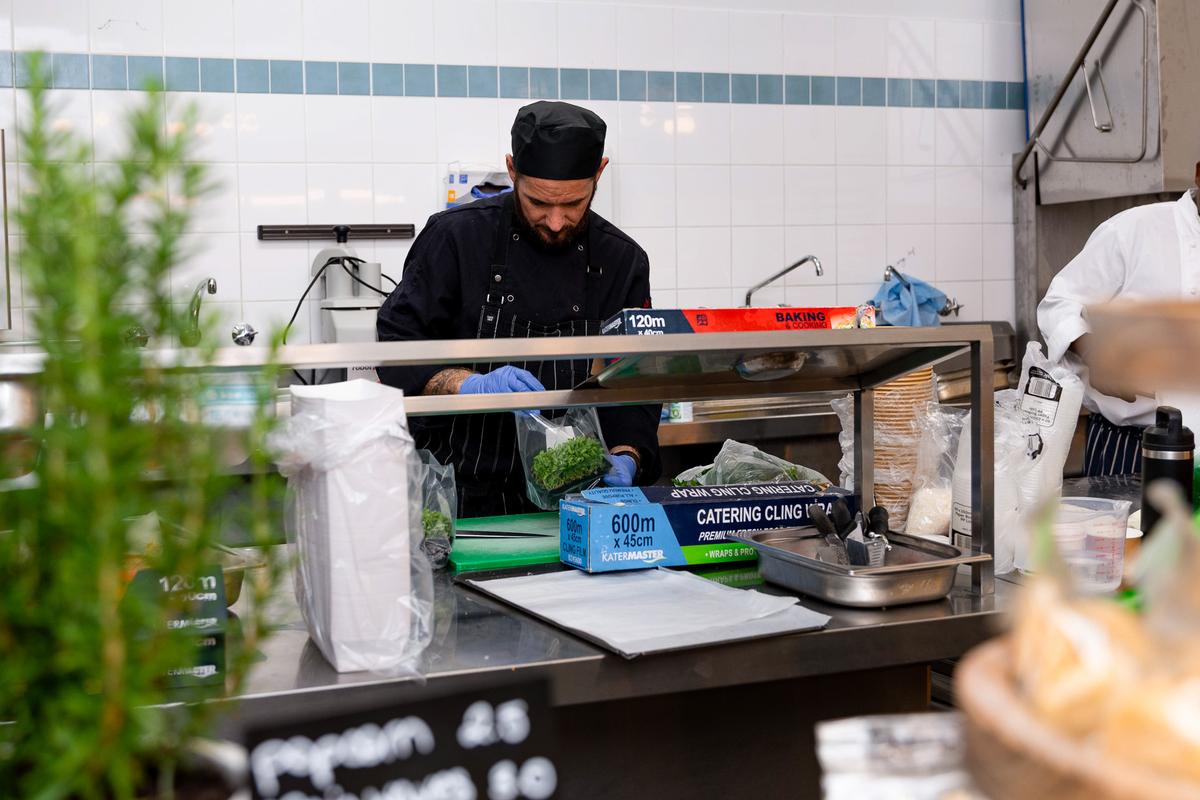
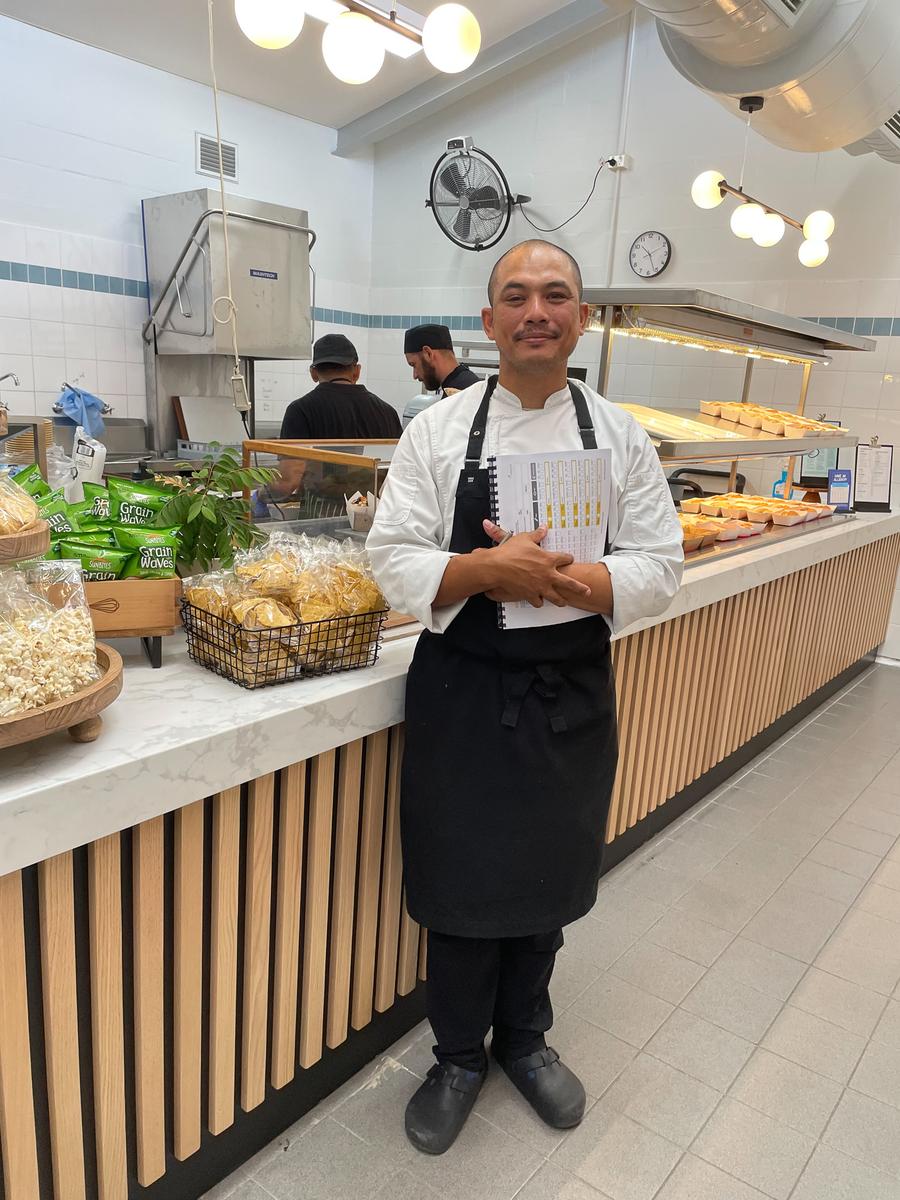
Our Chartwells chef, Hesh Daud, brings 15 years of culinary experience from fine dining establishments across the UK and Europe. Trained at Michelin-starred Hakkasan and having worked with renowned chefs including Yotam Ottolenghi and Tom Kerridge, Hesh is passionate about creating nutritious, delicious meals for students.
Hesh co-founded the award-winning Bottlebrush Ferments and has dedicated recent years to improving school meals with Chartwells. As a father of three, he is deeply committed to wellbeing, inclusion and positively impacting children's lives through food.
The Chartwells Model – Primary, Secondary and Cashless Service
Online ordering for Primary students
Primary students are not able to purchase food directly from the canteen. All lunch orders must be placed online via Flexischools, which can be accessed conveniently through the Flexischools app or website.
Pre-ordering or purchasing for Secondary students
Due to the high demand for the new canteen offerings, Secondary students can now pre‑order meals online or purchase directly from the canteen during recess and lunch. While ordering ahead through Flexischools is convenient, a wide range of fresh food and snacks will also be available over the counter each day, giving students the flexibility to choose what they feel like on the day.
A completely cashless service
The canteen now operates on a cashless system. Secondary students can make purchases using their SmartRider (linked to their Flexischools account — see instructions below) or a debit card. Please note that mobile phones cannot be used for payment.
Registering a new Flexischools account
Registering a new Flexischools account
New parents simply download the Flexischools app from the Apple or Google store and follow the prompts to create an account. You can also find registration and online ordering instructions here.
Download and open your Flexischools app and click ‘Register'.
- Submit your email to create an account.
- In your inbox, open the registration email.
Click the link within and follow registration prompts in app.
Once your account is set up, log into your Flexischools app and enter your child’s details.
- Select ‘Profile’ icon on the navigation bar.
- Under ‘Students’, click ‘Add new’ and enter student’s name.
- Search for John XXIII College in the school name field
- Select Year Level and Class
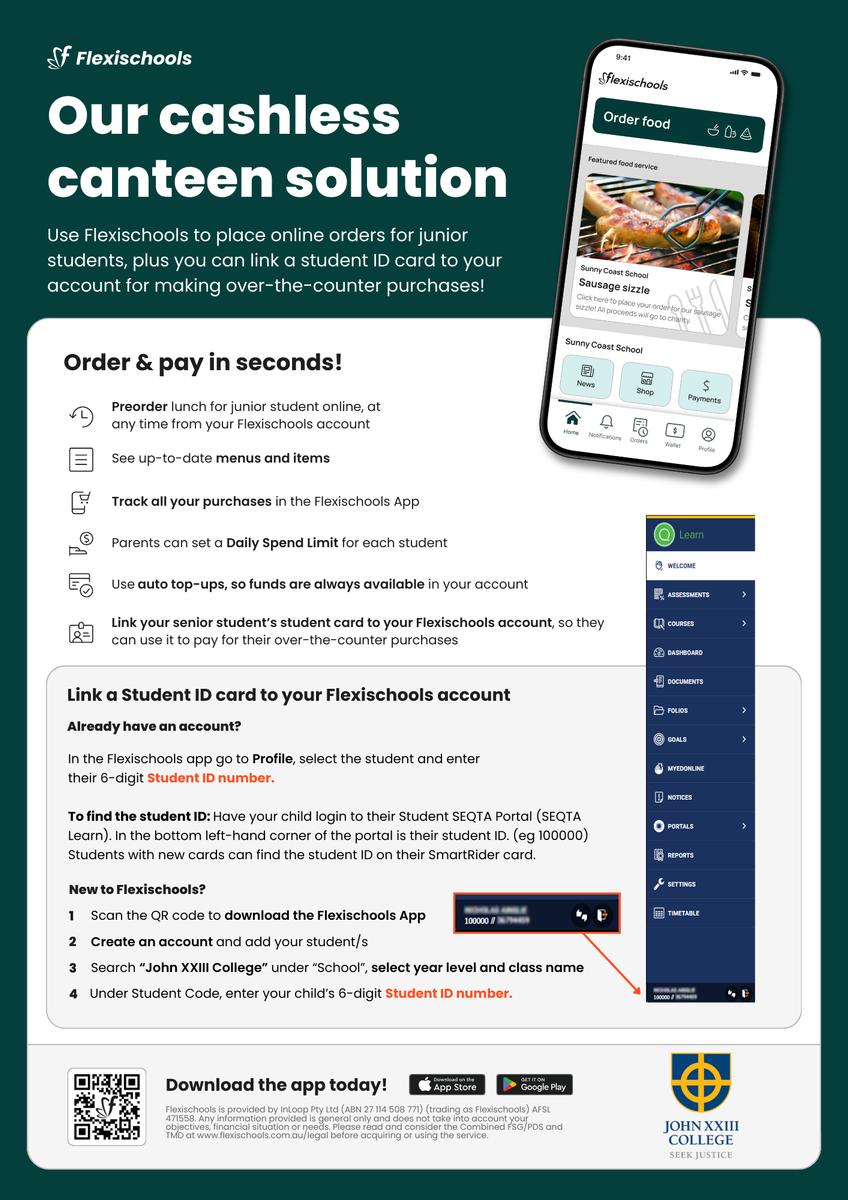
- To link a student card, enter your child’s 6-digit Student ID Number.
Click ‘Submit’.
Adding a new student to an existing Flexischools account
- Select ‘Profile’ icon on the navigation bar.
- Under ‘Students’, click ‘Add new’ and enter student’s name.
- Search for John XXIII College in the school name field
- Select Year Level and Class
- To link a student card, enter your child’s 6-digit Student ID Number.
Click ‘Submit’.
Adding a student card to an existing student
- Select ‘Profile’ icon on the navigation bar.
- Under ‘Students’, select the student you wish to add a student card to.
- Enter your child’s 6-digit Student ID Number.
- Click ‘Submit’.
To find the student ID for Secondary: Have your child login to their Student SEQTA Portal (SEQTA Learn). In the bottom left-hand corner of the portal is their student ID. (eg 100000) Students with new cards can find the student ID on their SmartRider card.
Give your student their own login
If you would like your student to place their own orders through Flexischools, you can give them their own login.
- Select ‘Profile’ icon on the navigation bar.
- Under ‘Students’, select the student you wish to give a login to.
- Click the toggle next to 'Give student their own Flexischools Online Ordering Login.’
- Enter your student's email address and, if you like, add a daily spend limit and click 'Save.'
Your student cannot access your saved payment method, add funds to your Parent Wallet, or access your saved payment method
Don’t forget to top up your Flexischools wallet with funds
To do this, click “Wallet” in the App and add some funds. You can also set auto top-ups, so you always have funds available. How to Set Up Automatic Top Ups
Your student is now ready to order online or scan their card at the canteen to pay!
Order and pay at the Canteen with Flexischools
SmartRiders can be very easily added to your child’s Flexischools profile allowing you to:
- Pay from your Flexischools balance
- See all purchases in the Flexischools App
- Ensure lunch money is used at the school canteen
- Set a daily canteen spend limit
- Easier and more secure than giving cash or debit card
Want to know more about managing your account?
Head to our Flexischools FAQs
Parent resources and help are available here.
Need assistance?
Flexischools can be contacted on 1300 361 769 or you can log a ticket on the Flexischools website: https://flexischools.com.au/contact-us
Important: QuickCliq wallet balance refunds
As QuickCliq will no longer be used, any remaining balance in your QuickCliq wallet can be refunded. We encourage all families to request their refund as soon as possible.
To request a wallet balance refund:
- Log in to your QuickCliq account
- Select PROFILE
- Navigate to: Account Balance Refund + Close Account
- Select REFUND REQUEST
Funds will be returned to the card last used for payment (allow 3-5 working days) or you will be prompted to provide bank account details for an EFT refund (allow 5-7 working days).
Important note for SmartRider users: If you have attached a QuickCliq balance to your child's Smart Rider, you will need to transfer the funds back to your Main Balance first via the STUDENT section of your account before requesting your refund.
If you wish to close your QuickCliq account entirely, select CLOSE ACCOUNT instead of Refund Request.
Need assistance?
For QuickCliq refund queries: • Phone: 1300 11 66 37 • Email: support@quickcliq.com.au