Changing to Compass School Manager

From the beginning of Term 4, Castlemaine Secondary College will be transitioning from XUNO to Compass as our school’s main communication and management platform.
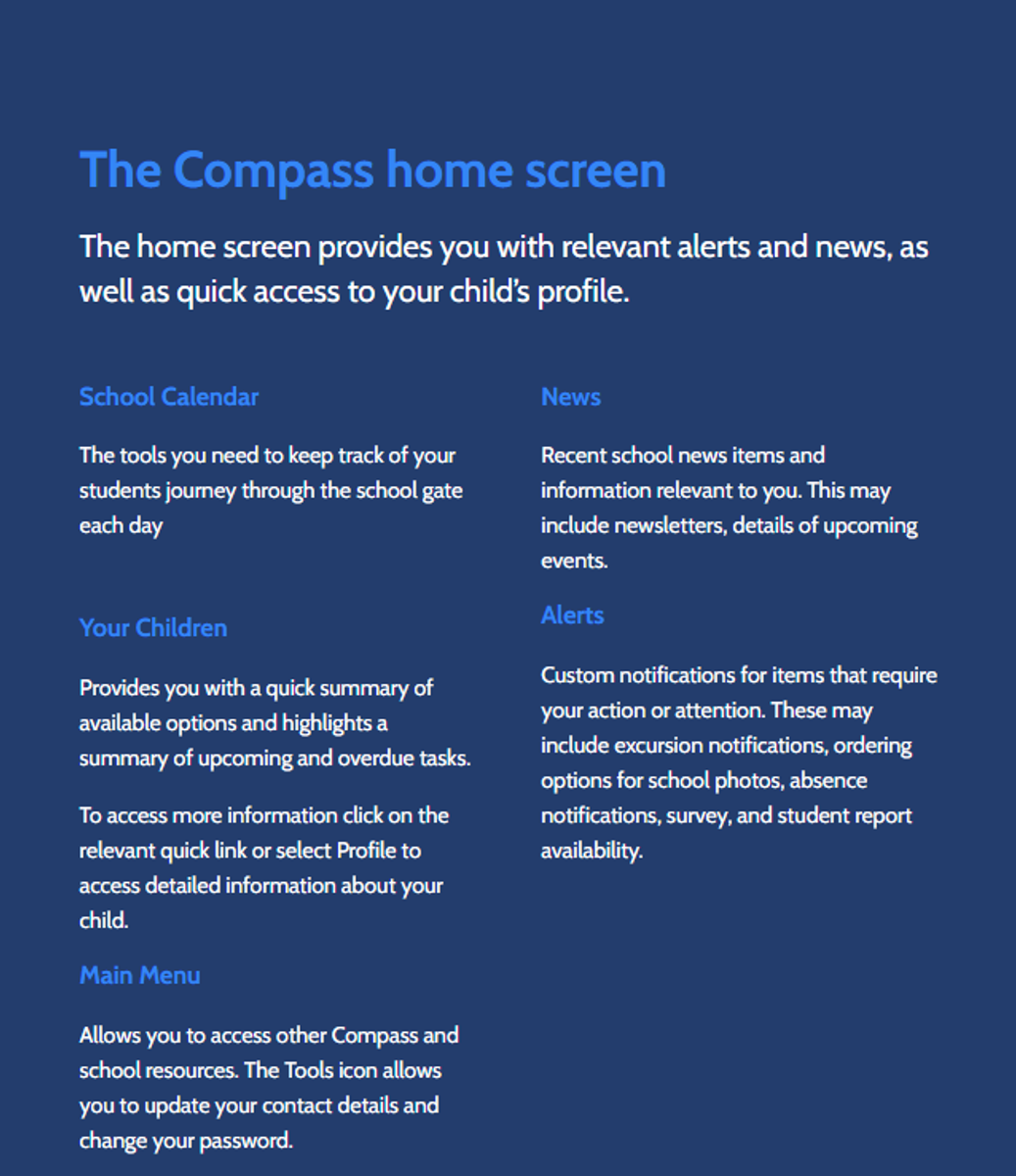
Compass will allow families to access important information such as student timetables, reports, attendance, consent forms, and school news all in one place. It is a widely used system across Victoria and will provide greater consistency and ease of use for both staff and families.
What is Compass?
Compass is a school management solution that allows parents and carers to access up-to-date and meaningful information about your school and your child’s progress. Compass includes many different features, including the ability to:
- Monitor your child’s attendance, and enter an explanation for absence or lateness
- Communicate with your child’s teachers, and update your family contact details
- View your child’s timetable and the school calendar
- Monitor your child’s homework and assessment tasks
- Download and view your child’s academic reports
- Book parent-teacher conferences
- Pay and provide consent for events and school fees
Login Details
All students & families should have received their individual login details from the school. If you have not received your information, please contact our ICT department via
8824-ict@schools.vic.edu.au or contact the school 5479 1111.
Steps to Log In
- Open the App or Website:
For the App: Download the Compass Parent App from your device's app store.
For the Website: Go to your school's Compass login page or use the schools.compass.education website to find your school's portal.
Select Your School: Choose your school from the list or search for it.
- Enter Your Details:
Type your username and password into the designated fields.
If it's your first time or you're using a temporary password, you'll be prompted to create a new one.
Log In: Click the login button to access your Compass home screen.
What if you've forgotten your details?
Forgot Password:
Select the "Forgot Password?" or "Can't Access Your Account?" link on the login page, enter your username or email address, and follow the instructions to reset it.
Forgot Username:
Open the Compass app, tap "Forgot Password?", then tap "I don't know my username," and enter your registered email or mobile number to receive a text or email with your username.
Download the App
You can download the Compass App on iOS and Android devices, simply search for Compass School Manager in the store.
Using the app you can:
- View the school news feed
- Receive messages from the school
- View your child’s timetable and the school calendar
- View Learning Tasks
- Book parent-teacher conferences
- Add Attendance Notes
- View academic reports
Click HERE for more information
Support Parent-Frequently Asked Questions
Attendance
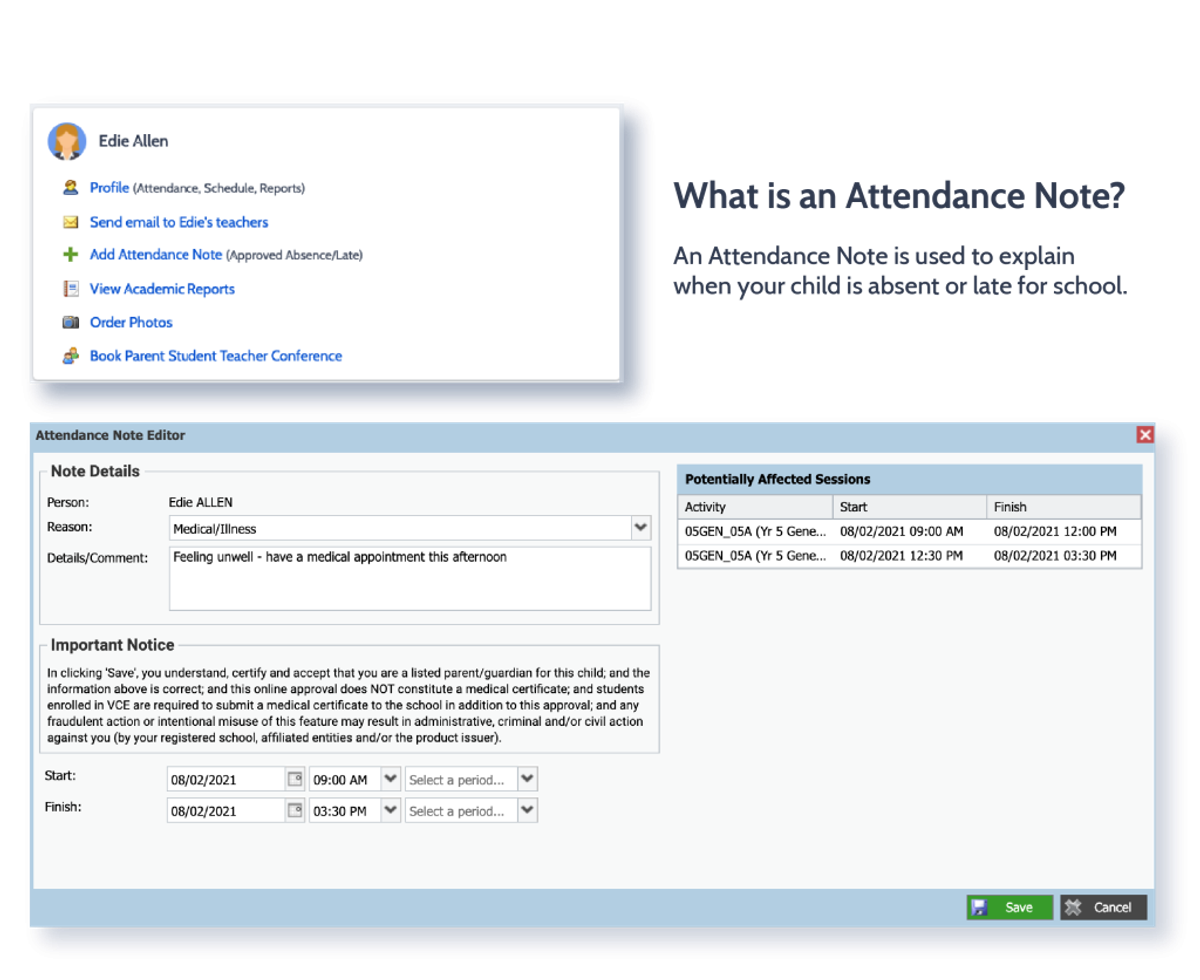
Entering an Attendance Note
From the Compass home screen (or from your student’s profile), click the Add Attendance Note item.
- 1From the Compass home screen (or from your student’s profile), click the Add Attendance Note item.
- 2From the pop-up window
- Select the reason
- Enter a brief description of the absence
- Select the start and finish time
- Click the ‘Save’ button
Using the Compass App
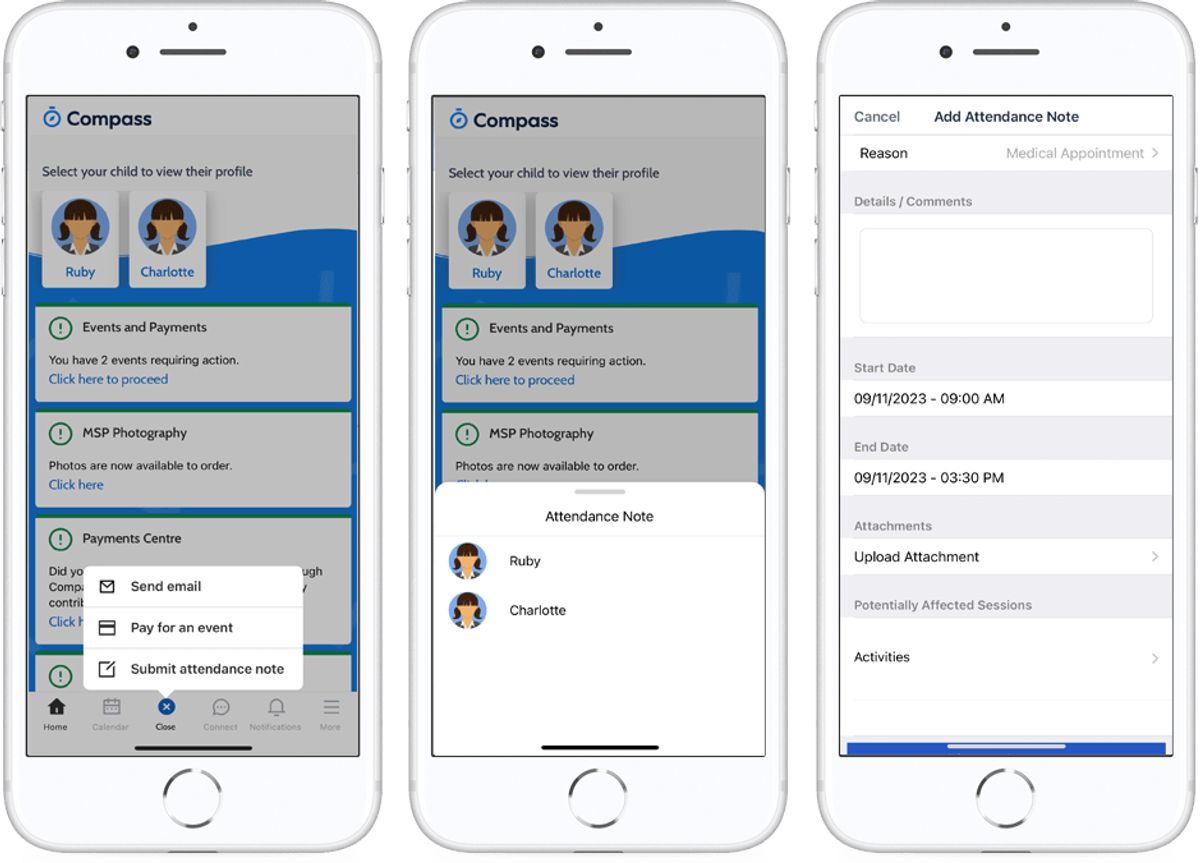
- 1From the homepage, click on the blue shortcuts button from the bottom taskbar
- 2Click on ‘Submit Attendance Note’
- Select the reason
- Enter a brief description of the absence
- Select the start and finish time
- Click the ‘Save’ button